
This guide will help you configure a connection between Zendesk and Elements Connect using an API token for authentication.
Prerequisites
-
Jira Cloud instance with Elements Connect installed.
-
Admin access to your Zendesk instance.
Configuration steps
Generate an API Token in Zendesk
-
Log in to Zendesk Admin Center.
-
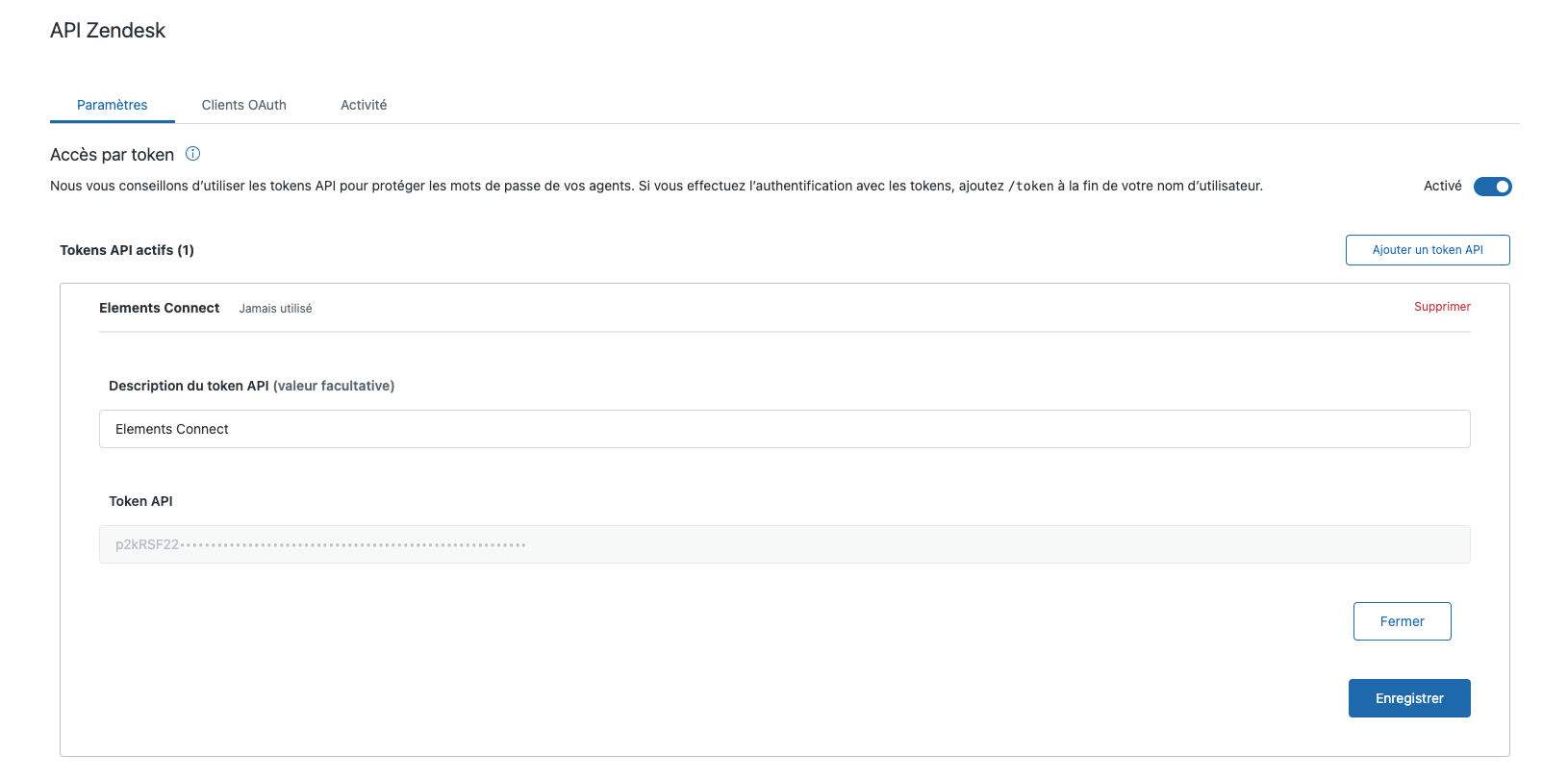
Navigate to Apps and integrations > Zendesk API > API Tokens.
-
Enable Token Access if it is not already enabled.
-
Click Add API Token.
-
Provide a name for the token (e.g., "Elements Connect Integration").
-
Click Save and copy the generated token.
Important: Keep the token secure, as it will not be shown again.
Add Zendesk as a Data Source in Elements Connect
-
Log in to your Jira Cloud instance as an administrator.
-
Go to Elements Connect Administration > Data Sources.
-
Click Create Data Source and choose REST API.
-
Enter the following details:
Server Details
-
API Base URL:
https://<your_zendesk_subdomain>.zendesk.com/api/v2/Replace
<your_zendesk_subdomain>with your Zendesk subdomain. -
API Documentation:
https://developer.zendesk.com/documentation/ticketing/getting-started/zendesk-api-quick-start/ -
API Test URL:
https://<your_zendesk_subdomain>.zendesk.com/api/v2/users/me.json
Authentication
-
Mode: API Key
-
Send in: Request Header
-
Header Name:
Authorization -
API Key: Enter the API token copied from Zendesk.
-
Test your connection
-
Create your first field!