
Prerequisites
-
Have a Jira Cloud instance
-
Have Elements Connect installed on your instance
-
Have a HubSpot account
Configuration steps
-
HubSpot API configuration
-
Elements Connect configuration
-
Endpoint examples
1. Hubspot API configuration
Create a private app
-
Go to settings

-
Go to Account Lanagement > Integrations > Service Keys
-
Create a service key
-
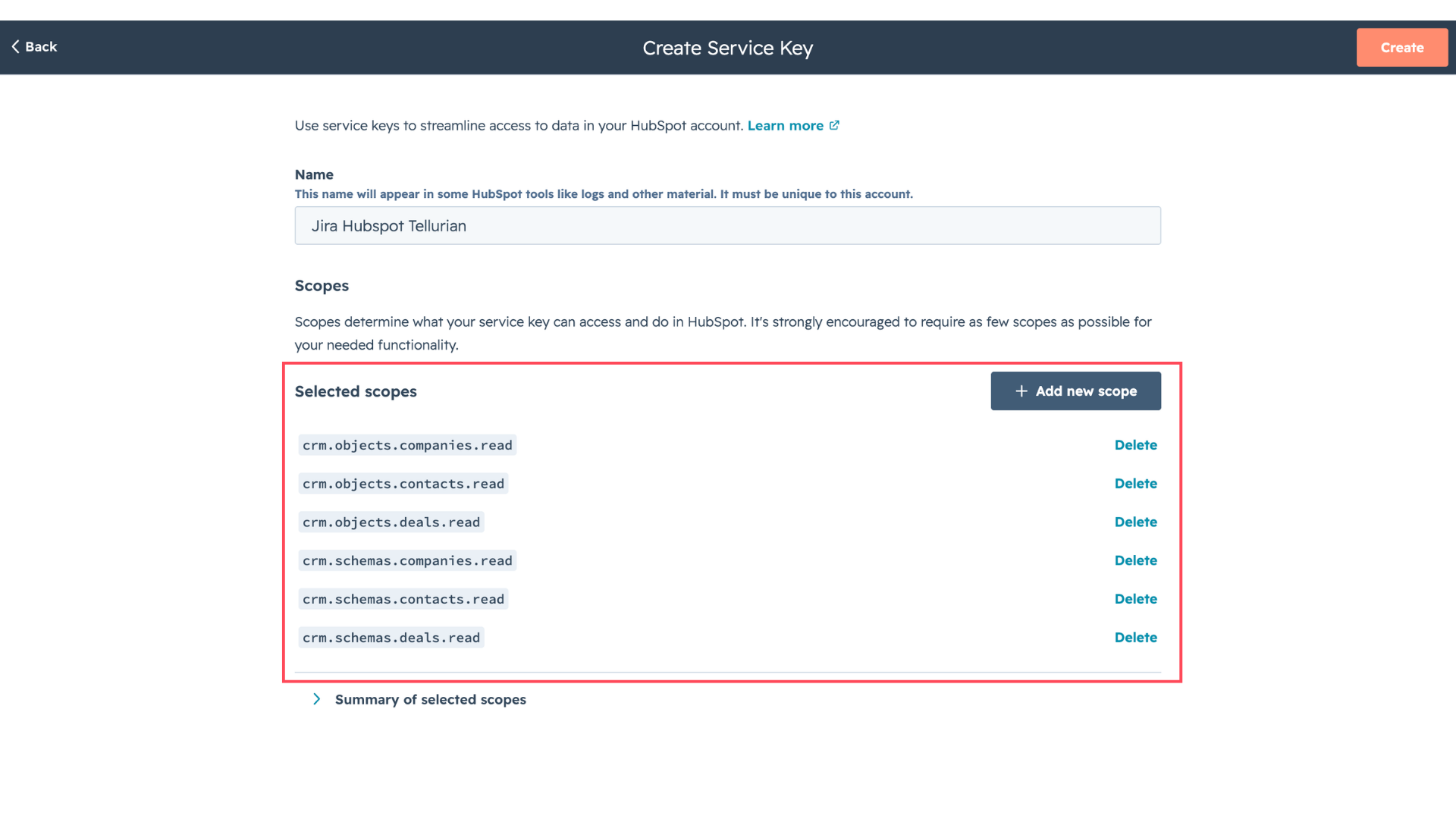
When creating this key, you will need to add new scope to specify the elements you want Elements Connect to access (grant only read access), as below:
-
Once the service key is created, copy the token that has been created as a result:
.png?cb=5b293d97839f6758d47a5b1477a2052b)
2. Elements Connect configuration
-
Go to the Elements Connect administration menu
-
Go to the Datasources tab
-
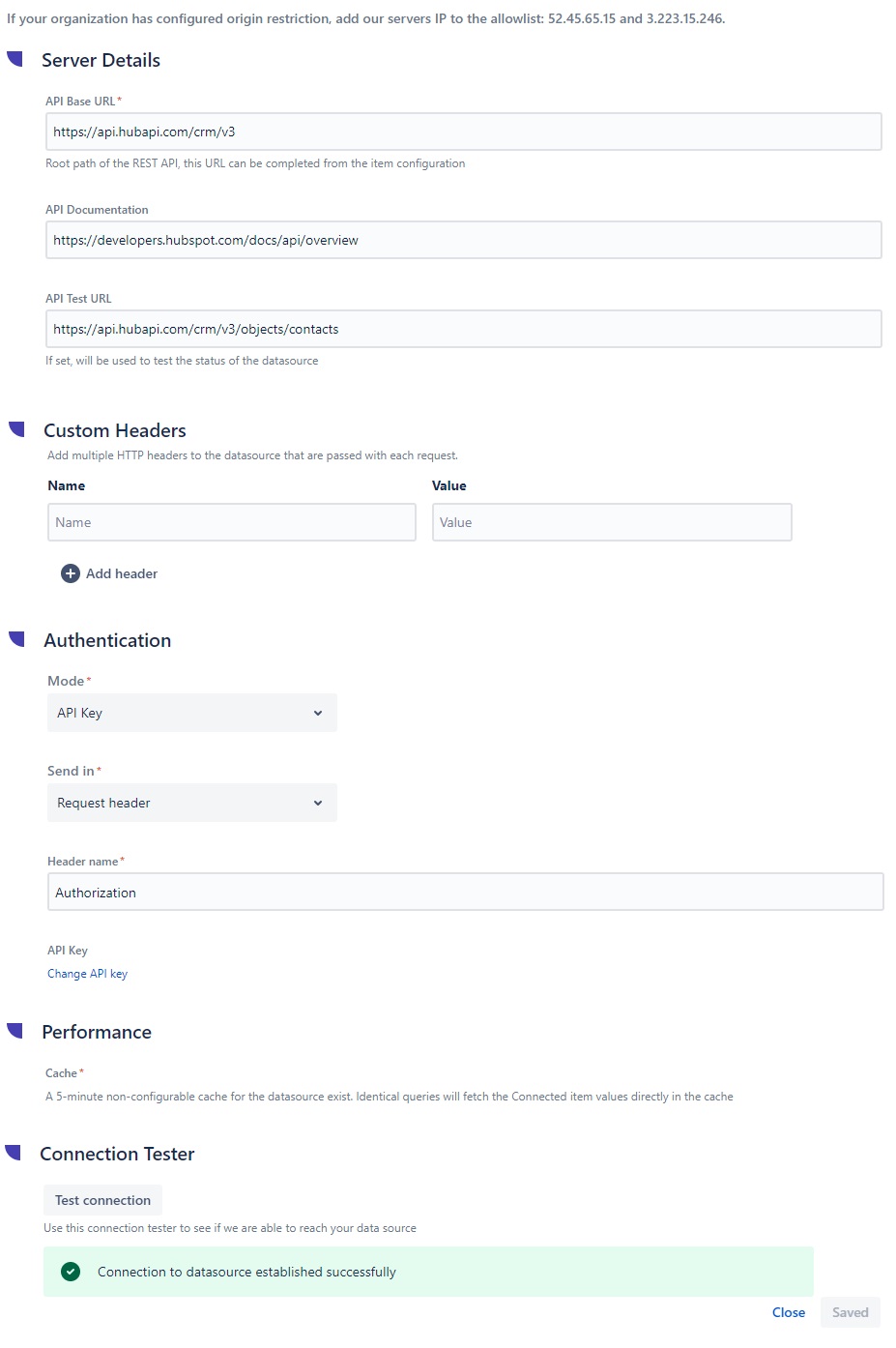
Create a new REST API datasource and configure it as follows:
-
API Base URL:
https://api.hubapi.com/crm/v3 -
API Documentation:
https://developers.hubspot.com/docs/api/overview -
API Test URL:
https://api.hubapi.com/crm/v3/objects/contacts
-
This URL must refer to an allowed endpoint and therefore be included in a previously selected scope in HubSpot. In this exemple, the scope was “crm.objects.contacts.read” so this “Test URL” can be used.
-
Authentication:
-
Mode: API Key (Send in Request Header)
-
Header name:
Authorization -
API KEY:
Bearer YOUR_TOKENYou need to replace YOUR_TOKEN with the Token provided when the Hubspot app was created.
-
-
Then, click "Save" and "Test Connection":
3. Endpoint examples
Once your datasource is ready, you can create connected fields and retrieve different types of information.
All available endpoints are listed in this documentation: CRM - Objects