The dependencies detailed in this page are specific to connected items.
When fetching data from an external source, it can be useful to only retrieve data that is relevant to the current request, even if it is still being created.
To do that, Elements Connect allows you to reference specific variables and attributes when setting up your query, which can be used to create dependencies to other data in the same context.
Supported data
The table below lists all the data that can be referenced in your queries, as well as the attributes you can use.
|
Field type |
Available attributes |
Value returned |
|---|---|---|
|
Project |
|
The unique identifier of the project |
|
|
The name of the current project |
|
|
|
The project key |
|
|
|
The project category |
|
|
|
The project type |
|
|
Request type |
|
The unique identifier of the current request type |
|
|
The name of the current request type |
|
|
Issue type |
|
The name of the current issue type |
|
Reporter |
|
The display name of the reporter |
|
|
The display name of the reporter |
|
|
|
The email of the reporter |
|
|
|
The atlassian account ID of the reporter |
Usage
You can use these attributes to create dependencies in your connected items queries to other fields.
For example, you may want to create a dynamic query in a REST endpoint that returns only the data based on your current issue type.
API request
{BaseURL}/search/jql?jql=issuetype="${issuetype.name}"
In this request to the local Jira API, all the issues with the same issue type as the current issue are retrieved.
Known limitations
Resolution of Reporter in creation screen
Due to Jira Cloud limitations, the ${reporter} variable cannot be resolved on Portal request creation screens and issue creation screens. Instead, it will be resolved to an empty string.
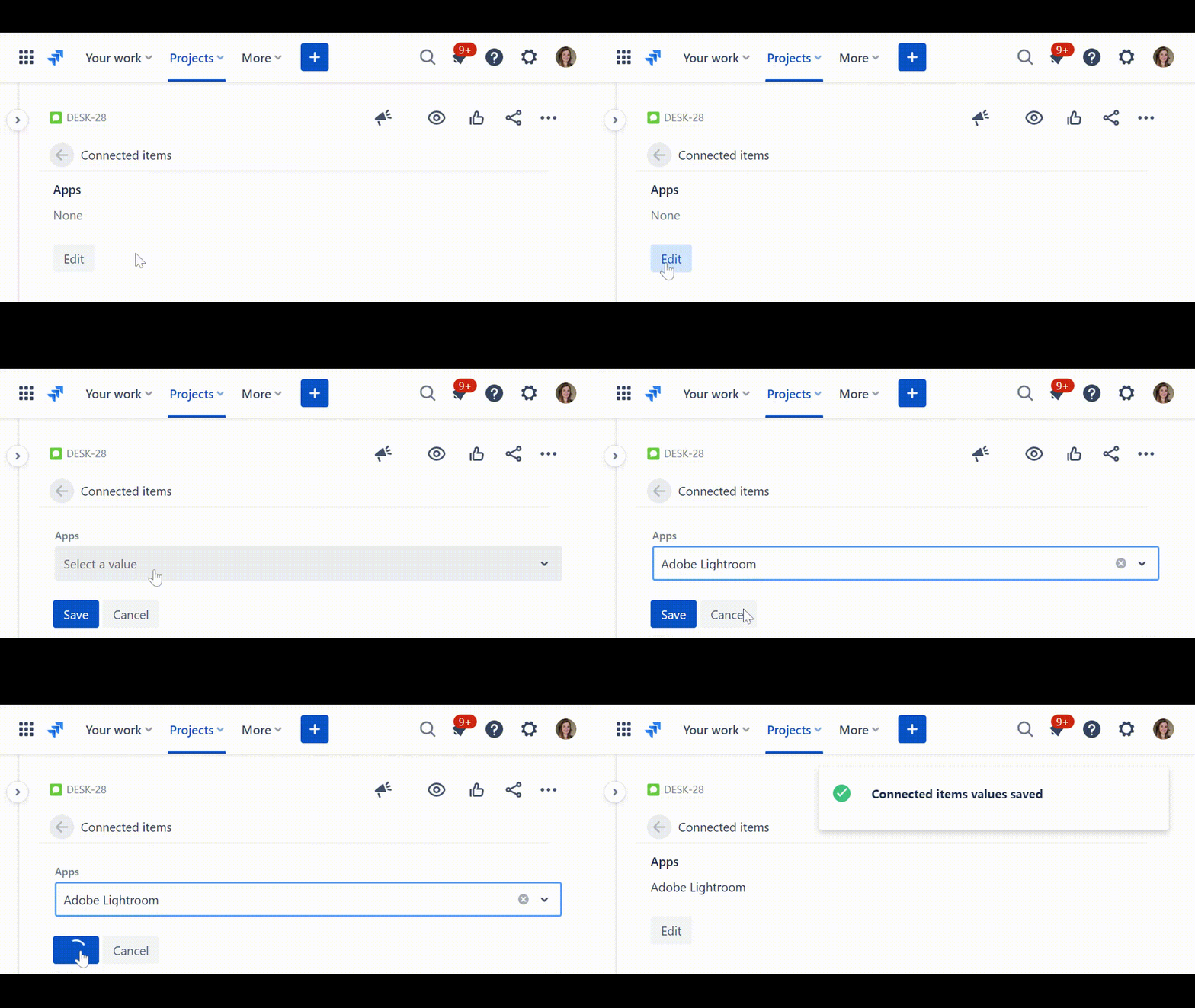
In order to have it correctly resolved, you will need to click "Edit" from the connected items glance panel in the issue view: