
In the Content configuration tab, you can find the settings that let you define what will be synchronized from your source work item to your target work items.
Fields
This section lets you configure which Jira fields must be synchronized between the source work items and its copies.
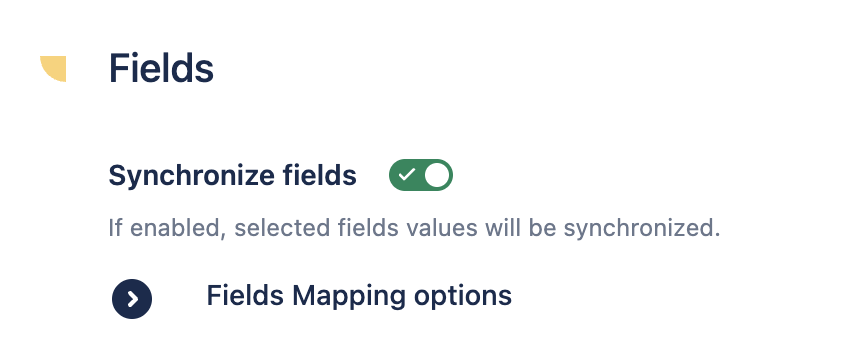
Synchronize fields
Use this option to enable or disable the Fields Mapping between the source work item and its copies.
When the option is enabled, the Fields Mapping options subsection is available to select which fields from the source work items must be synchronized with the copied work item.
Fields Mapping options
Add target field
Use this option to select which fields must be set in the target work item by the recipe.
When a field is selected here, it is then displayed in the Fields Mapping table below. Options are available to add all available fields at once, as well as clear the whole table in one click.
Fields mapping table
This table lets you initialize the fields in your target work item by either copying field values from the source work item or presetting default values.
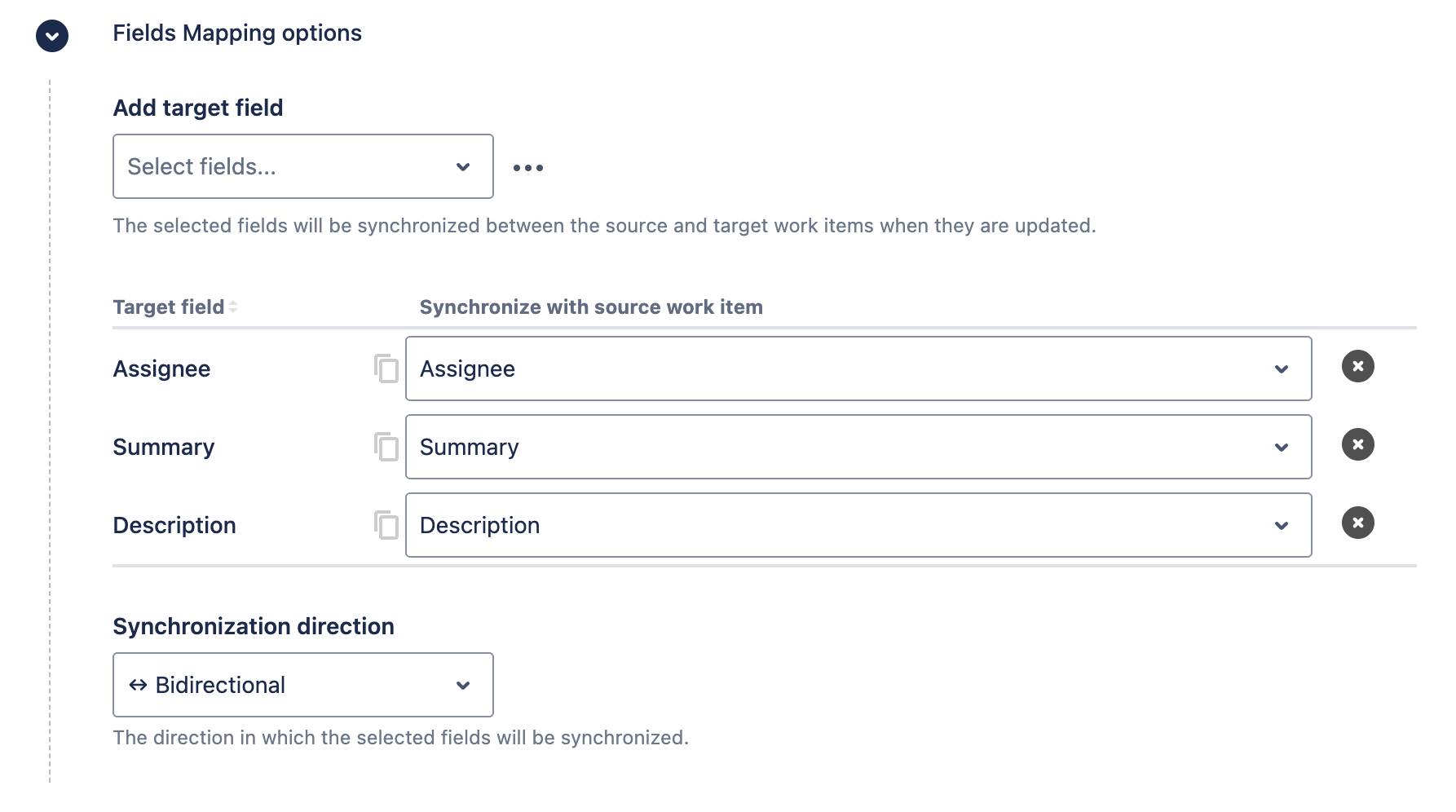
Synchronize field values
In this table you can select which fields should be synchronized from the source work item to the target work item.
When synchronizing a work item with a recipe, Elements Copy & Sync allows you to map some Jira fields from the source work item to different Jira fields in the target work item.
If the select list in the "Synchronize with source work item" column is grayed out, it means that no other field can be synchronized to the target field. The list of authorized mapping between different fields is available in the Fields Mapping documentation.
Synchronization direction
This option lets you decide how fields updates will be synchronized between the source and target work item.
-
From Source to Target: If a field is updated in the source work item, the new value will be synchronized into the mapped field in the target work item.
-
From Target to Source: If a field is updated in the target work item, the new value will be synchronized into the mapped field in the source work item.
-
Bidirectional: Any update in a field, either in the source or target work item, will be synchronized to the mapped field in the other work item.
In rare cases with bidirectional field synchronization, if two users edit the same field on linked work items within a very short time window (around 20 seconds), the second change may be ignored to prevent synchronization loops. This only affects that specific update - the next edit on either side will sync normally.
Comments
This section lets you configure how comments are synchronized between the source work item and the target work item.
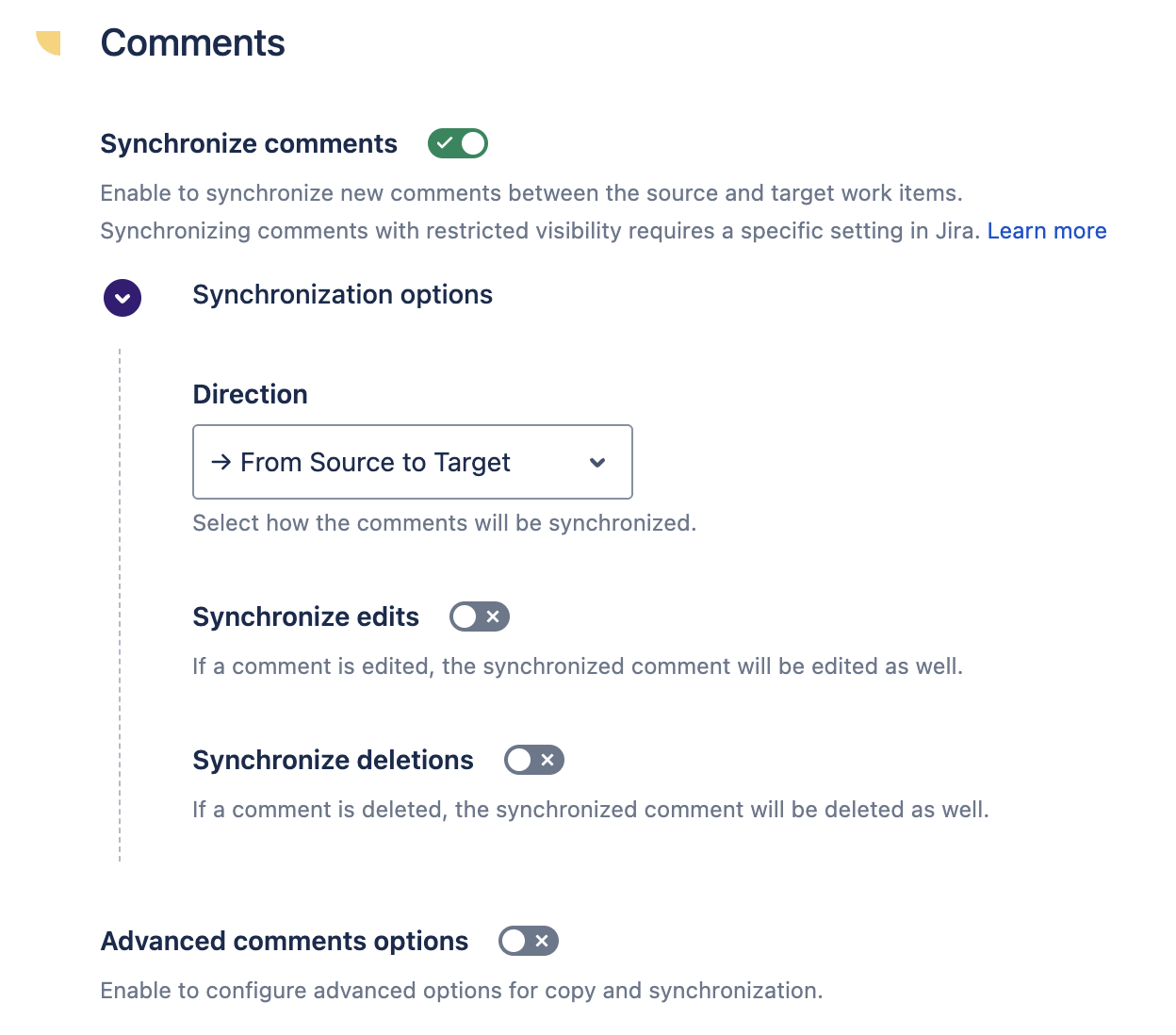
Synchronize comments
If this option is enabled, each time a new comment is added to either the source or target work item of the recipe, this comment will be synchronized to the other work item.
When a comment is copied/synchronized from a Jira work item to a Jira Service Management (formerly Jira Service Desk) work item, it is automatically converted into an Internal note. This is done to prevent any private information being communicated by mistake with customers in the JSM work item. To change this behavior, you can use the "Make Jira comments public in Customer portal" option (in the Advanced comments options below).
If the author of the original comment has the rights to post comments in JSM, they will be used as the author of the synchronized comment. Otherwise, the author of the synchronized comment will be "Elements Copy And Sync", and the original author will be displayed at the top of the synchronized comment. You can also change this behavior using "Comments author" option in the Advanced comments options below.
Synchronization options
Here you can select options in the way comments are synchronized.
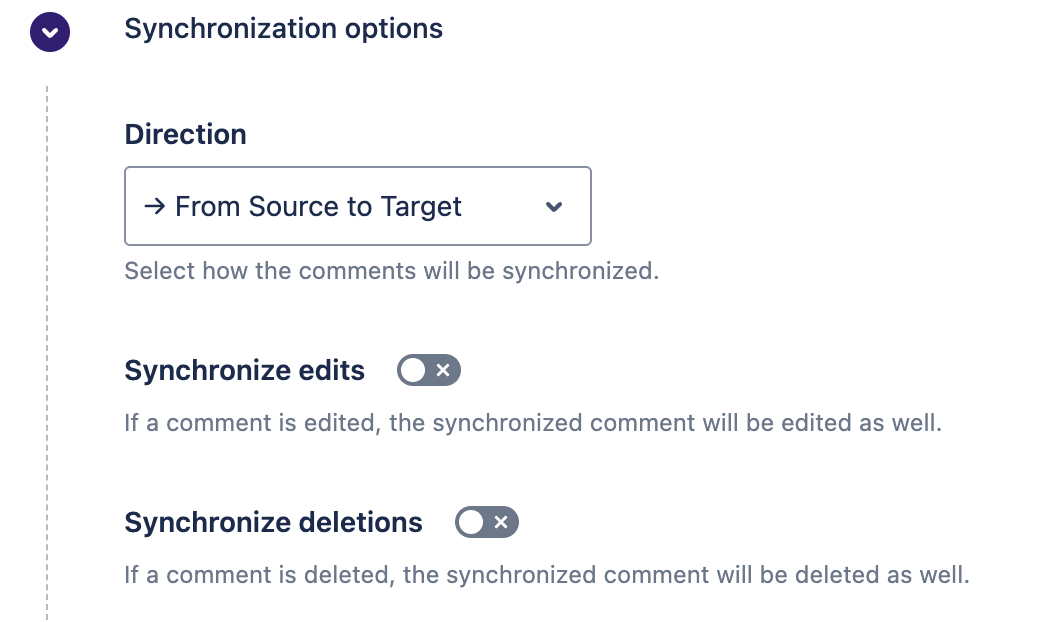
Direction
This option lets you decide how new comments will be synchronized between the source and target work item.
-
From Source to Target : for each new comment posted in the source work item, a copy is created in the target work item
-
From Target to Source : for each new comment posted in the target work item, a copy is created in the source work item
-
Bidirectional : any new comment posted in either the source or target work item will be synchronized to the other work item
Synchronize edits
If this option is enabled, when a comment is edited, it will automatically trigger the same edit for its synchronized comment, based on the synchronization direction.
Synchronize deletions
If this option is enabled, the deletion of a comment will trigger the automatic deletion of its synchronized comment, based on the synchronization direction.
Advanced comments options
Here you can access to advanced options for copy and synchronization.
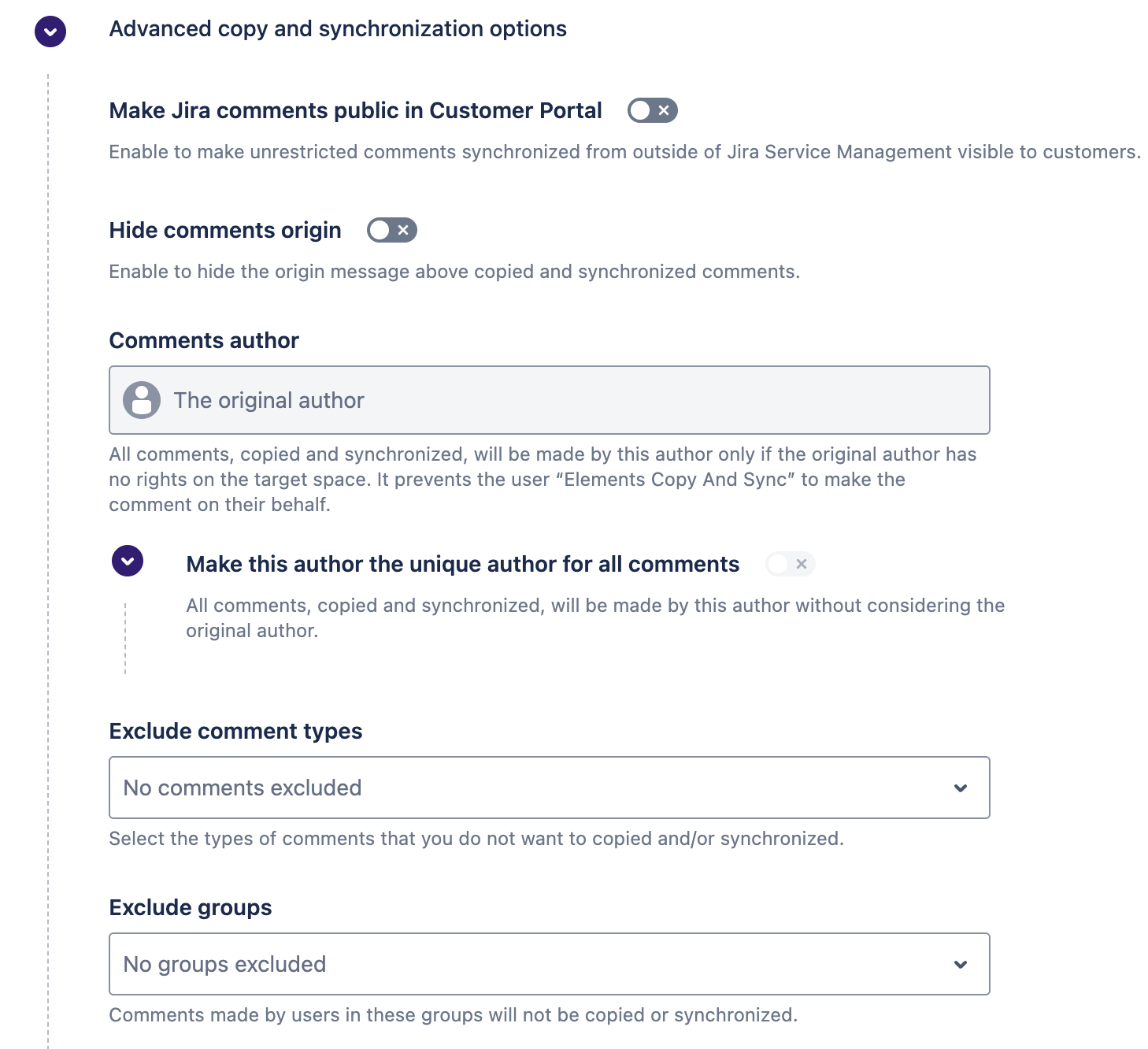
Make Jira comments public in Customer portal
If this option is enabled, comments synchronized from a Jira work item to a Jira Service Management work item will be visible to customers. Otherwise, comments are synchronized as "Internal notes" so as not to publicly share messages that could be confidential.
Comments author
If you choose to let the original author make the comments and he has not the rights on the target space, the user “Elements Copy And Sync” will make the comment on his behalf.
If you choose to select a specific user, he will make the comments on the original author's behalf only when the original author has not the rights on the target space. That way, it prevents the user “Elements Copy And Sync” to make the comment on his behalf.
If you choose to activate the option "Make this author the unique author for all comments", then all synchronized comments will be made by this author without considering the original author.
Hide comments origin
If this option is enabled, the content of synchronized comments with Copy & Sync will be exactly the same as the original comments. This means that no additional information about the origin of the comment (such as its original issue or author) will be added to the comment content.
Exclude comment types
This option lets you decide to exclude comment types from being synchronized. Here are the comment types that you can exclude:
In Jira Service Management
-
Internal notes
-
Reply to customer
In Jira
-
Comments visible to everyone
-
Restricted comments
Comments with restricted visibility :
Please note that if you need to include comments with restricted visibility in the comment synchronization, an additional setting in Jira System is required (see here how to configure). This is due to a stricter security model introduced in Atlassian’s Forge framework and cannot be configured from our side.
Exclude groups
This option lets you decide to exclude comments made by users in specific groups from being synchronized.
Attachments
This section lets you configure how attachments are synchronized between the source issue and the target issue.
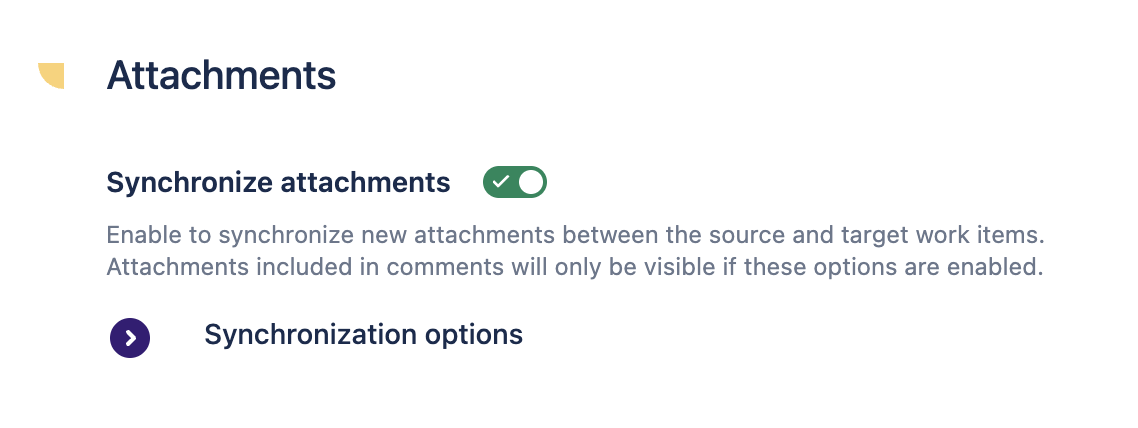
Synchronize attachments
If this option is enabled, each time a new attachment under 50Mb is added to either the source or target work item of the recipe, this attachment will be synchronized to the other work item.
When comments or the work item description contain attachments, synchronizing these comments or description can be done with the attachments or not.
The behavior depends on the activation of the copy/synchronize attachment options : if they are enabled, the copied/synchronized comments and description will contain the attachment. Otherwise, a placeholder message is be displayed in its place.
Synchronization options
Direction
This option lets you decide how new attachments will be synchronized between the source and target work item.
-
From Source to Target : for each new attachment added in the source work item, a copy is created in the target work item
-
From Target to Source : for each new attachment added in the target work item, a copy is created in the source work item
-
Bidirectional : any new attachment added in either the source or target work item will be synchronized to the other work item