
Elements Copy & Sync migration checklist
Migrating Elements Copy & Sync from Jira Data Center to Jira Cloud requires thoughtful preparation to ensure your configurations, automations, and synchronizations continue to function as expected. Because the Cloud version introduces a redesigned recipe-based structure and different feature availability, it’s important to assess your current setup, plan the right migration path, and validate everything carefully.
This checklist will guide you step by step so you can move to Cloud with confidence and clarity.
1. ASSESS: Confirm Cloud readiness
- Review how you currently use Elements Copy & Sync on Data Center:
-
Operations
-
Synchronizations (bi-directional sync)
-
Data Panels
-
Copy to Confluence
-
Remote instance operations
-
Velocity / advanced scripting
- Verify Cloud feature availability before migrating (see Elements feature comparison tables here)
Acknowledge what your configurations will look like on Cloud:
-
Operations → “Copy & Synchronize Jira work items” recipes
-
Synchronizations →“Synchronize linked work items” recipes
-
Field mapping → configured inside each recipe in the “Content” tab
-
Data Panels → not migrated, available separately via Elements Overview
-
Copy to Confluence → not migrated, available separately via Elements Publish
-
Velocity → not supported, code may copy over but will not function
-
Copy to remote instances → not automatically migrated, must be recreated manually due to redesigned linking logic
2. PLAN: Choose your migration path
- Select the best approach for migrating configurations.
Elements supports two migration paths:
Option A: Manual migration
Recommended if you want to redesign or simplify your setup.
Checklist:
- Install Elements Copy & Sync on your Jira Cloud site
- Manually recreate your Operations and Synchronizations as recipes
- Contact Elements Support if needed (attach a Support dump file to speed up assistance)
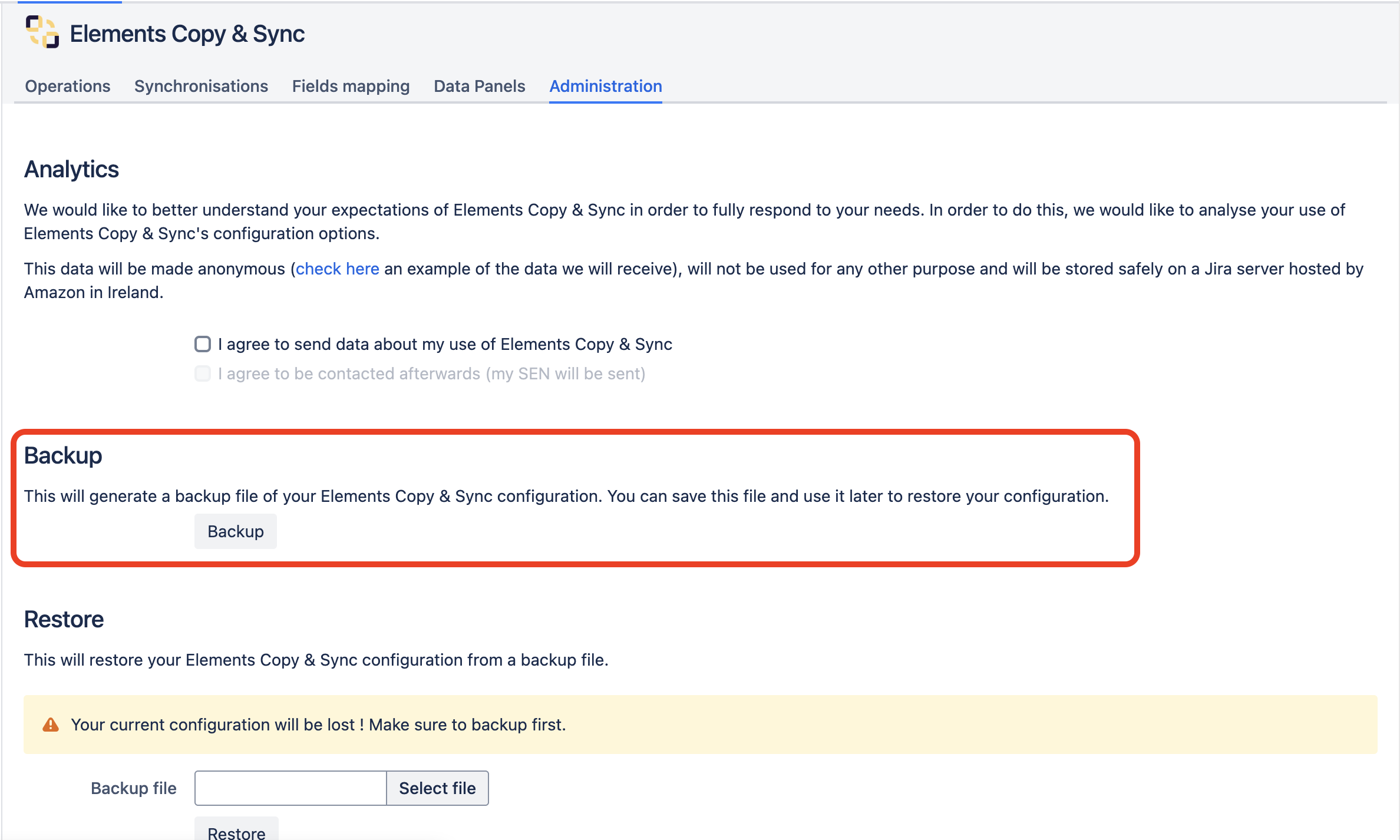
Option B: Migration with JCMA (Recommended)
Elements Copy & Sync is compatible with Atlassian’s Jira Cloud Migration Assistant (JCMA).
Checklist:
- Plan migration using JCMA app-migration flow
- Automatically migrate most Operations + Synchronizations
- Expect recipe restructuring after migration
- Review Atlassian’s JCMA app-migration documentation
Read our JCMA step-by-step guide
3. PREP: Prepare Cloud environment & configuration mapping
Goal: Ensure Jira Cloud is ready and configurations are mapped correctly.
Jira Cloud setup
-
Confirm Jira Cloud site is active
-
Install Elements Copy & Sync from Marketplace
-
Ensure you have Jira Admin permissions
Migration preparation
- Document your Data Center configuration before migrating:
-
Operations
-
Synchronizations
-
Field mappings
-
Data Panels usage
-
Confluence copy use cases
-
Remote instance links
Prepare for feature changes
- Plan recipe redesign where needed:
-
Field mappings now live inside each recipe
-
Mapping must be recreated individually
-
Identify unsupported or partially supported features:
-
Velocity scripts
-
Synchronization author (“Sync on behalf of”): Field and attachment sync actions will be logged in work item history as performed by Elements Copy and sync. However, it is possible to define the author for comment sync (advanced comment options).
-
Comment sync exclusions (groups only, not users)
-
Remote instance sync limitations
-
4. TEST: Validate migrated or rebuilt recipes
Goal: Ensure migrated recipes behave correctly before production launch.
Recipe verification
-
Review all migrated Operations → Copy and synchronize recipes
-
Review Synchronizations → Synchronization recipes
-
Confirm field mappings migrated correctly inside recipes
-
Adjust recipes if needed based on redesigned Cloud logic
Migration warnings (JCMA)
During JCMA migration you may see warnings for:
-
Data Panels
-
Copy to Confluence
-
Copy to remote instances
✅ These are informational only, you can continue if warnings only concern Elements Copy & Sync.
5. MIGRATE: Production migration execution
Goal: Run final migration and ensure continuity.
Checklist
-
Complete Jira platform migration using JCMA or manually migrate your app
-
Confirm Elements Copy & Sync app migration completed successfully
-
Validate migrated recipes in production Cloud
-
Manually recreate unsupported configurations:
-
Remote instance links
-
Elements Publish use cases
-
Elements Overview panels
-
-
Confirm no Velocity-based mappings remain active