
As a Jira administrator, you’ve successfully installed Elements Catalyst on your Jira Cloud instance — now what? The first step is to select a JSM project for analysis.
What is a Service Catalog Analysis?
Running a service catalog analysis scans your project's:
✅ Request types and portal settings
✅ Historical issues within the project to compute insights
This analysis provides actionable metrics to help optimize your Customer Portal and service catalog structure.
How to Run a Service Catalog Analysis
Prerequisites
Before starting, ensure:
✔ Elements Catalyst is installed on your Jira instance.
✔ Jira Service Management (JSM) is installed.
✔ At least one JSM project exists with historical data.
Step 1: Select a JSM Project
From Global Administration
-
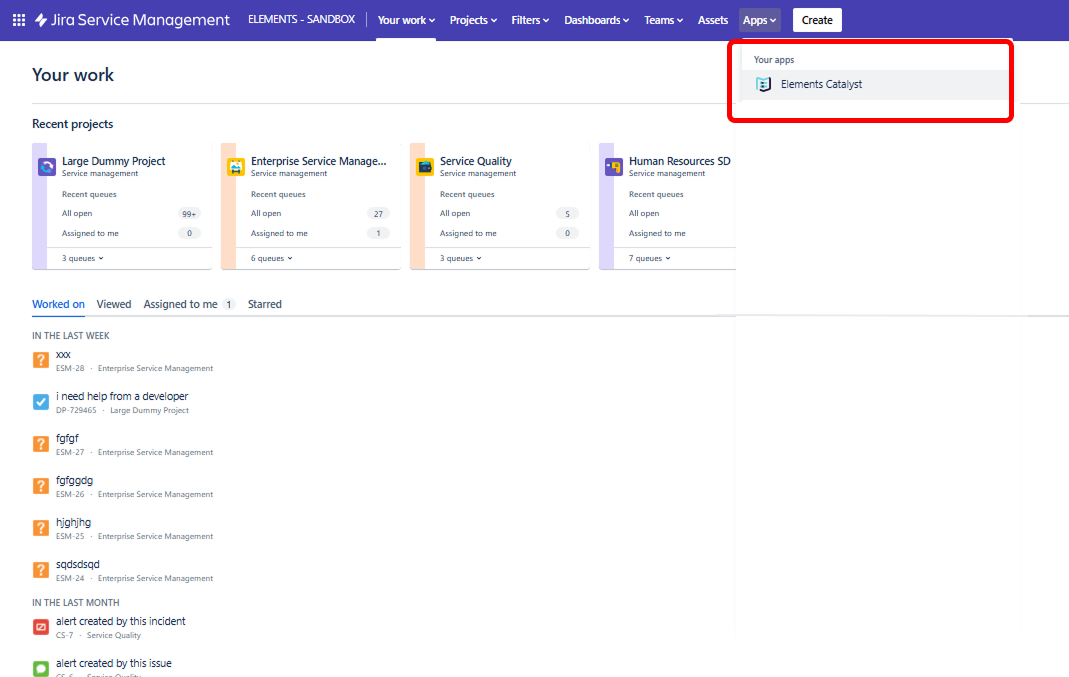
Navigate to Elements Catalyst Administration.
-
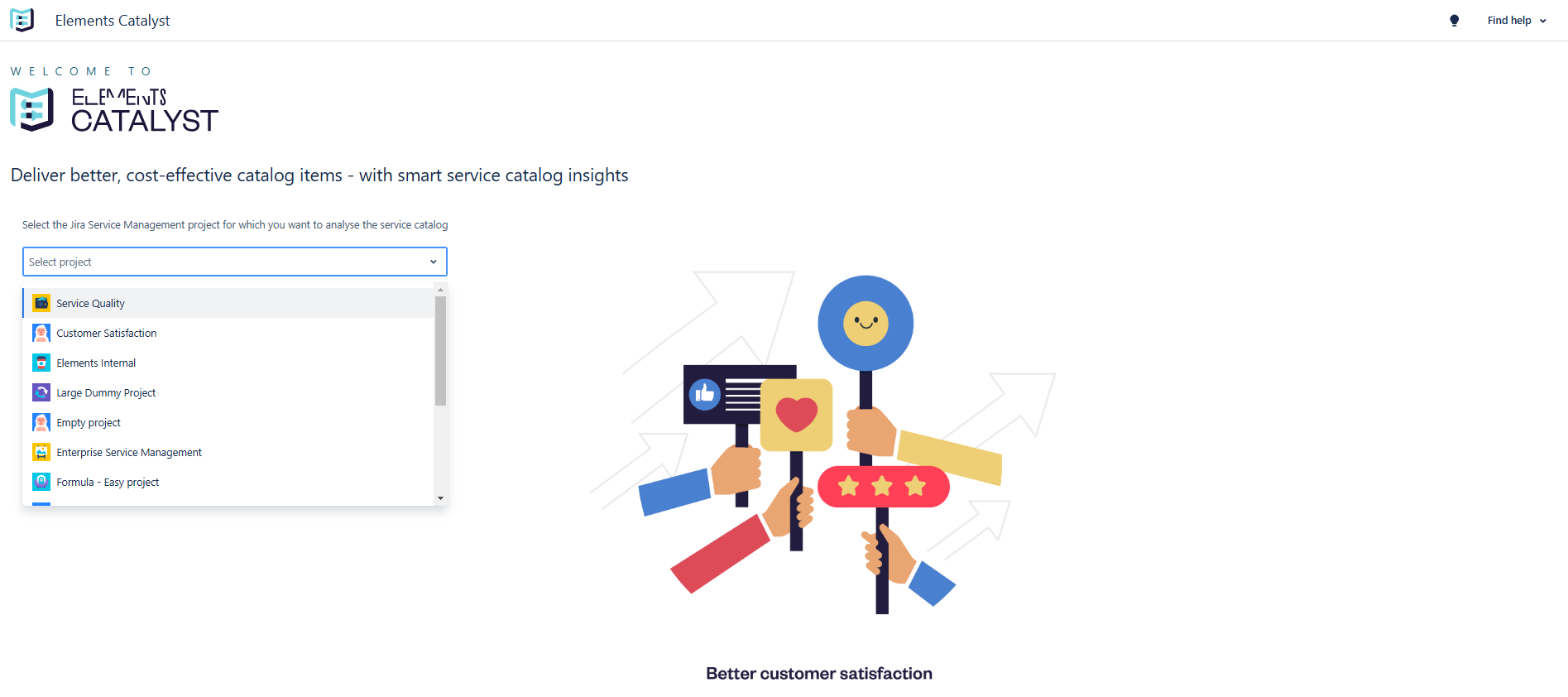
Select the JSM project you want to analyze.
-
You’ll be redirected to the app administration page for the selected project.
From JSM Project Administration
Step 2: Run the Service Catalog Analysis
-
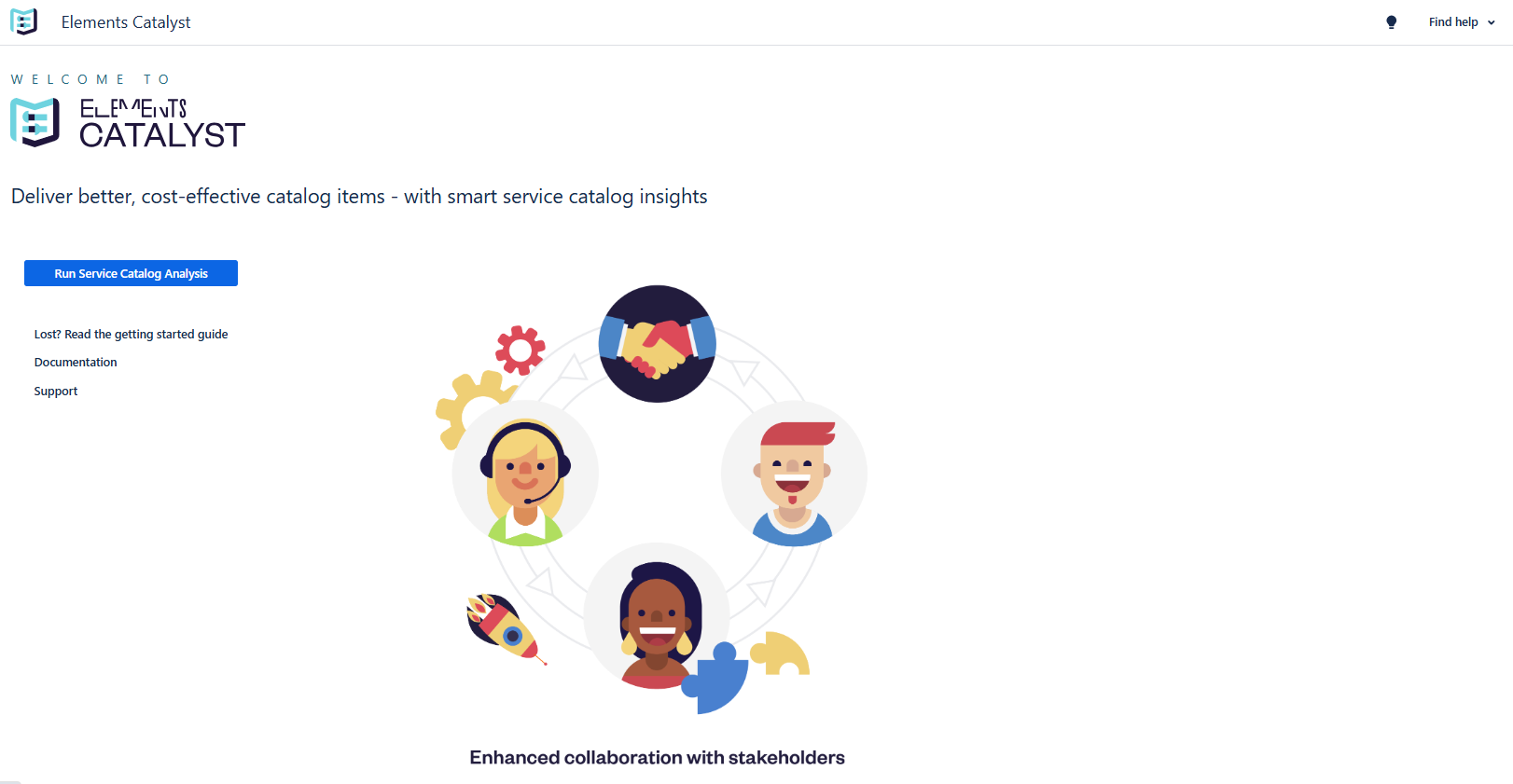
Click “Run Service Catalog Analysis”.
-
The app will scan request types and portal settings.
-
Once the scan is complete, click “Next”.
Step 3: Review the Service Catalog Preview
Your service catalog will be displayed in a hierarchical structure, allowing you to explore different levels:
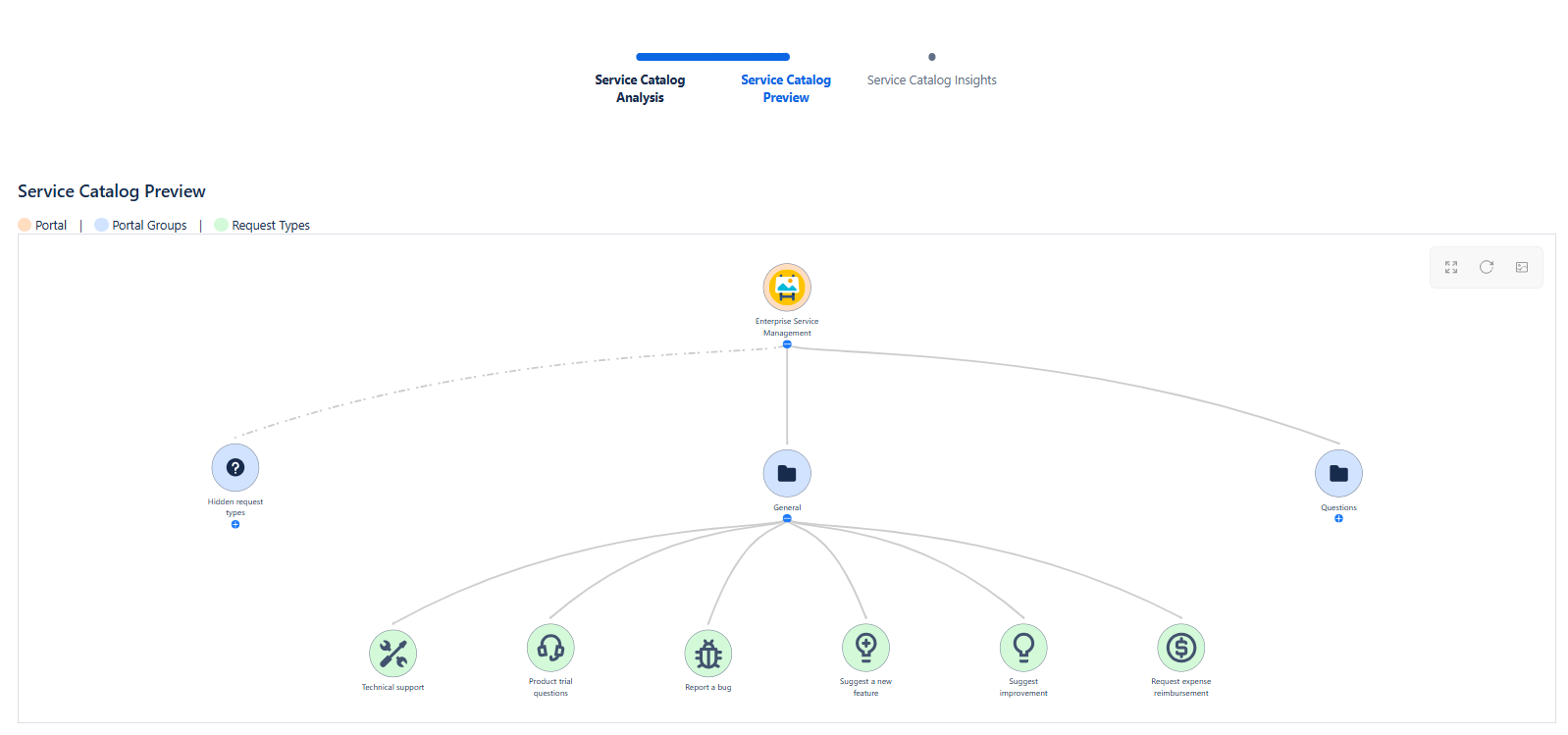
🔹 Top Level: The Customer Portal of the selected JSM project.
🔹 Second Level: Portal Groups, representing categories displayed on the Customer Portal.
🔹 Third Level: Request Types, the actual services available to users.
If any request types are not assigned to a Portal Group, they will appear under a special section labeled “Hidden Request Types”.
Click “Next” to proceed.
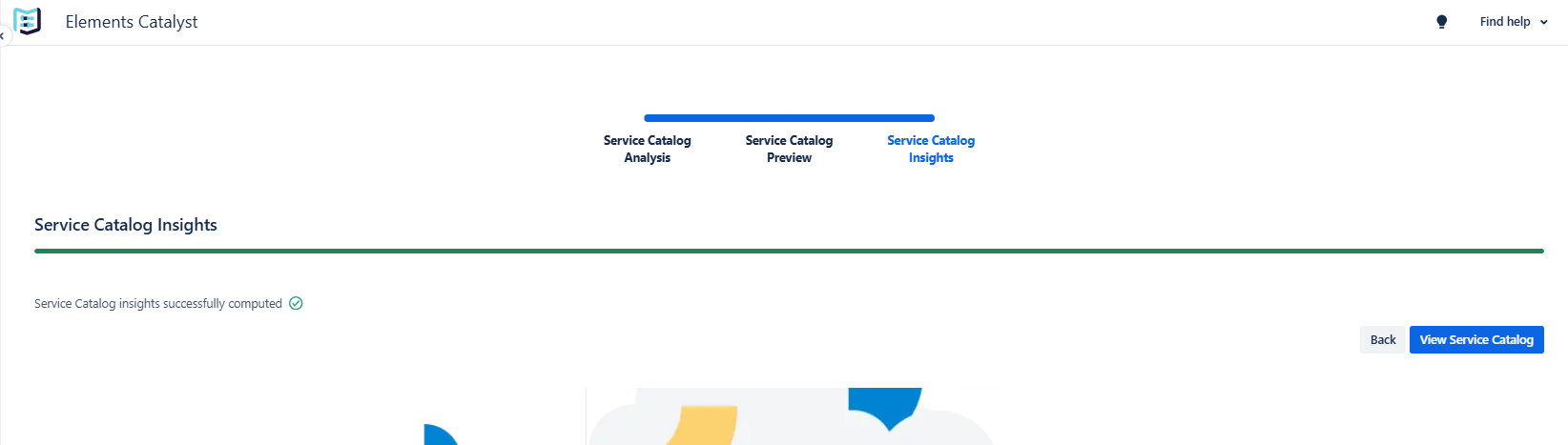
Step 4: View Service Catalog Insights
Elements Catalyst will analyze historical issues and request data, generating detailed service catalog metrics.
To access insights, click “View Service Catalog”.
The Service Catalog page will open.