
The need: provide Jira users with HubSpot information
You can connect your CRM HubSpot to Jira to centralize customer information in your Jira issues.
It can be useful for several use cases like:
-
to provide agents with additional information about customers raising request from a Jira Service Management portal. The information can be made only visible by the agents.
-
to manage presales requests in Jira, by linking each request to the corresponding HubSpot account and displaying key information (deals, account manager, etc) directly in the Jira issue.
Solution: populate Jira custom fields with data from HubSpot REST API
We use Elements Connect to populate Jira custom fields with information coming from HubSpot REST API.
Here, as example, we want to get more information on a deal based on the associated HubSpot contact:
Looking to do this on Jira Cloud? Find the Elements Connect Cloud tutorial here
See this field in action from our demo portal
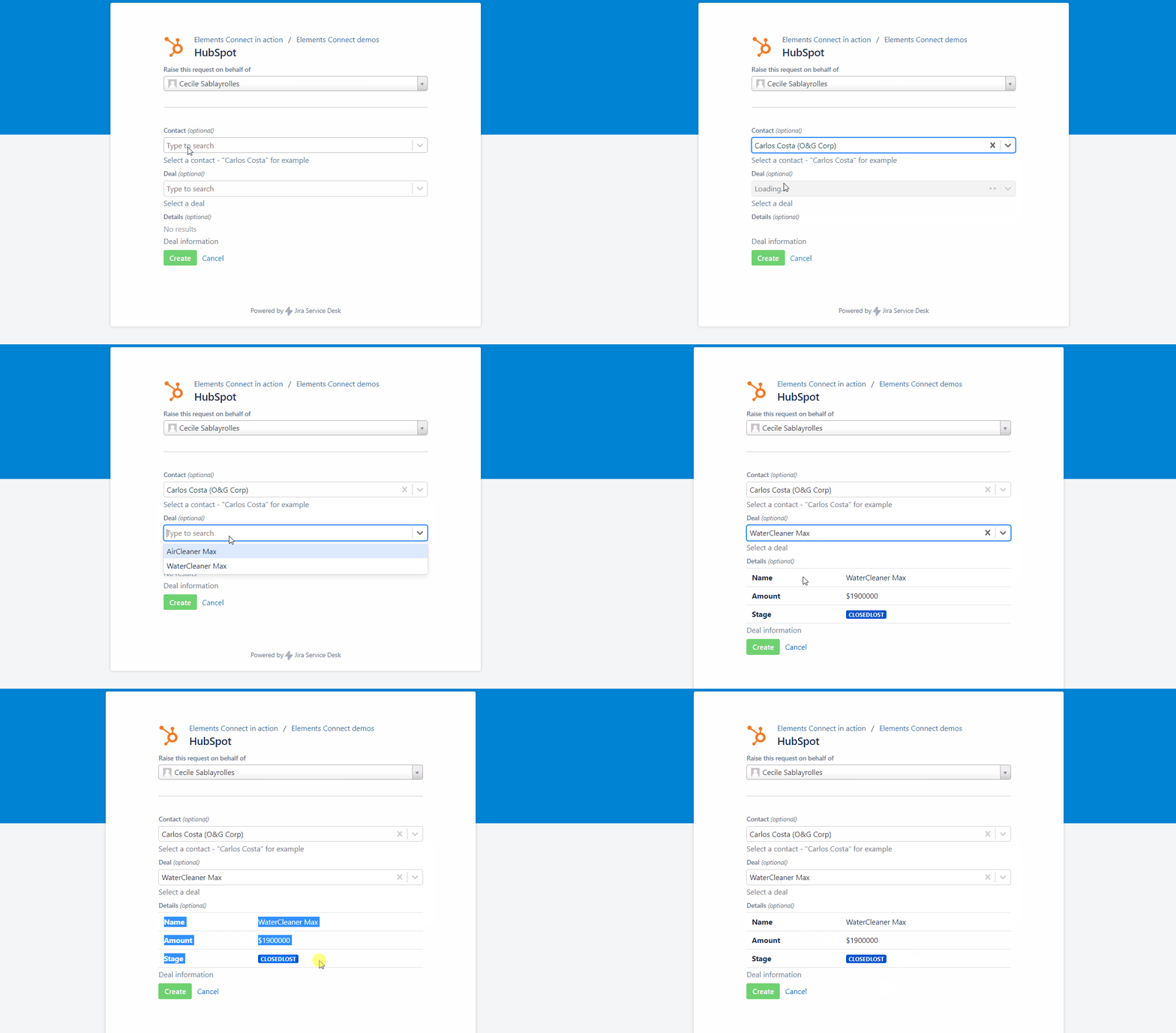
Configuration guide: how to populate Jira custom fields with HubSpot data
Step 1: connect to the datasource
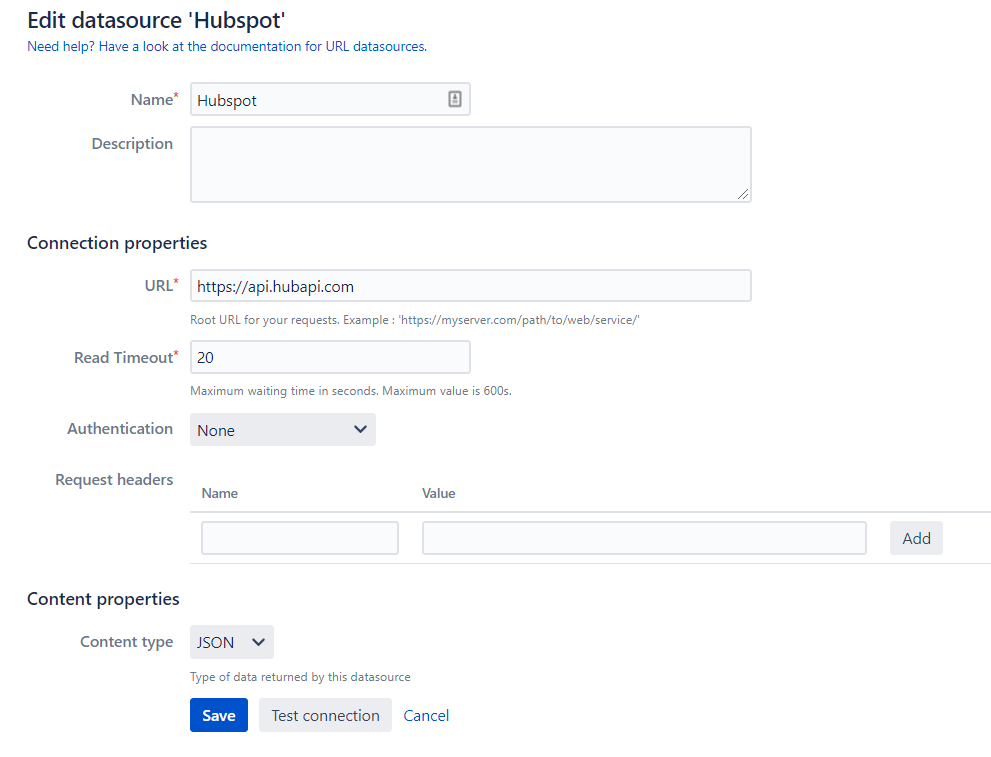
This demo uses an URL datasource.
As mentioned in their documentation, HubSpot's APIs allow two means of authentication: OAuth and API keys. In this example we use the second one: API Key.
So, to configure the datasource, you only need to specify the base URL on the connection properties (cf. screenshot below) ; the API Key will be added to the field queries using the hapikey= query parameter (detail in the Step 2).
Step 2: create Elements Connect fields
The field configuration files from this example are available for download below. You can reuse them by importing them in your Elements Connect administration and adapting the configuration to your needs and your instance specificities (project names, custom fields, etc).
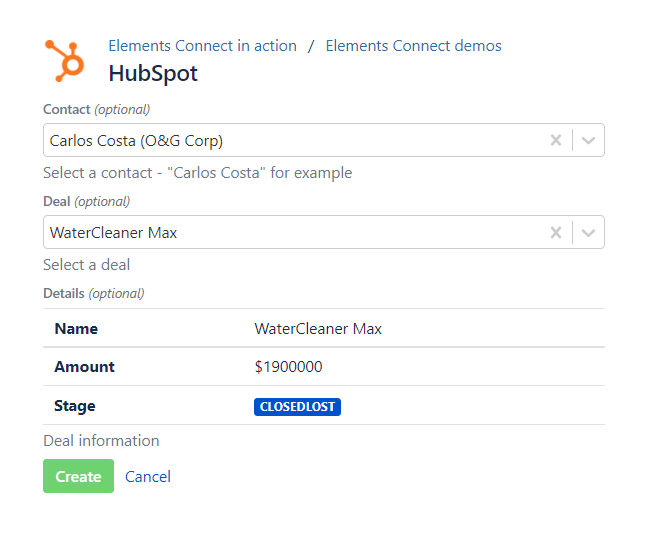
Download the fields configuration:
-
Field 1: Lists "Contacts" fetched from Hubspot
-
Field 2: Lists "Deals" associated to the selected contact
-
Field 3: Displays detailed information about the selected deal (amount, stage, ...)
Import them in your Elements Connect administration following the step-by-step guide: How to import Elements Connect field configuration files
Authentication via API Key
As mentioned in Step 1, your Hubspot API Key need to be added to the field queries to authenticate:
Find your HubSpot API key and add it to your URL path in your field configuration using the hapikey= query parameter.
Example: to get all contacts in Hubspot (Field 1): replace the value in yellow by your API key

Don't forget to update fields ID to keep the dependency between these fields.
Step 3: add the field to your issue screens
Last step is to add this field to the aimed issue screens.
>> Learn how to add Elements Connect fields to Jira issue screens
Want to go further and automatically set the value of an Elements Connect field? Check out this tutorial.