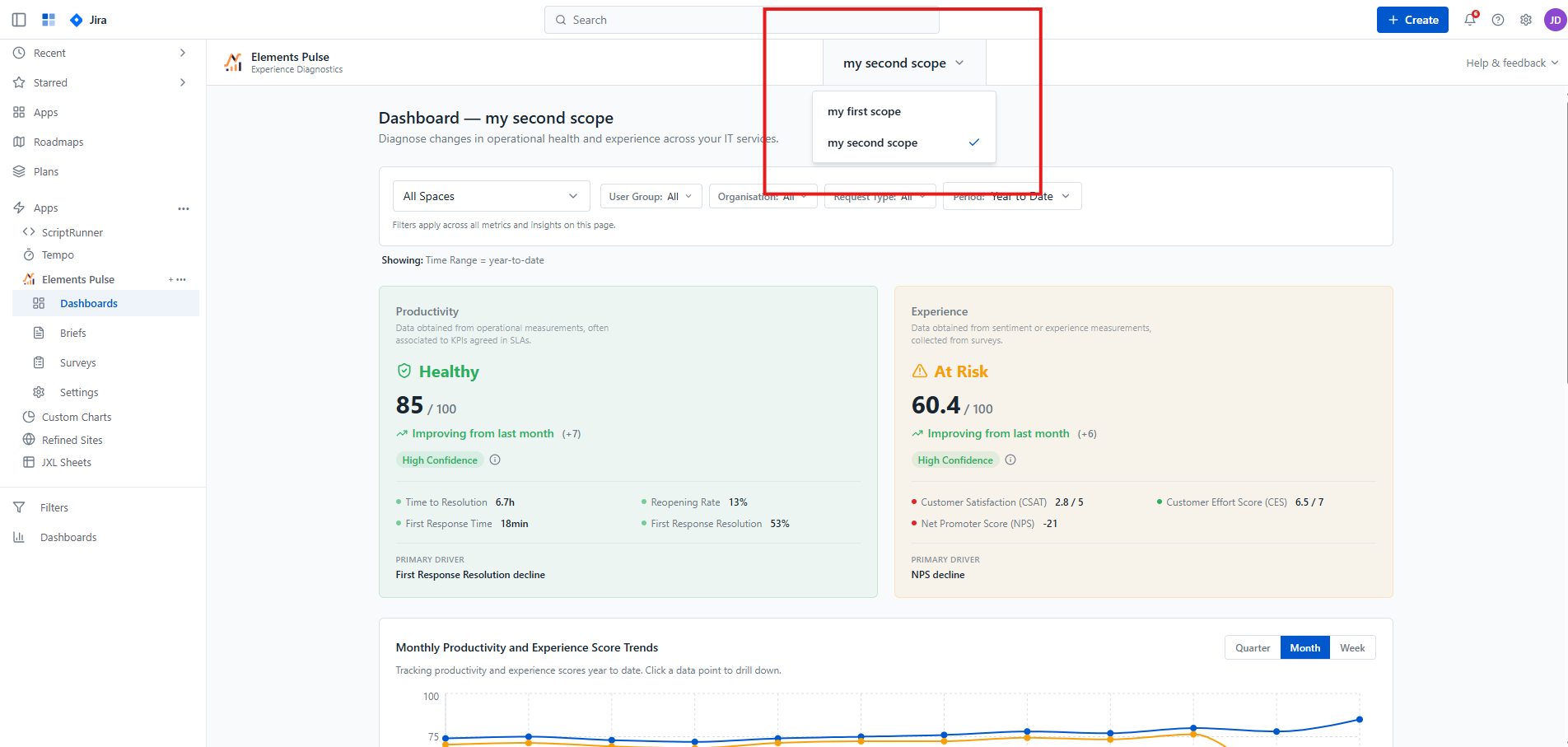
The Analysis Scope is the foundational filter for Elements Pulse. It allows you to define exactly which data subset you want to diagnose—whether that is specific departments, a set of JSM projects, or specific request types.
By creating a scope, you are telling Pulse to ingest and analyze up to 12 months of historical data and continue monitoring that specific segment daily.
Accessing the analysis scope
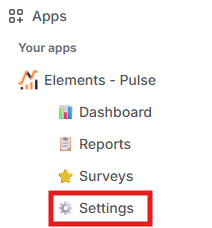
To define or manage your data segments, follow these steps:
-
Open the Elements Pulse application from your Jira sidebar.
-
Expand the “Apps” section and navigate to Elements Pulse
-
Select Settings from the navigation menu.
-
On the Settings landing page, click the Analysis Scope card.
How it works
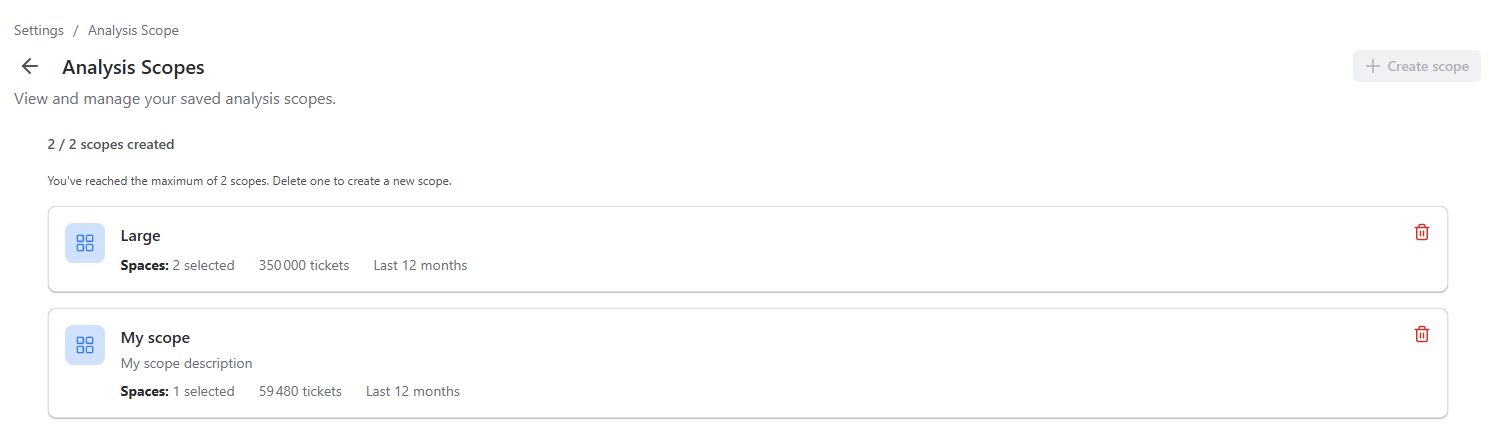
Pulse uses a "segmentation-first" approach. You can create up to two distinct scopes to organize your insights into different business contexts.
Creating a scope
-
Choose a segmentation dimension. Pick one of four mutually exclusive categories: Space, Organization, Request Type, or User Group. You can use Change segment at any point to pick a different dimension.
-
Select your values. Depending on the dimension chosen, pick the specific spaces, organizations, request types, or user groups to include. The Analysis Capacity panel on the right updates live with the resulting ticket count.
-
Name your scope. Give it a Scope Name (required) and an optional Description.
-
Click Save Scope & Start Analysis. Pulse imports and analyzes the historical data for this scope, which can take up to about 5 minutes (occasionally longer if Jira briefly rate-limits requests, see Understanding Jira rate limits). You can keep using Pulse while the analysis runs in the background.
Keeping your scope up to date
The initialization described above is only the first run. After that, the same computation and storage pipeline runs automatically every day, scoped to tickets created or updated in the previous 24 hours. Each day's results are appended to the existing dataset, so your scores and trends stay current without you having to re-run or re-save your scope.
Segmentation options
To ensure your diagnostics are precise, you can segment your data using one of four mutually exclusive categories:
-
Space: Select specific Jira Service Management (JSM) projects.
-
Organization: Focus on data from specific JSM Customer Organizations.
-
Request Type: Drill down into specific service categories (e.g., "Onboarding" or "Hardware Requests") across all projects.
-
User Group: Analyze tickets created by specific Atlassian site user groups.
Understanding analysis capacity
To maintain high-performance diagnostics, each scope has a maximum capacity of 350,000 work items.
-
Under 350k work items: Pulse analyzes the full 12 months of historical data.
-
Over 350k work items: If your selection contains more than 350,000 tickets, Pulse employs "cap-and-trim" logic. It will prioritize the 350,000 most recent tickets and automatically reduce the time window (e.g., from 12 months to 9 months) to fit this limit. This ensures you are always looking at the most relevant, recent data.
The diagnostics experience
Saving an analysis scope does more than run an analysis: it sets the context for everything else you do in Pulse. When you select a scope, the following areas are automatically scoped to it:
-
Dashboards: Experience and Productivity scores are calculated exclusively from the tickets within your scope. All page-level filters (Space, Request Type, Organization, User Group) are limited to what you selected during scope creation, and every drill-down view stays within that same context.
-
Reports: survey results, and the data available for export, are scoped the same way, so what you analyze and export always matches your active scope.
Managing scopes
-
You can maintain a maximum of two scopes. Track your usage via the status indicator.
-
Switching contexts: Use the Scope switcher in the top navigation bar to toggle between saved scopes. The first scope in your list is selected by default upon login.