
The need: use a field to determine how many Jira issues to create
When automating a process in Jira, the number of issues you need to create is rarely fixed in advance. It depends on the specifics of each situation. For example, in an employee onboarding process, the number of tasks to create might depend on how many teams or services the new hire belongs to. Manually creating Jira issues one by one for each case is time-consuming and not scalable for teams managing complex Jira project workflows.
The solution: create multiple Jira issues dynamically with Elements Copy & Sync
With Elements Copy & Sync, you can configure a recipe that automatically creates Jira issues based on the values of a custom field in the source issue. The number of issues created adjusts dynamically each time the recipe is triggered, depending on what is stored in that field. Labels, components, user pickers, checkboxes, select lists, version pickers and more can all be used as the basis for dynamic Jira issue creation, giving your team full flexibility to automate repetitive workflows without manual intervention.
Watch a demo of dynamic Jira issue creation for employee onboarding
Tutorial
This guide explains how to set up a recipe that will create one issue for each component in a source issue.
These issues will all have distinct "Summary" values that will inherit the name of one component from the source issue.
In this example, we will trigger the recipe from an issue with the key SUP-1. This issue has three components : "Payroll Services", "Financial Services", and "Data Center Services".
Prerequisites
A recipe called "Create an issue for each service" has been created, activated, and is available on issue SUP-1.
Configuration steps
1 - As a Jira administrator, go to the "Elements Copy & Sync Cloud" administration and click on Recipes in the navigation bar.
2 - In the Recipes listing page, select "Create an issue for each service" in the Active Recipes list.
3 - Click on the Target step in the navigation menu.
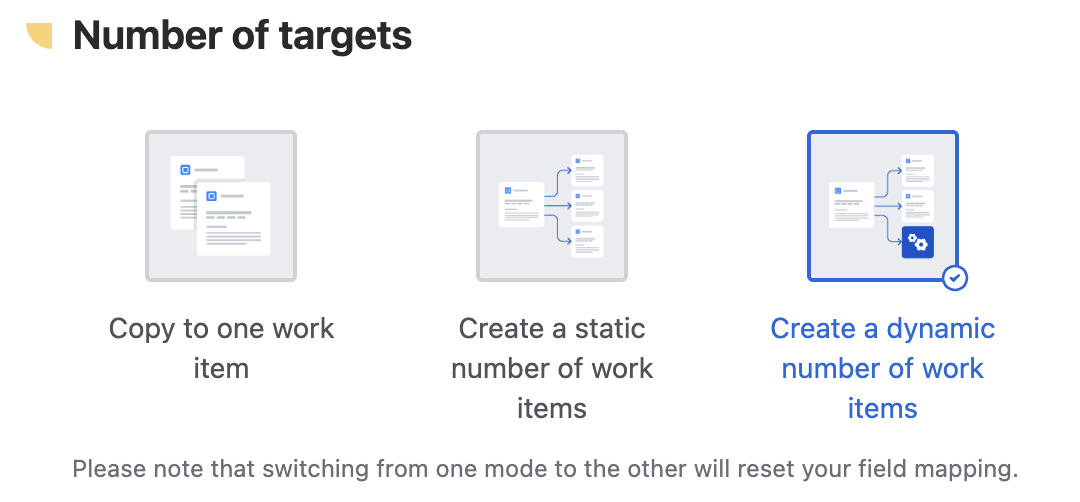
4 - In the "Number of targets" section, click on the Create a dynamic number of work items option.
5 - In the "Work items to create" section, in the Primary field option, select the field that will be used to decide how many work items will be created by the recipe.
In our example, we will use the "Components" field. This means that the recipe will create one work item for each component in the source work item (in our case, there are three components, so three work items will be created).
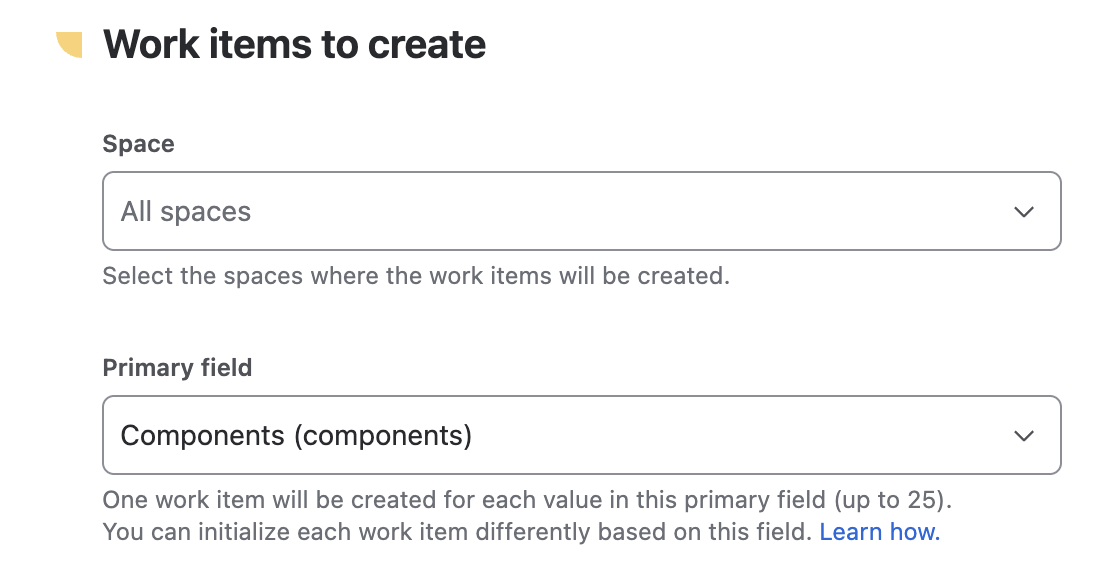
At this point, the recipe is ready to be used, it will create work items dynamically based on a number of components.
However, we want to go a bit further : we will set a specific summary for each of these work items, based on the components.
6 - Click on the Content step in the navigation menu.
7 - Enable the Set and synchronize fields option, then select "Summary" in the Add target field option.
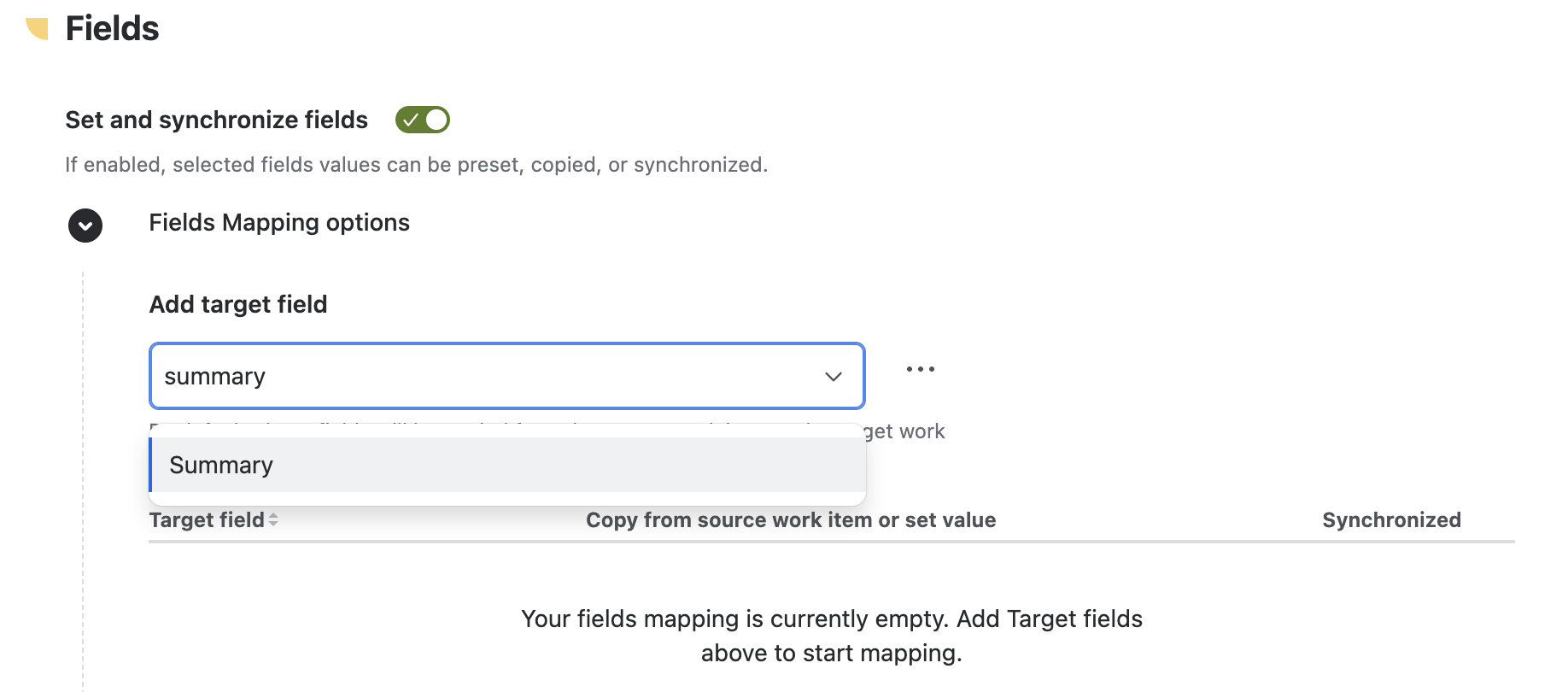
9 - In the Fields Mapping table, click on the "..." button and select Set dynamic value.
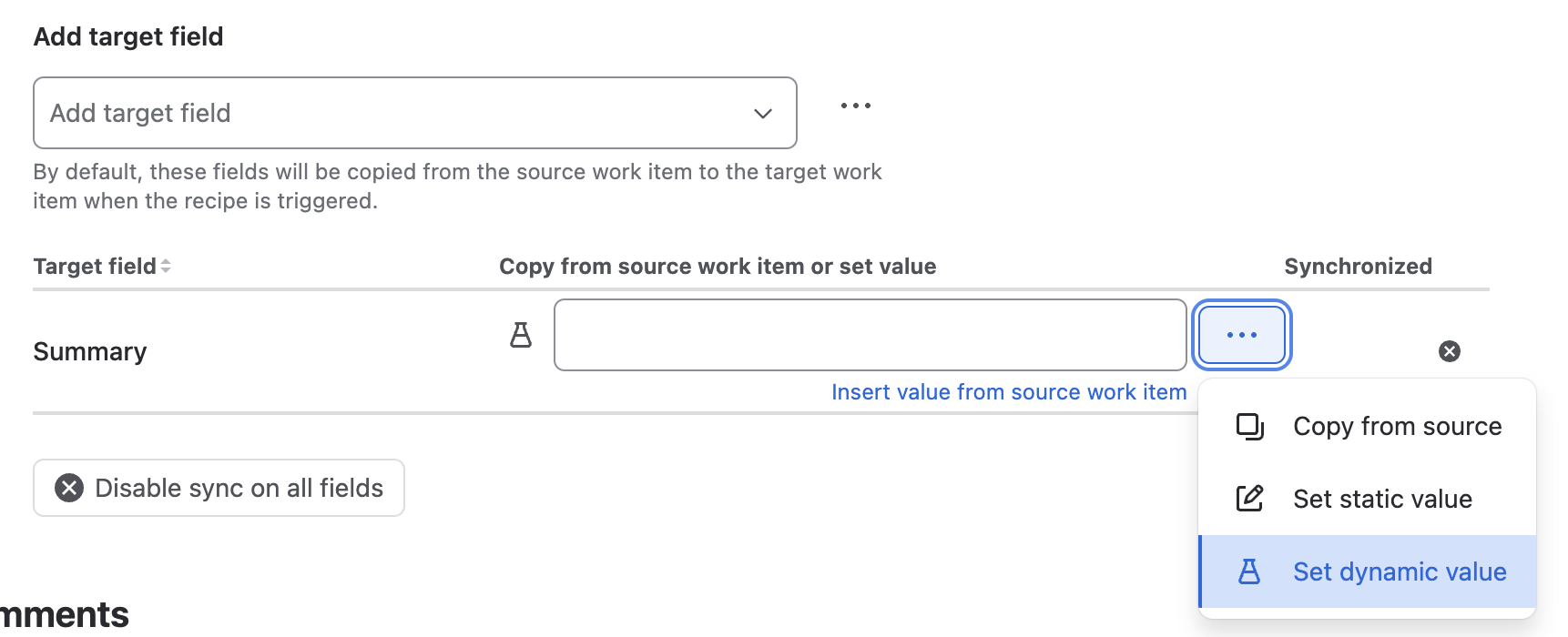
10 - Use the Insert value from source work item option to open a pop-up, then select Primary field value.
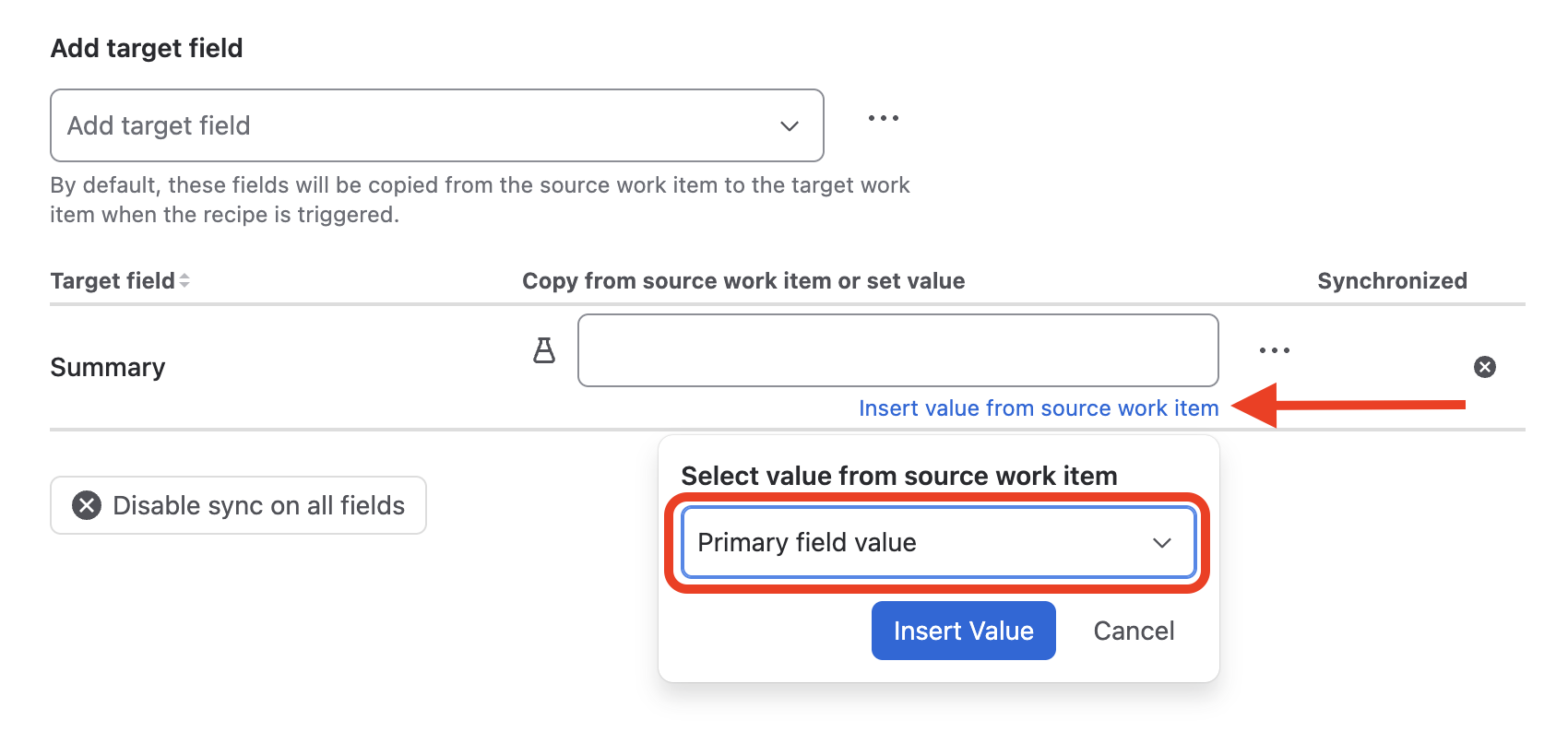
This mean that the value from the primary field in the source work item will be used as the value for the "Summary" field in each created work item. In our case, the three work items created will have "Payroll Services", "Financial Services", and "Data Center Services" as their respective summaries.
You can also add a static value in around the dynamic value to create the exact summaries you need :
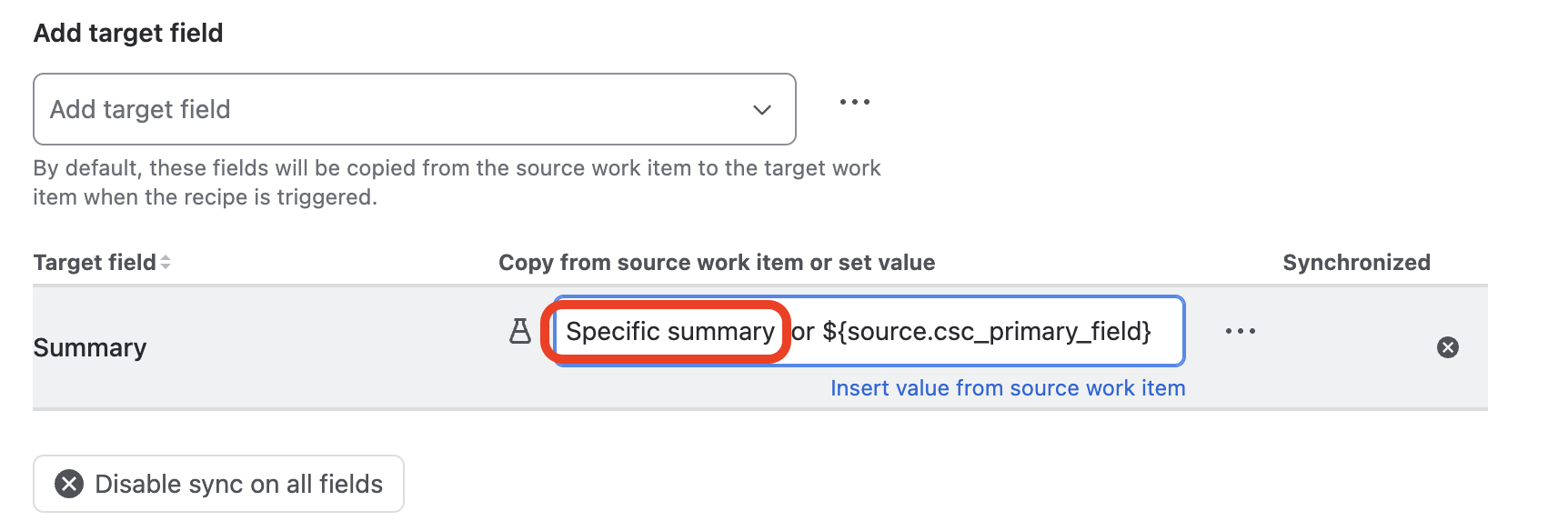
In this example, the three work items created will have "Specific summary for Payroll Services", "Specific summary for Financial Services", and "Specific summary for Data Center Services" as their respective summaries.
11 - Save the recipe.
Result
With these steps, when the recipe is triggered from issue SUP-1, three work items will be automatically created, one for each component in SUP-1. Their summaries will be specific and contain the name of each component.
You can also trigger this recipe with a workflow post-function to automatically create these work items each time the status of an issue changes, or use an Automation trigger to do the same thing.
Learn more
Check how to automatically create Jira project templates
FAQ
Can I create Jira issues dynamically based on multiple fields at once, not just one?
Each recipe uses one primary field to determine how many Jira issues to create automatically. However, you can configure additional fields in the Content step to enrich each created issue with values from other fields of the source issue. This means that while the number of issues is driven by one field, each automatically created Jira issue can inherit information from as many fields as your process requires.
What happens if the primary field is empty when the recipe is triggered?
If the selected primary field contains no value at the time the recipe is triggered, Elements Copy & Sync will not create any Jira issues for that trigger. This is useful to keep in mind when automating Jira issue creation via a workflow post-function or Jira Automation, as it means you should ensure the primary field is populated before the trigger fires, or add a condition to your automation to check for it.
Can I use dynamic Jira issue creation as part of a recurring project management template?
Yes. Once configured, the recipe behaves like a reusable Jira project management template that adapts to each situation. Every time it is triggered, it reads the current values of the primary field and creates the right number of Jira issues accordingly. This makes it particularly powerful for recurring processes like onboarding, client delivery workflows, or sprint initialization, where the scope varies from one instance to the next.
Can dynamically created Jira issues be kept in sync with the source issue after creation?
Yes. Using the "Set and synchronize fields" option in your recipe, any field mapped in the Content step will stay synchronized between the source issue and the created Jira issues. This means that if the source issue is updated after the initial creation, the changes can be automatically reflected across all related issues, turning a simple issue creation workflow into a fully connected Jira issue sync process.
•••
New to Elements Copy & Sync?
If this tutorial has stirred your imagination, why not give it a try?
• Try Elements Copy & Sync for free •
Migrating from Jira Data Center to Cloud?
Easily migrate Elements Copy & Sync with JCMA. Visit our Migration Hub to get started.