
What’s in this page
With introduction of app editions, Elements Connect is now providing a few new components for user to better manage their configuration.
This includes:
-
New active/inactive status
a way for you to keep your configuration and data while not exceeding your edition’s limits -
Enable/Disable connected field
new action to shift between active and inactive statuses -
Inactive connected fields behaviour in Jira
and good practices -
App edition limitations
how it works in practice -
Usage tab
to follow up on your edition and usage -
Automatic deactivation
when configuration exceeds current Standard edition
1. New Active/Inactive status
In Elements Connect, you are now able to define wether your connected field or data source is active or inactive.
YOU NEED THIS WHEN
-
You already reached edition limits and want to create more connected fields / data sources
-
You don’t want to delete existing connected fields and lose configuration and data
-
You are ok to decommission a few fields from production
a) Connected fields
Connected fields are either Active, Inactive or N/A.
|
CONNECTED FIELDS STATUS |
BEHAVIOUR |
|---|---|
|
ACTIVE |
|
|
INACTIVE |
|
|
N/A |
|
Here is how it looks like in Elements Connect Admin
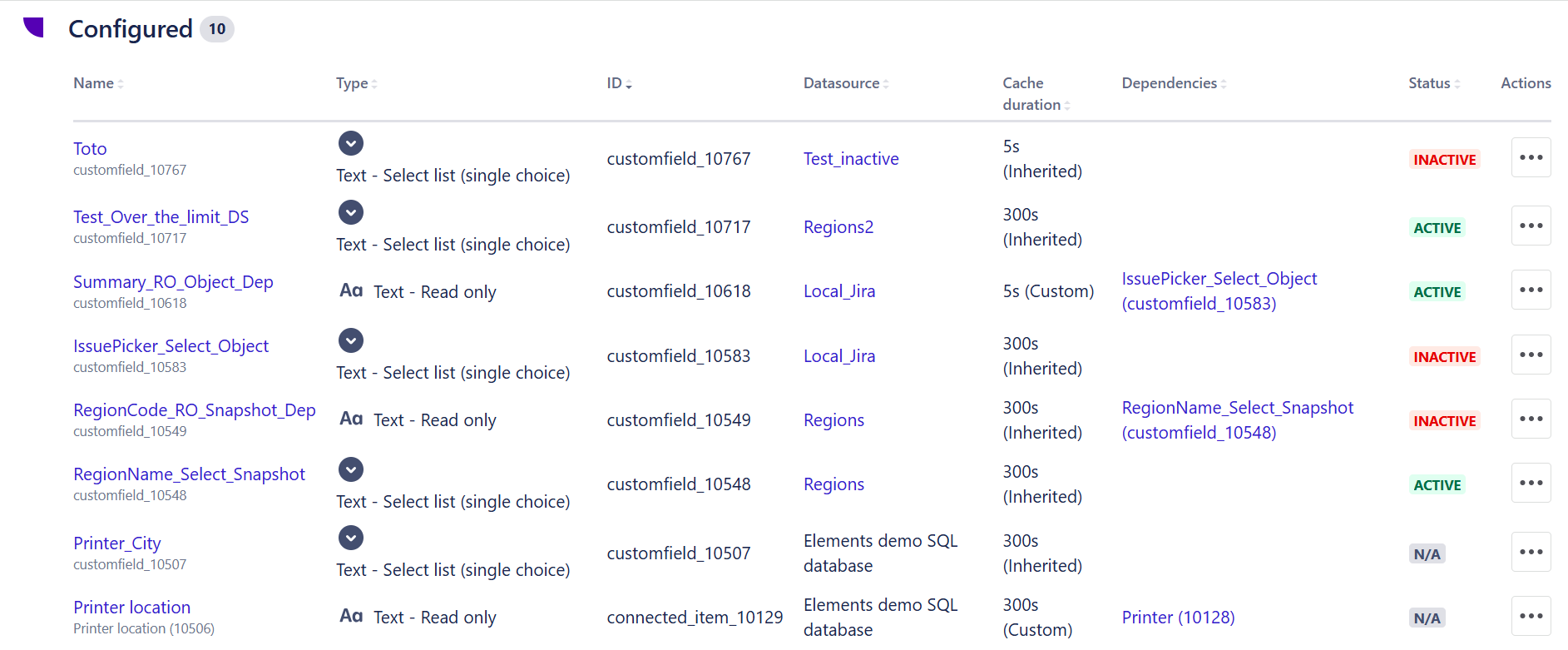
Action like copy and copy select create a copy of your custom field with the exact same status i.e. if the original connected field is inactive, copy will be inactive and if the original connected field is active, copy will be active.
b) Data sources
Data sources are either Active, Inactive or N/A.
|
DATA SOURCES STATUS |
BEHAVIOUR |
|---|---|
|
ACTIVE |
|
|
INACTIVE |
|
|
N/A |
|
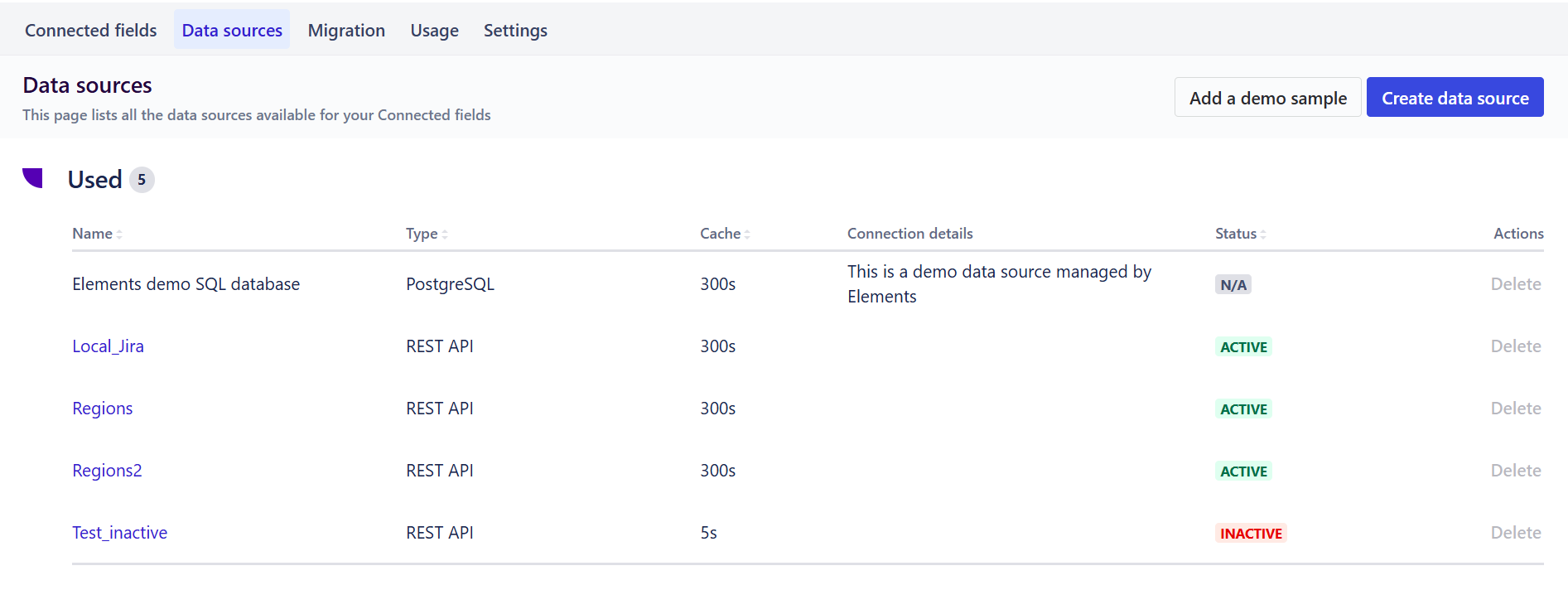
As you can see, there is no direct action to enable or disable a data source. A data source status is automatically defined by the status of the related connected fields. This means, the only way to disable a data source is to deactivate or delete all related connected fields.
Here is how it looks like in Elements Connect admin
2. Enable/Disable Connected field
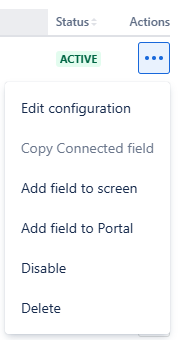
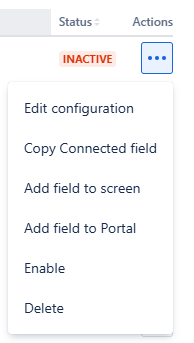
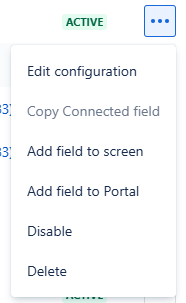
If you want to switch between connected field status, you can
-
enable inactive fields (i.e. set fields to active)
-
disable active fields (i.e. set field to inactive)
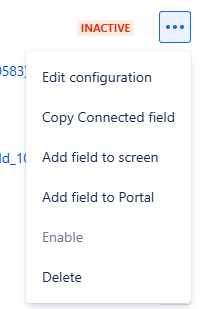
To do so, reach out to the action menu of a given connected field (…) and click on the appropriate action: Disable or Enable (see images below).
|
|
A field that has been disabled can be later enabled (within your edition capacity for Connected fields.)
3. Inactive connected fields behaviour in Jira
a) When you disable an active field
In your Jira tickets, your field will be changed so that
|
|
CREATE VIEW |
EDIT VIEW |
|---|---|---|
|
Values |
- |
Selected values (if any) are kept |
|
Field display |
Turned into Read Only (can’t edit) |
Turned into Read Only (can’t edit) |
|
Dependencies |
|
|
|
Live |
- |
Live won’t update the field |
|
Post-function |
- |
Post-function won’t update the field |
WHEN YOU DISABLE FIELDS
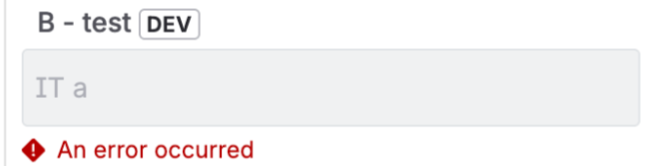
You may get an error message in ticket with regards to inactive fields
-
For fields with dependencies

-
For any inactive field when helper app version is < 16
b) When you enable an inactive field
Everything goes back as it were before disabling.
WHEN YOU ENABLE FIELDS
Considering inactive fields have not been updated, values may not be consistent anymore with the data source or potential parents fields.
c) Good practices
Because of overall behaviour, we advise to
-
Dissociate inactive fields from screen
That way your users or customers don’t see an inactive custom field they can’t use or potential error messages -
Update all fields that have been enabled
To make sure values are consistent with data source and context
4. App editions limitations in practice
As described in https://elements-apps.atlassian.net/wiki/x/dQBk7wI , Elements Connect is now limited according to your Edition. You can’t create more than a specific number of active custom fields and active data sources.
How does this work in practice
a) Data sources
You reached the limit of your edition with the data sources
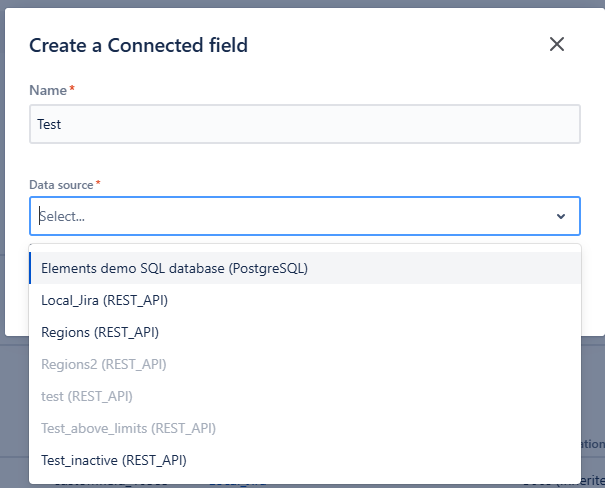
Let’s imagine you are in Standard edition and you already have 3 active data sources. In that case, when
-
creating
-
editing
a connected field, you won’t be able to select an inactive data source (see image below) as this would results in a new active data source. All you can select are active or N/A (demo) data sources.
In a similar way, you won’t be able to enable a custom field (i.e. set it to active) related to an inactive data source (see image below)
b) Connected fields
You reached the limit of your edition with the connected fields
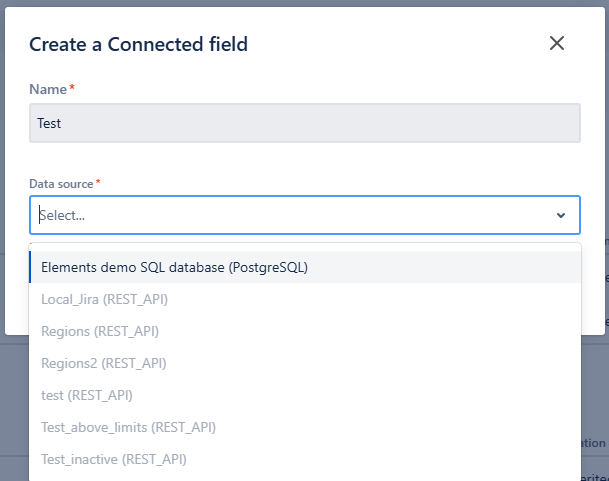
Let’s imagine you are in Standard edition and you already have 20 active connected fields. In that case, you can kickstart the connected field creation process but you won’t be able to select a data source apart from the N/A (demo) ones.
In a similar way, you won’t be able to
-
enable
-
copy or copy select an active
connected field, as this would results in a new active one.
c) Cache
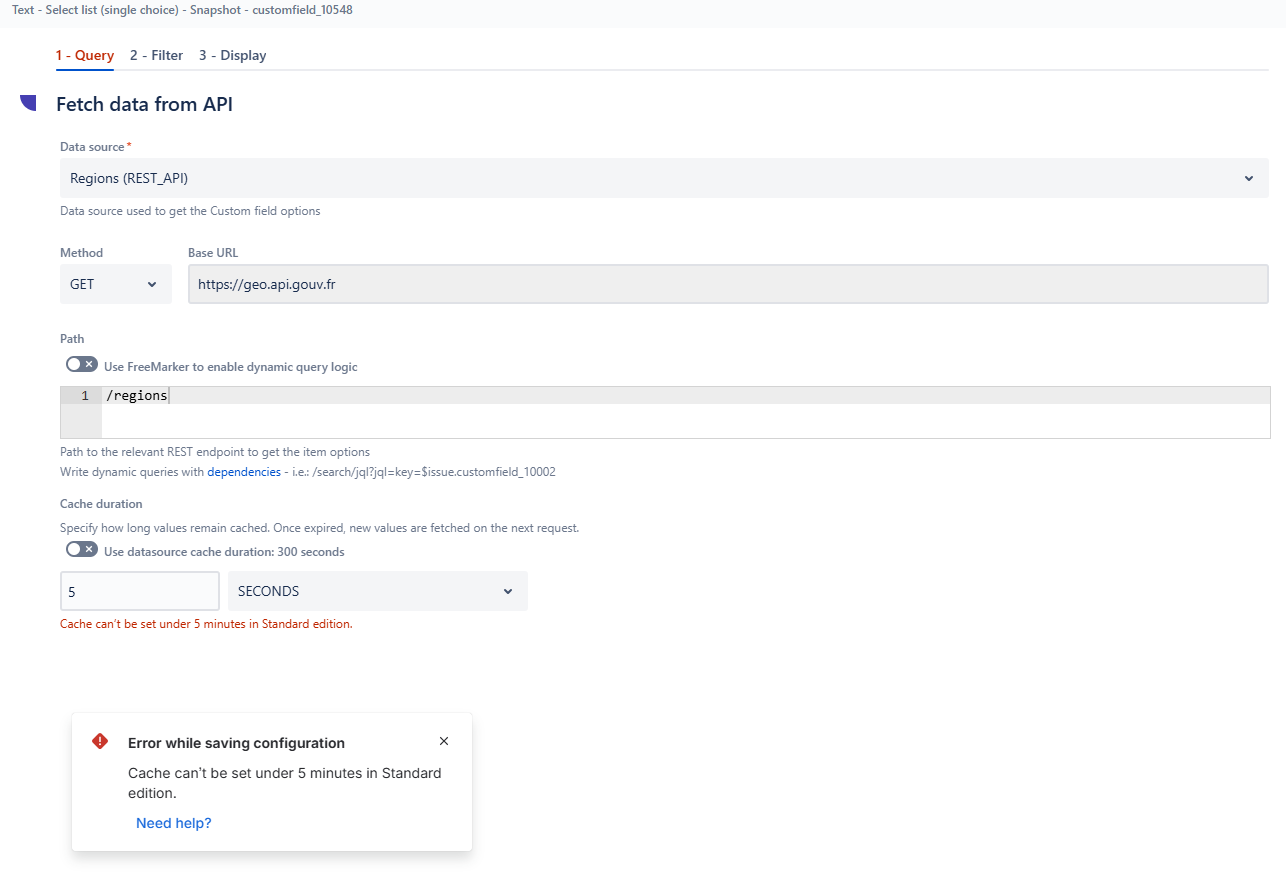
When defining your cache in Connected field or data source configuration, you won’t be allowed to save values below your edition’s limit.
d) Post-functions
You reached the limit of your edition with the post-functions.
In that case, any further post-function execution won’t update your fields anymore. Quota is reset to 0 at the beginning of each month.
5. The Usage tab
This new tab is meant to help you follow up on your edition and usage.
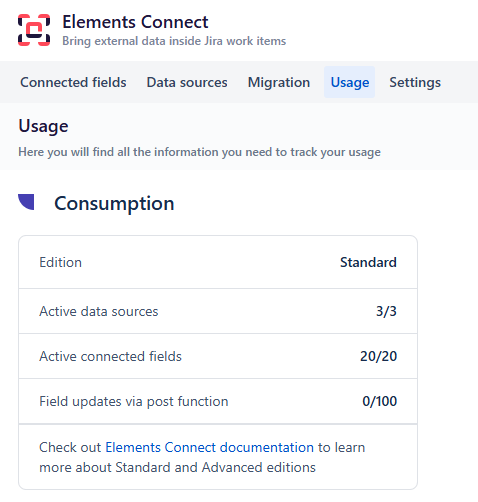
You will find the following information
-
Edition: Standard or advanced
-
Number of active data sources
-
Number of active connected fields
-
Number of field updates via post-function since the beginning of the month
6. Automatic deactivation
In case you are downagrading from Advanced edition to Standard edition, what’s exceeding will be automatically set as inactive.
To define which item should be deactivated, we compute a score:
-
For a connected field: the number of values for each fields (i.e. number of tickets for which the field has been populated).
-
For a data source: the average of each associated connected field score.
Then the logic:
-
If you have more than 3 data sources, we disable data source (i.e. all related connected fields) with the lowest score until you reach 3 data sources
-
Then, if you still have more than 20 connected fields, we disable the custom fields with the least number of values until you reach 20 connected fields. Note that parent fields are preserved as long as there is still an active child field.
All cache below the limit will be set to 5 minutes.
Note that NO DATA WILL BE DELETED DURING THE PROCESS. Everything remains for you to check and/or activate, within the limits of your edition.
Need help?
If you feel too limited by the Standard Edition, consider upgrading to Advanced edition to better support your usage and scale. Check Elements Connect documentation for app edition to see how to perform the upgrade.
If you have any further questions or need assistance, please don't hesitate to contact our support team. We're here to help you choose the right edition.