
Bulk update
-
Since Elements Connect 8.11.0
-
Advanced edition
Bulk update refreshes the values of connected fields on many issues at once. You select issues with a JQL query, choose the connected fields to update, and Elements Connect fetches the latest value of each field from its data source, using the ID stored in the issue.
It works the same way as live update, but for a whole set of issues instead of one issue at a time.
Info: Bulk update is available in the Elements Connect administration, in the Bulk update tab.
When to use bulk update
-
After a migration from Data Center to Cloud. Values migrated from Elements Connect DC Live Text fields only contain IDs. Bulk update fetches the matching values from the data source. See Field mapping during migration.
-
When values in your data source have changed and you want issues to reflect them, for example to search or report on them with JQL.
What can be updated
Supported fields
Warning: Bulk update currently works only with Object fields that have live update enabled (live query or live path configured).
|
Field |
Supported |
|---|---|
|
Object field with live update enabled (single or multi-value) |
✅ |
|
Object field without live update |
❌ |
|
Snapshot field |
❌ |
Bulk update updates existing values: it does not set a value in a field that is empty.
Supported data sources
-
REST API data sources
-
SQL (database) data sources
Supported dependencies
The live query or live path of a field can depend on:
-
Other connected fields, including the field itself (
$currentCustomfield) -
Native Jira fields
-
Issue context (project, issue type, etc.)
Fields whose query depends on $currentUser or $userInput cannot be selected: there is no current user or user input during a bulk update. Use the ID stored in the field instead. See Live update.
Before you start
1. Check your field configuration
Some configuration problems do not produce an error or warning during a bulk update. Before running one, make sure that:
-
The fields are on the edit screen of the issues you want to update.
-
The field cache duration is consistent with how often you update (for example, a 48h cache makes no sense if you update every day).
-
The live query or live path relies on the stored ID of the field.
2. Be aware of your data source limits
If your data source is an API, its own limits can slow down or interrupt the bulk update:
-
API timeouts
-
API rate limiting
3. Plan your batches
When a field depends on the value of another field (parent / child), the parent must be up to date before the child is updated. Run them in separate batches, starting with the parents.
Example
|
Fields |
Children, level 1 |
Children, level 2 |
|---|---|---|
|
CF1 |
CF1-2 |
CF1-2-3 |
|
CF2 |
CF2-1 |
|
|
CF3 |
|
|
Plan at least 3 batches:
-
CF1, CF2, CF3
-
CF1-2, CF2-1
-
CF1-2-3
Splitting into batches also lets you update your most important fields first.
4. Prepare your JQL
The total duration depends on the number of issues to process and on how heavy the JQL is to run.
-
If many issues have the selected fields empty, filter them out with an
is not EMPTYcondition: they have nothing to update. -
A very complex JQL can take longer to load, which may offset the gain.
Run a bulk update
-
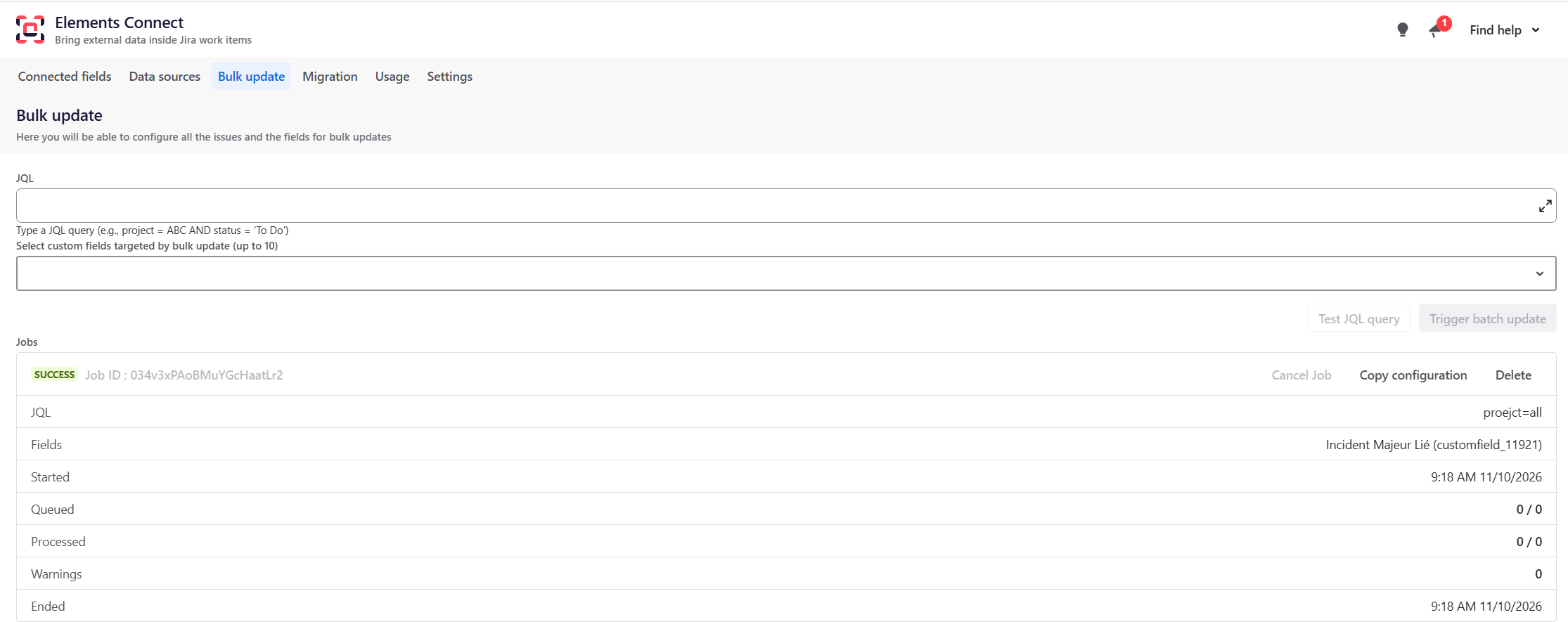
Go to the Bulk update tab of the Elements Connect administration.
-
Enter a JQL query to select the issues.
-
Select the connected fields to update (max 10)
-
Click Test JQL query (recommended, see below).
-
Start the bulk update.
You can run only one bulk update at a time. To start a new one, wait for the current one to finish or cancel it.
Test your JQL query
Before running a bulk update, Test JQL query checks your setup and gives advice:
-
JQL optimization: compares your JQL with a version split by field with a
is not EMPTYcondition. If the split version processes significantly fewer issues, it suggests the split JQL queries. -
JQL duration: warns you if loading one page of results takes more than 10 seconds. Such queries may time out during the bulk update and should be optimized.
-
Dependencies: warns you when a selected field depends on the value of another field, so you can update the parent field first in a separate batch.
-
Nothing to update: tells you when none of the issues matched by your JQL have a value in the selected fields.
Follow a bulk update
Progress
At any time, you can check:
|
Counter |
Meaning |
|---|---|
|
Queued |
Number of issues found by the JQL and queued for update |
|
Processed |
Number of issues processed |
|
Warnings |
Number of issues that could not be fully updated |
Status
|
Status |
Meaning |
|---|---|
|
IN PROGRESS |
The bulk update is running. |
|
SUCCESS |
All issues have been queued and processed. Some issues may still have warnings: check the Warnings counter. |
|
ERROR |
The bulk update stopped before all issues were queued or processed. Copy the configuration and run it again; if it happens again, contact support. |
|
CANCELLED |
The bulk update has been cancelled. |
Note: A bulk update in Success without warnings does not guarantee that every value is correct. Some configuration problems (see Before you start section) are not detected.
Cancel a bulk update
If a bulk update takes too long, you can cancel it and run another one.
Manage the history
Each bulk update is kept in the history. For each one, you can:
-
Copy configuration: copies its JQL and selected fields into the form, so you can run it again without re-entering them. Fields that are no longer available are not selected.
-
Warnings and retries: review the warnings of the batch and retry them (see Errors and warnings section).
-
Delete it from the history. You will be asked to confirm; this cannot be undone.
Errors and warnings
A warning means that one connected field could not be updated on one issue. Warnings do not stop the bulk update: the other fields and issues are still processed, and the batch can end in Success with warnings.
Review warnings
Click Warnings and retries on a finished batch. For each warning, you see the issue, the field, the reason, the recommended action and when it failed.
-
Filter the warnings by field and by reason.
-
Download CSV to get every warning matching the current filters, with the issue, field, custom field ID, project ID, reason, recommended action, error type, error message and failure date.
Retry warnings
From the same dialog, you can retry:
-
All the warnings matching the current filters, or
-
Only the warnings you select.
A retry starts a new bulk update that only processes the fields that failed on each issue, not the whole JQL. The history shows which batch it comes from.
Info: Fix the cause before retrying: a template or configuration error will fail again.
You can only retry a batch once it is finished, and when no other bulk update is running. Warnings are kept for 30 days, after which they can no longer be retried.
Reasons and recommended actions
-
Data source
|
Reason |
What it means |
Recommended action |
|---|---|---|
|
Datasource timeout |
The data source did not answer in time. |
Speed up the datasource or optimize your query |
|
Datasource error |
The data source answered with an error (SQL error, unreadable REST response, invalid path…). |
Fix the configuration of your datasource |
|
Datasource connection error |
The connection to the data source failed: wrong address, invalid credentials, OAuth2 problem, or host unreachable. |
Check the datasource address and credentials |
|
Rate limited |
Too many requests at the same time: limit reached on the data source, on Jira, or on Elements Connect. |
Retry when the load is lower |
-
Connected field configuration
|
Reason |
What it means |
Recommended action |
|---|---|---|
|
Template error |
The template of the field could not be rendered. |
Fix the template of the connected field |
|
Template timeout |
The template took too long to render. |
Simplify the template so it renders in time |
|
Configuration error |
The field, its data source or its dependencies are misconfigured (missing configuration, invalid dependency, URL refused…). |
Fix the configuration of the connected field |
-
Jira and permissions
|
Reason |
What it means |
Recommended action |
|---|---|---|
|
Jira error |
Jira could not be reached or was unavailable. |
Retry once Jira is available again |
|
Permission denied |
The app was refused access to what the field needs. |
Grant the app access to this field, then retry |
|
Issue not found |
Jira could not find the issue: it was deleted, its key changed, or the app is not allowed to see it. |
The issue no longer exists: nothing to retry |
|
Issue could not be read |
The issue could not be loaded from Jira, even after several attempts. |
Retry; contact support if it persists |
-
Other
|
Reason |
What it means |
Recommended action |
|---|---|---|
|
Processing failed |
The update of the issue failed for an unidentified reason. |
Retry; contact support if it persists |
|
Internal app error |
An Elements Connect service failed. |
Contact support |
|
Unknown error |
Unclassified error. |
Contact support |
Performance
Indicative durations:
|
Number of fields |
Number of issues |
Duration |
|---|---|---|
|
10 |
10,000 |
~20 min |
|
10 |
400,000 |
~5 h |
Actual duration depends on your data source response time, your JQL and your Jira site.
To go faster:
-
Exclude issues with empty fields from your JQL.
-
Split your update into batches.
-
Optimize slow queries and templates.
Troubleshooting
|
Symptom |
What to do |
|---|---|
|
Queued never reaches 100% |
Your JQL is probably too slow. Use Test JQL query and split or simplify your JQL. |
|
Processed never reaches 100% (status Error) |
Copy configuration and run the batch again. Split it into smaller batches if it fails again. |
|
Bulk update ends in Success with warnings |
Open Warnings and retries, fix the causes, then retry the warnings. |
|
Values are not updated although there is no warning |
Check your field configuration (edit screen, cache, stored ID). See Before you start section. |
If the problem persists, contact our support with:
-
The date and time the bulk update was started
-
A screenshot of the bulk update batch
-
The warnings CSV file, if any