
This guide provides step-by-step instructions to configure Bitbucket Cloud as a datasource in Elements Connect for Jira Cloud. This integration gives you access to Bitbucket repository data (files, branches, commits, pull requests…) within your Jira work items.
Prerequisites
-
A Bitbucket Cloud account with access to the target workspace and repository.
-
Elements Connect must be installed on your Jira instance.
Configuration steps
Generate an API token
-
Click Create API token with scopes and select the following scopes:
-
read:repository:bitbucket -
read:user:bitbucket
-
-
Copy the token and keep it for the next step
Elements Connect configuration
Datasource configuration
-
Go to the Elements Connect administration menu
-
Go to the Data sources tab
-
Create a new REST API datasource and configure it as follows:
-
API Base URL:
https://api.bitbucket.org/2.0/ -
API Test URL:
https://api.bitbucket.org/2.0/user
-
-
Authentication:
-
Mode: API Key (Send in Request Header)
-
Header name:
Authorization -
API KEY:
Bearer <YOUR_TOKEN>Replace
<YOUR_TOKEN>with the Token retrieved above.
-
-
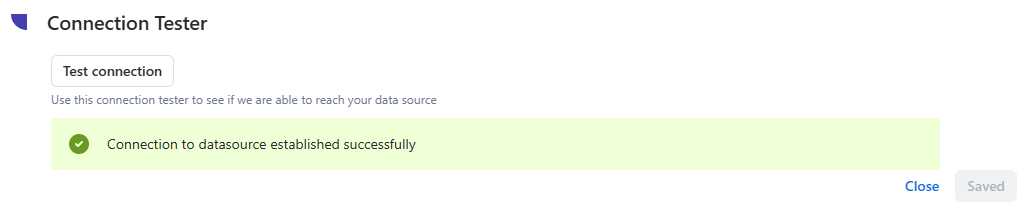
Then, click "Save" and "Test Connection":
Field configuration
Identify the endpoint to use:
-
All Bitbucket Cloud REST API (v2.0) calls share this root:
https://api.bitbucket.org/2.0/ -
A path is appended to it, for example to read a file:
repositories/WORKSPACE/REPO_SLUG/src/BRANCH/PATH_TO_FILEWORKSPACE,REPO_SLUG,BRANCHandPATH_TO_FILE -
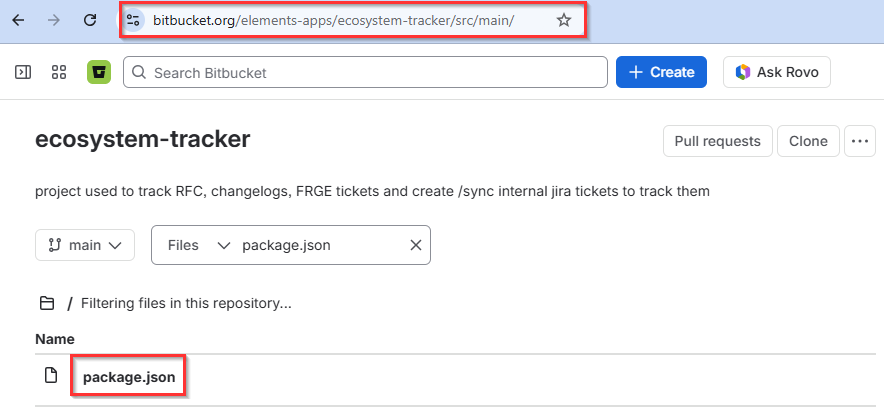
In Bitbucket, locate the repository where the file you want to fetch is stored:
-
In this case, the URL is
https://bitbucket.org/elements-apps/ecosystem-tracker/src/main/and the file to fetch ispackage.json -
Therefore, the corresponding path is:
https://api.bitbucket.org/2.0/repositories/elements-apps/ecosystem-tracker/src/main/package.json
Configure the Connected field:
-
Go to the Elements Connect administration menu
-
Go to the Connected fields tab:
-
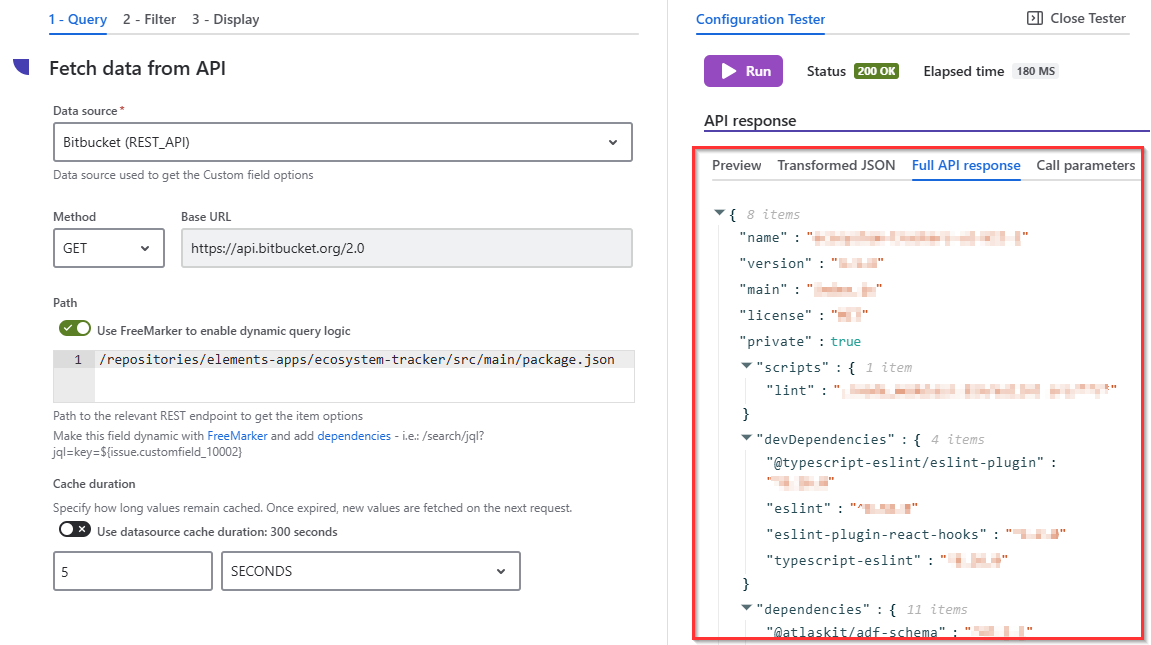
Create a Custom field and configure the query tab as follows:
-
Data source: the REST API data source created above
-
Method:
GET -
Path:
repositories/elements-apps/ecosystem-tracker/src/main/package.json
-
-
Run a test and check that the results are displayed in the Full API Response tab:
The Filter and Display tab configuration may vary depending on the content of the file. Please see the following documentation for a step-by-step guide on how to configure a field: https://doc.elements-apps.com/elements-connect-cloud/connected-custom-fields-settings#How-to-configure-connected-custom-fields
You can find the full list of available endpoints in the Bitbucket documentation here: https://developer.atlassian.com/cloud/bitbucket/rest/intro