
Prerequisites:
-
Have a Jira Cloud instance.
-
Have Elements Connect installed on your Jira instance.
-
Have a Confluence Cloud instance (on the same Jira site or remotely).
-
Have a JSON file attached to a Confluence page.
Steps
Generate an API token
-
Click “Create API token”
-
Encode the token by following the steps described here: How to encode a Token to Base 64?
-
Copy the Base64-encoded token and keep it for the next step
Elements Connect configuration
Datasource configuration
-
Go to the Elements Connect administration menu
-
Go to the Data sources tab
-
Create a new REST API datasource and configure it as follows:
-
API Base URL:
https://YOUR_CONFLUENCE_BASE_URL.atlassian.net/ -
API Test URL:
https://YOUR_CONFLUENCE_BASE_URL.net/wiki/rest/api/user/currentReplace
YOUR_CONFLUENCE_BASE_URLbased on your own Confluence site.
-
-
Authentication:
-
Mode: API Key (Send in Request Header)
-
Header name:
Authorization -
API KEY:
Basic <YOUR_BASE_64_ENCODED_TOKEN><YOUR_BASE_64_ENCODED_TOKEN>with the Token generated above.
-
-
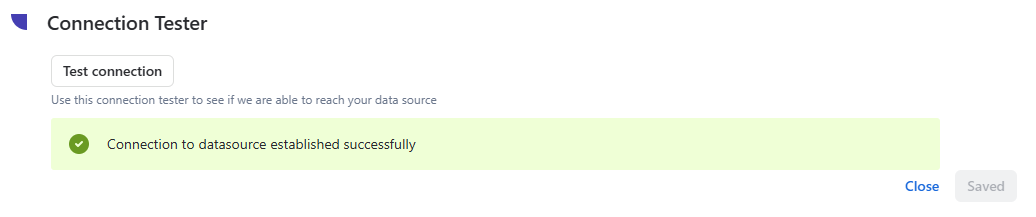
Then, click "Save" and "Test Connection":
Field configuration
To determine the endpoint to use, you need the following information:
-
The ID of the Confluence page containing the attachment.
-
The ID of the attachment.
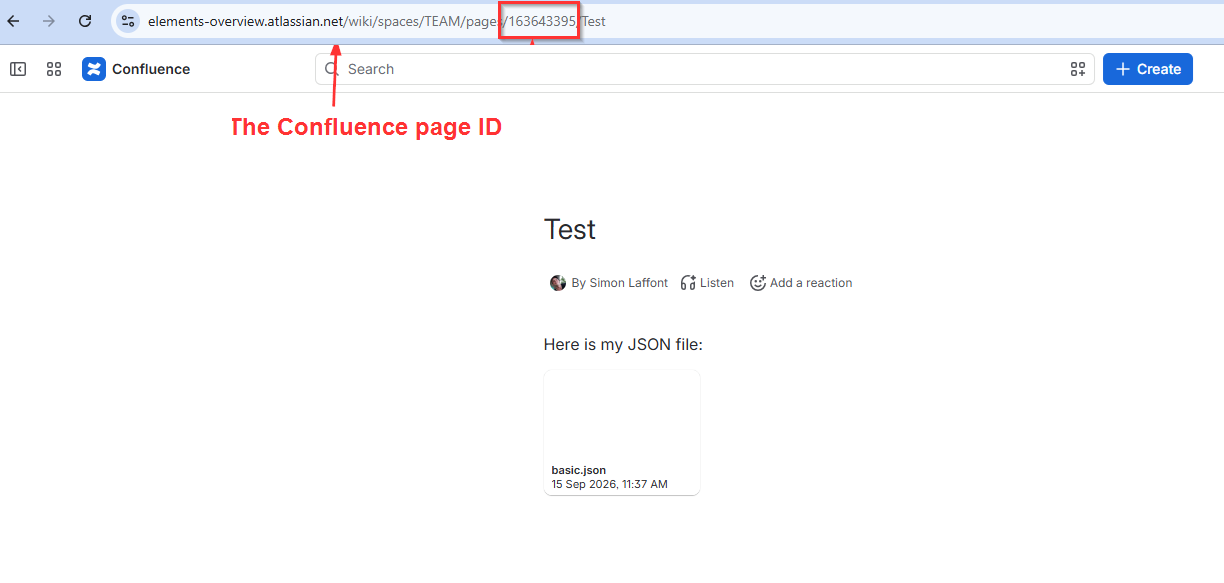
Find the Confluence page ID
You can find the Confluence page ID in your web browser's address bar, as shown below.
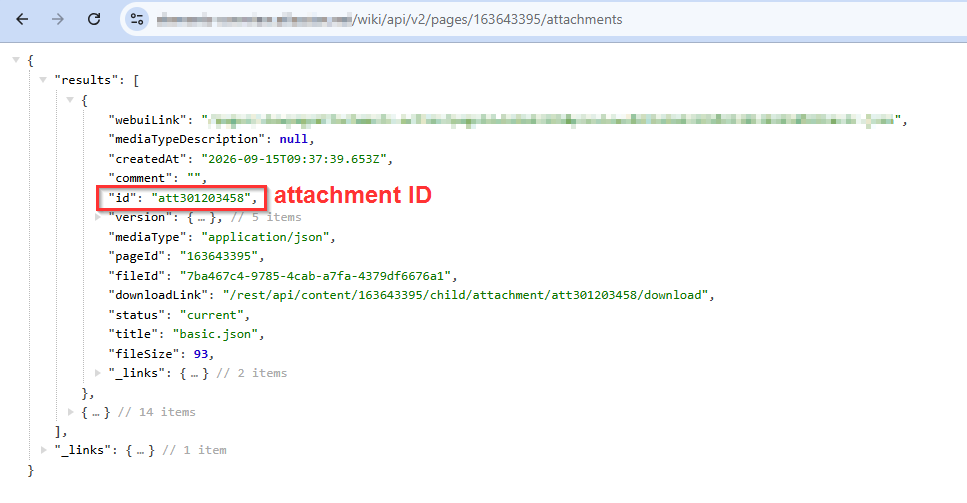
Find the attachment ID
Once you have the page ID, enter the following URL in your browser's address bar to retrieve the attachment ID:
https:/YOUR_CONFLUENCE_BASE_URL/wiki/api/v2/pages/CONFLUENCE_PAGE_ID/attachments
Replace
YOUR_CONFLUENCE_BASE_URL and CONFLUENCE_PAGE_ID accordingly.
The response should look like this:
Configure the Connected field
Once you have identified the Confluence page ID and attachment ID, you can configure the full path in your field configuration:
-
Go to the Elements Connect administration menu
-
Go to the Connected fields tab:
-
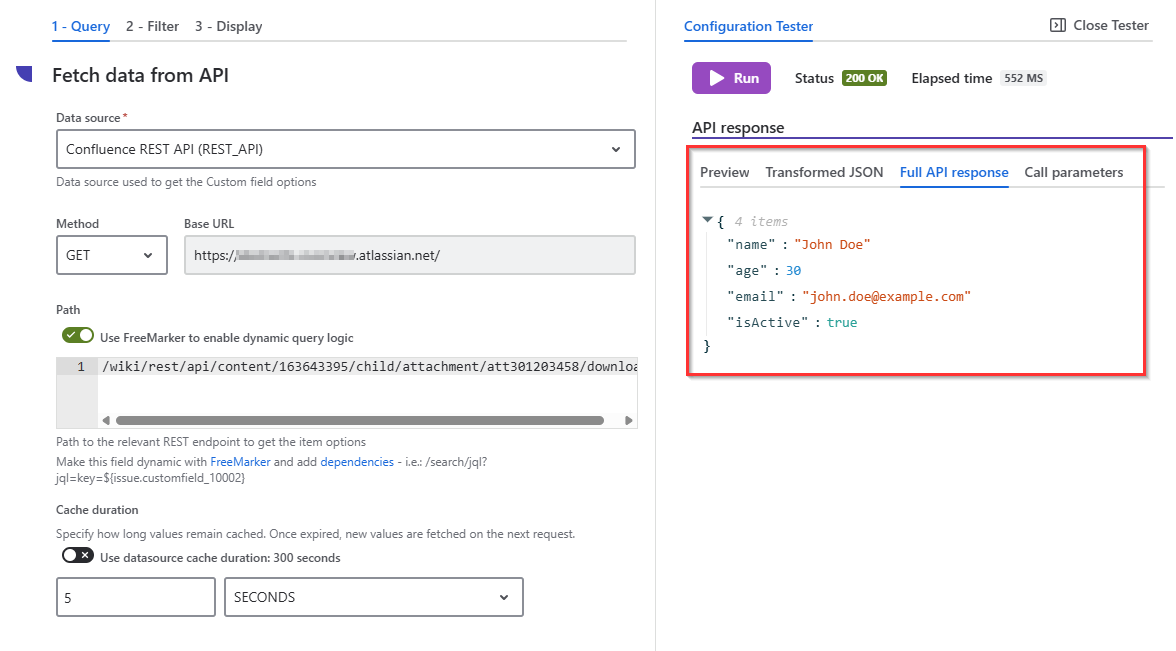
Create a Custom field and configure the query tab as follows:
-
Data source: the REST API data source created above
-
Method:
GET -
Path:
/wiki/rest/api/content/CONFLUENCE_PAGE_ID/child/attachment/ATTACHMENT_ID/downloadCONFLUENCE_PAGE_IDandATTACHMENT_IDwith the appropriate values.
-
-
Run a test and check that the results are displayed in the Full API Response tab:
The Filter and Display tab configuration may vary depending on the content of the file. Please see the following documentation for a step-by-step guide on how to configure a field: https://doc.elements-apps.com/elements-connect-cloud/connected-custom-fields-settings#How-to-configure-connected-custom-fields