NEW
Use the Advanced options to configure AI-powered custom actions available in the Overview panel of your work items.
These settings are managed at project level and affect all users who can see the Overview panel.
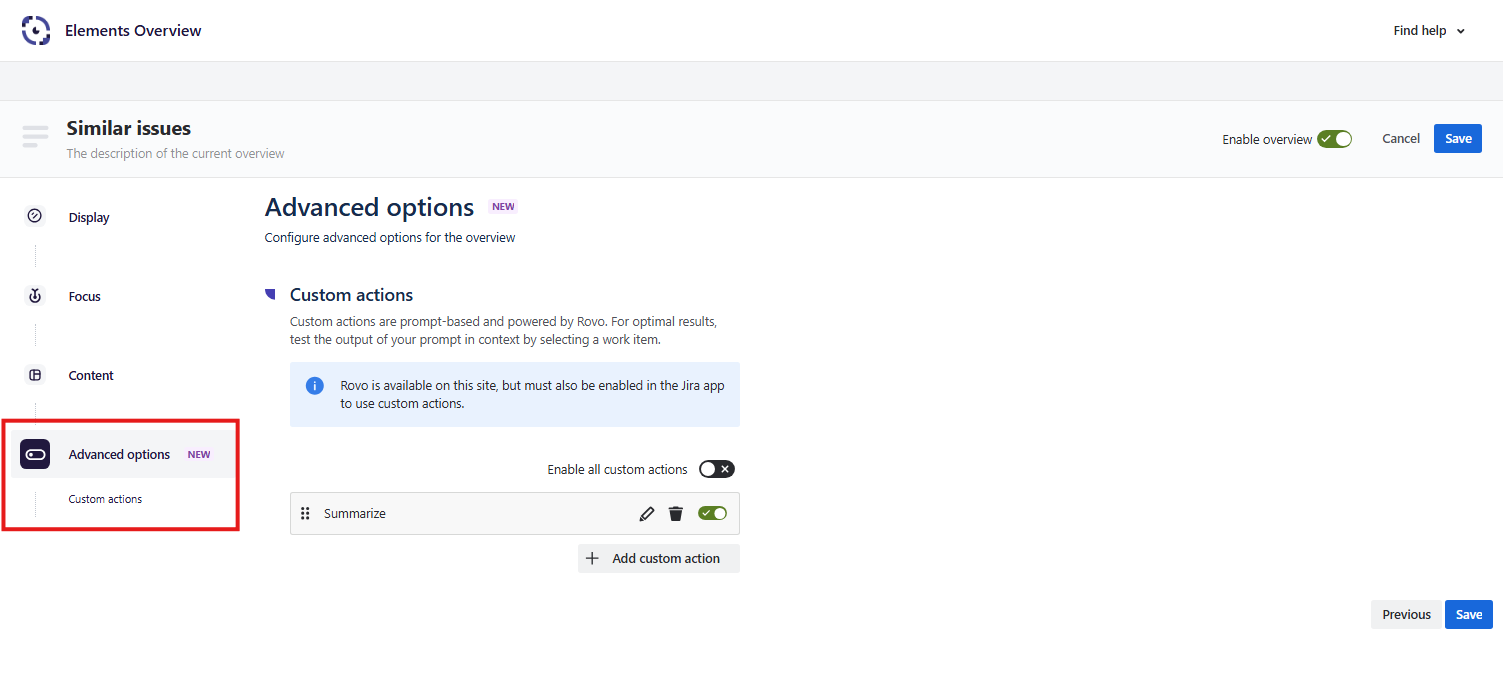
In order to use custom actions, Rovo must be activated within your organization and enabled on Jira and/or Jira Service Management
What are custom actions?
Custom actions are only displayed on work item views, i.e. only to licensed Jira users. Jira Service Management customers cannot use custom actions at this time.
Custom actions are AI prompts powered by Atlassian Rovo.
They let your team run repeatable, context-aware tasks directly from the Overview panel of a work item. For example, you can:
-
Summarize Overview panels that contain many work items
-
Spot work items that are late or due
-
Identify common patterns among work items based on fields, custom fields, labels, affected services and get insights
The more work items you include in the Overview panel, the more context Rovo has to produce accurate and useful results.
Default custom action “Summarize”
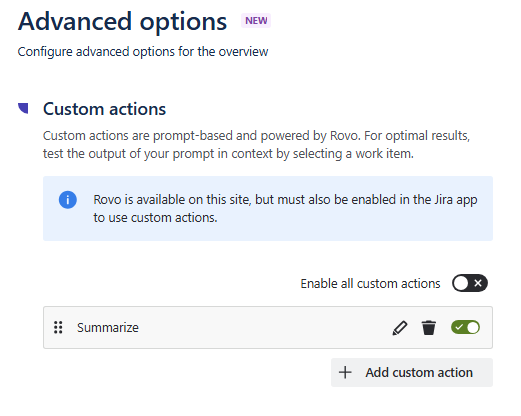
Overview comes with a built‑in custom action called “Summarize” enabled by default.
When enabled, users will see a Summarize button in the Overview panel, which generates a concise summary based on the work items shown there.
What project admins can do
As a Project Admin, you can:
-
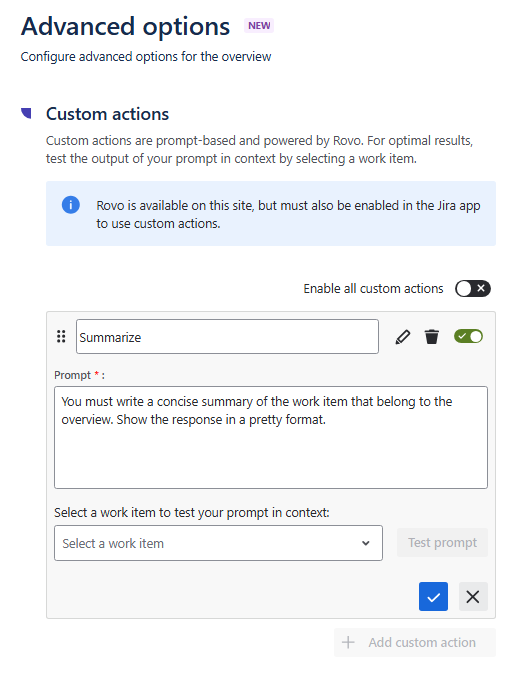
Rename the custom action
-
Edit the prompt
Adjust how the summary is generated (tone, level of detail, target audience, etc.).
-
Test the prompt in context and fine tune it:
-
Select a work item
-
Click “Test prompt”. The Rovo sidebar will open with the prompt you entered
-
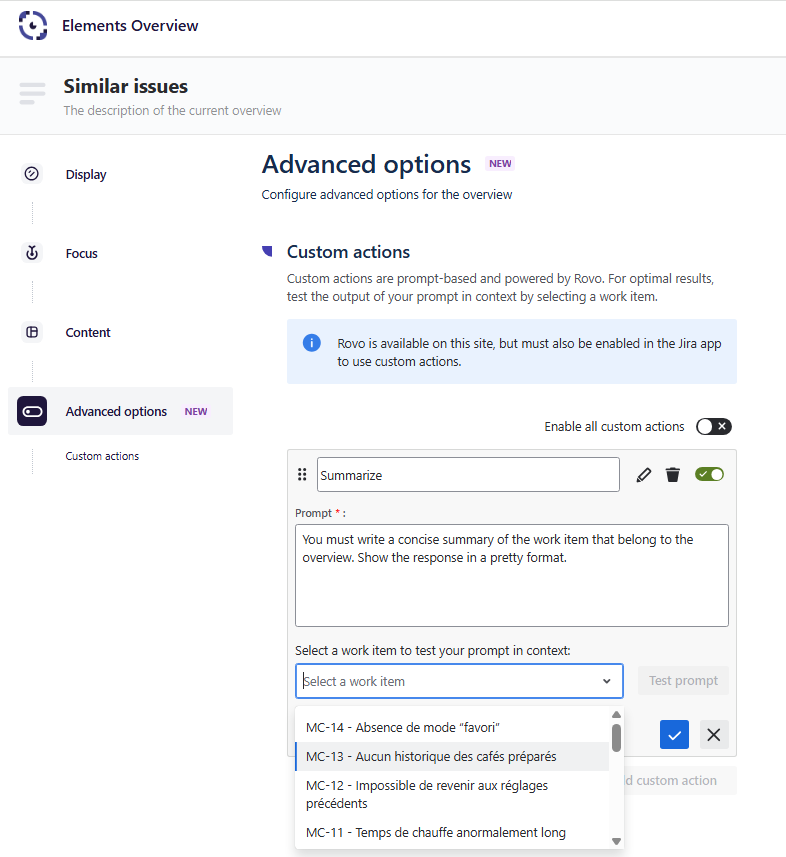
Context is limited to 50 work items
-
Disable the action
Turn it off if you don’t want end users to see the Summarize button in Overview anymore. -
Delete the action
Remove it completely if you don’t plan to use it. You can always create your own custom summary action later.
Create custom actions
You can create additional custom actions tailored to your team’s workflows (e.g. “Propose next steps”, “Draft release note”, “Extract risks”).
To create a new custom action:
-
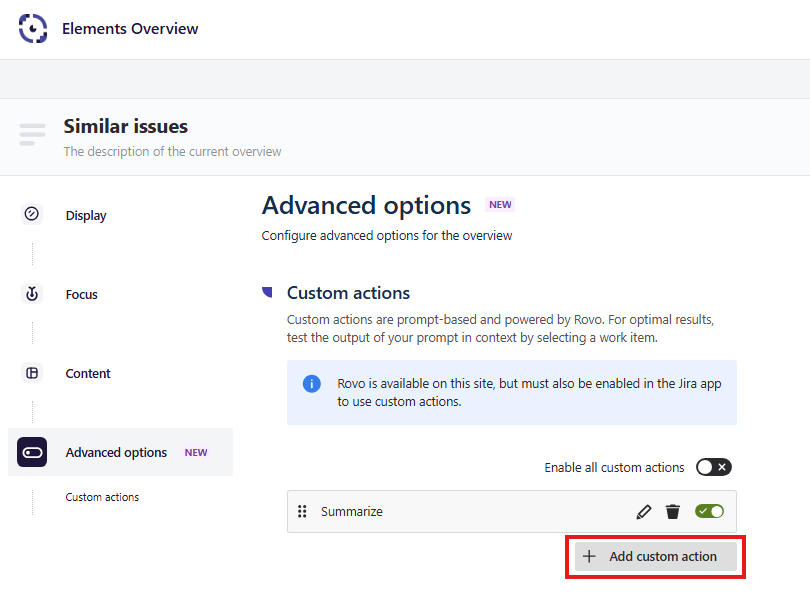
Click “Add custom action”.
-
Configure the action:
-
Name the action
Give it a clear, user‑friendly title. The title is inline-editable when the action is expanded. -
Write the prompt
Enter what you want Rovo to do in the Prompt text area.
You can describe:-
The goal (e.g. “Create a bulleted list of key risks”)
-
The format (e.g. “Reply in Markdown with headings”)
-
The audience (e.g. “Explain this for non-technical stakeholders”)
-
-
-
Test and refine in context
-
Select a work item in Jira.
-
Back in Advanced options, click Test prompt for your action.
-
The Rovo sidebar opens and shows the result for the selected work item.
-
Adjust the prompt until the output matches what you expect.
-
Once saved and enabled, the new action will be available in the Overview panel for end users.
Disable or delete custom actions
You stay in control of which actions your users can access.
Disable a single action
-
Use the toggle next to an action to hide it from end users without deleting it.
-
You can re‑enable it later at any time.
Disable all custom actions
-
If you turn off the global Enable all custom actions switch, no custom actions (including “Summarize”) are shown in the Overview panel for end users.
-
Your configuration is preserved; you can turn the switch back on to restore them.
Delete an action
-
Click the trash icon on a custom action row to permanently delete it.
-
The action is removed from the Overview panel and from the configuration.