
This page explains how to connect your external database to Jira with Elements Connect. Elements Connect supports the most common relational databases used in enterprise environments - PostgreSQL, MySQL, Microsoft SQL Server, Oracle Database, and Azure SQL Database - and lets you use this data to enrich Jira issues and custom fields.
IP allow list
If your organization has configured some origin restriction on your database, make sure to add our servers IP addresses to your IP allow list:
-
52.45.65.15
-
3.223.15.246
Supported database types
Elements Connect supports the following databases:
|
Database |
Supported versions |
|---|---|
|
Microsoft Azure SQL Database |
Current Microsoft Cloud version |
|
Microsoft SQL Server |
|
|
MySQL |
|
|
Oracle Database (Service identification) |
|
|
PostgreSQL |
|
Note that connection to MariaDB is possible through the MySQL datasource. However, we will not be able to provide support in the event of connection issues.
Your database is not supported?
Please tell us which data source you want to use in Elements Connect.
Databases configuration
Select the data source type
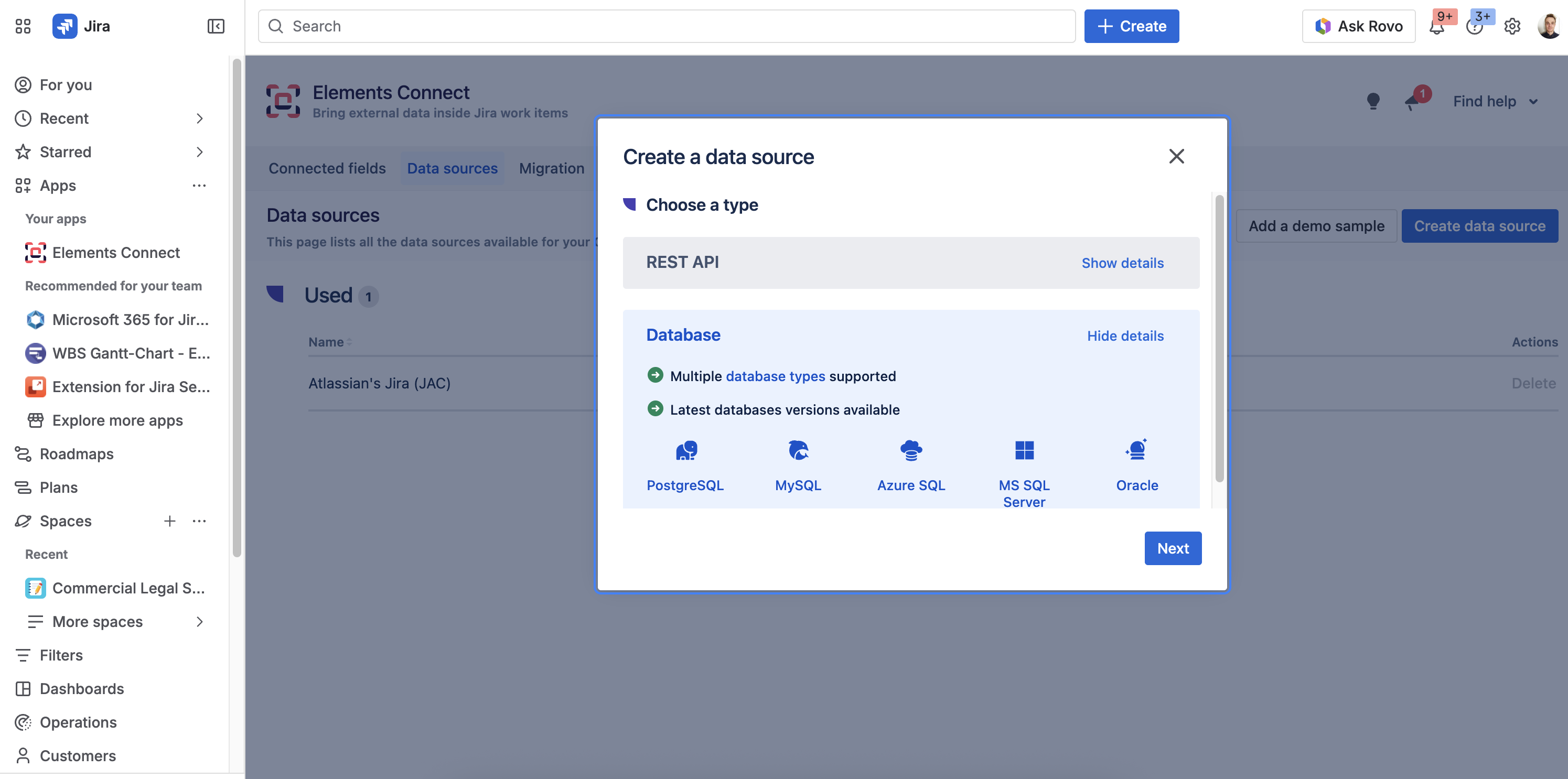
If this is your first use of Elements Connect, you will be asked which data source type you want as a data source from the main landing page. Otherwise, go to the Data Sources page in the top menu.
You have a choice between REST API and Database, choose Database.
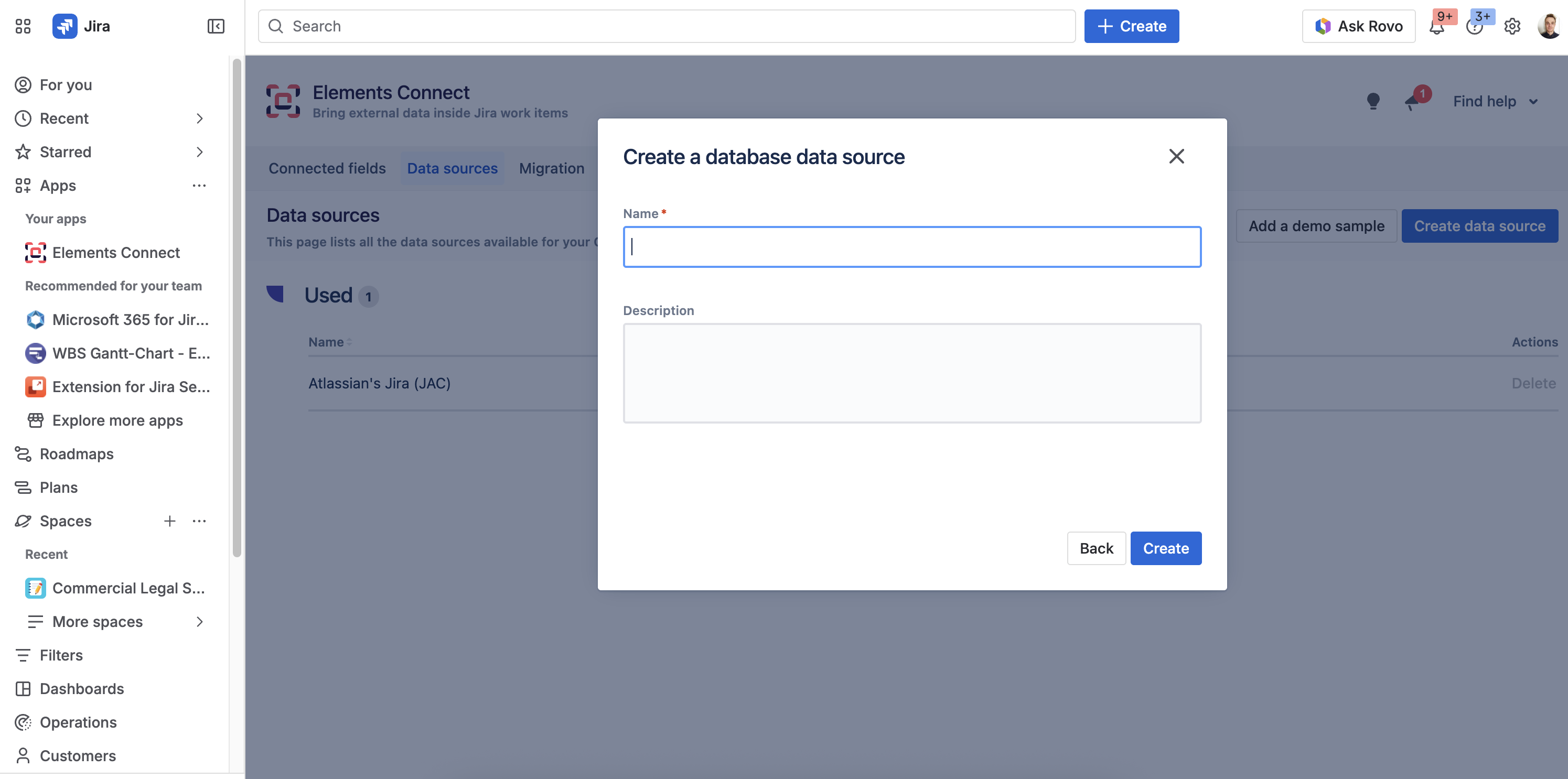
Name your database
After selecting to create a database data source , you are asked to fill in some basic information:
Configure your connection
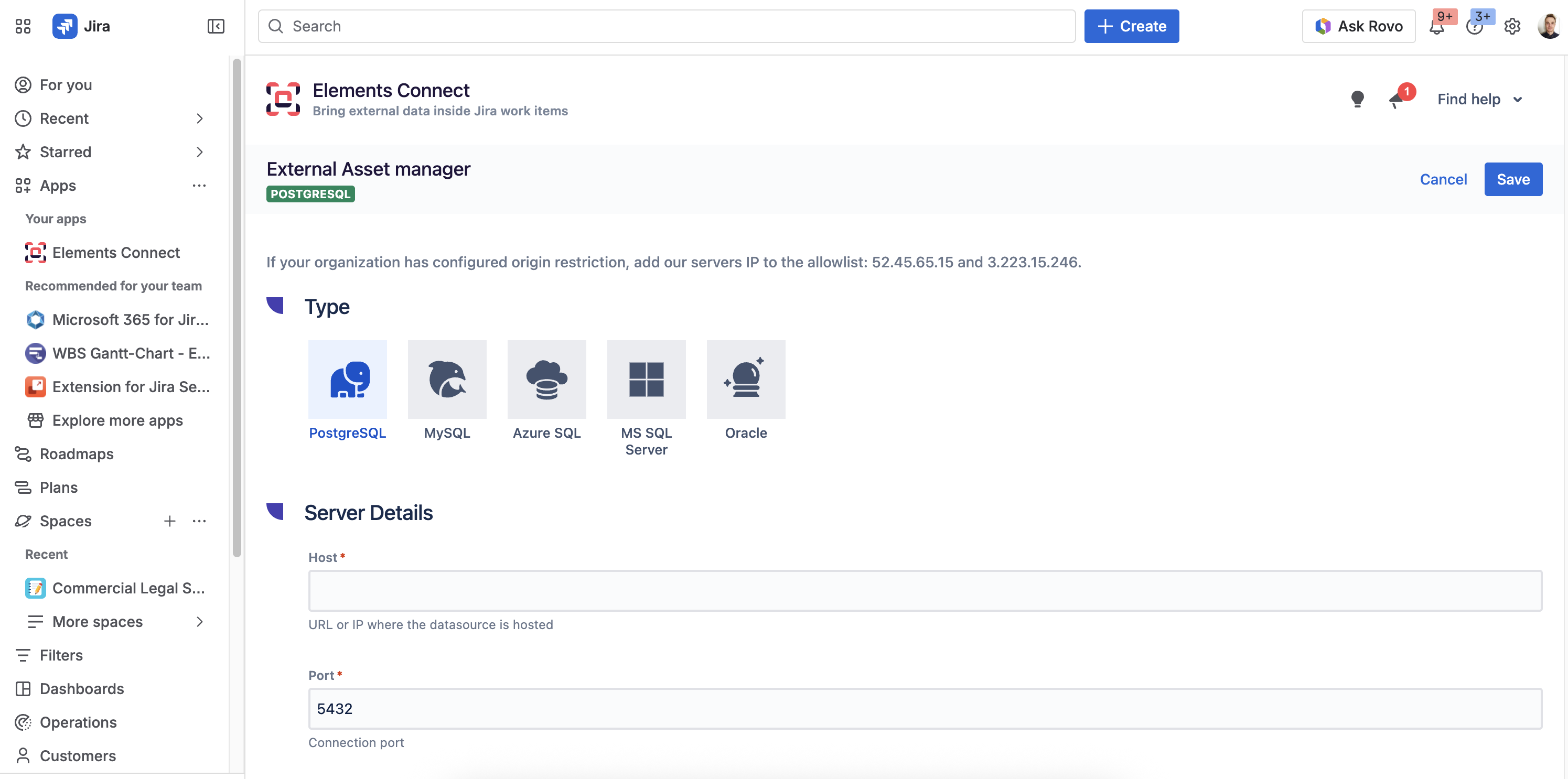
Once the data source has been created, you need to configure it.
|
Type* |
|
|
Host* |
URL or IP where the datasource is hosted For Microsoft Azure SQL Database, only URL hosts can be used |
|
Port* |
Connection port number |
|
Database* |
Name of the database Not applicable for Oracle databases, please cf https://docs.oracle.com/database/121/CNCPT/intro.htm#CNCPT914 |
|
Schema* |
Name of the schema to be connected to Not present for MySQL databases, as Schema and Database are synonymous in MySQL databases Not applicable for Oracle databases, please cf https://docs.oracle.com/database/121/CNCPT/intro.htm#CNCPT914 |
|
Login* |
Login used to connect to the database |
|
Password |
Password used to connect to the database |
|
Service*
|
Name of the Oracle Database service |
|
Connection pool size |
This property controls the maximum size that the pool is allowed to reach, including both idle and in-use connections.
|
Elements Connect allows users to configure database connections according to their specific security requirements. You have the option of establishing a secure (recommended) or non-secure connection, depending on your preferences and the security measures required for your database environment. This is the responsibility of the database administrator. Our app will follow whatever the database specifies when establishing the connection.
Save your data source
Once you have saved your configuration, you can close this screen and you'll see the list of all the data sources you have created:
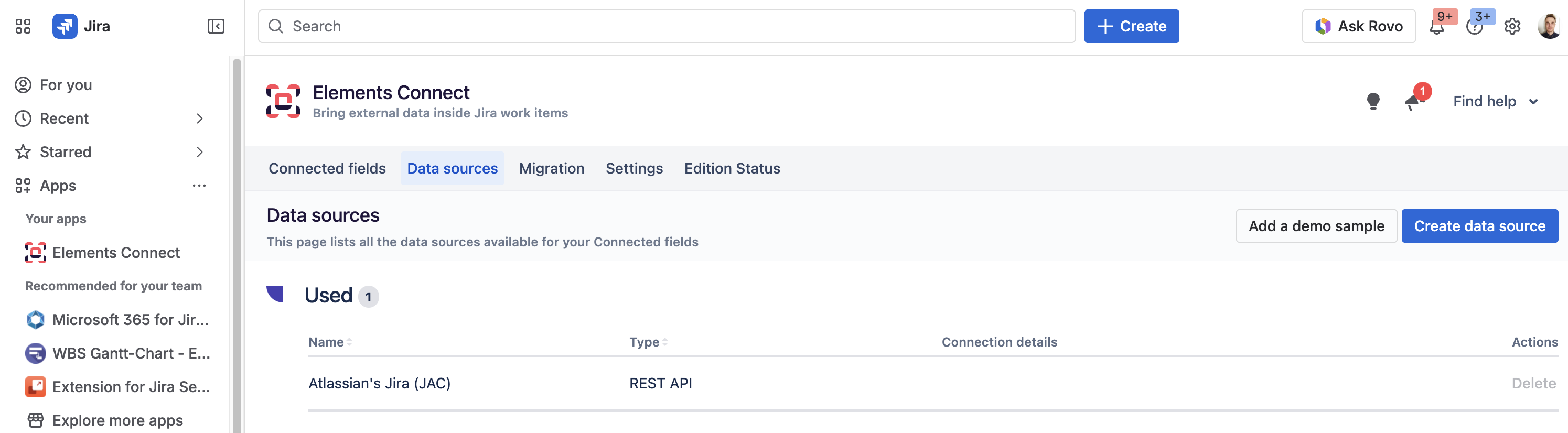
You can see a table that summarizes your data sources configurations. You can do a few things:
-
Edit a data source by clicking on its name
-
Delete a data source by clicking on the delete link. You will be asked for confirmation.
Note
You won't be allowed to delete a data source if it's used in at least one Connected field configuration.
Timeout
Long queries can have a negative impact on the user experience, it would lead to field options taking ages to load. This is why a timeout is set on every call made to a DB datasource.
The timeout duration is not configurable and it's set to 5 seconds.
What's next?
Once your database is connected, configure how the data appears in Jira:
-
Connected fields configuration - create Jira custom fields that display your database data
-
Elements Connect also supports REST API data sources for CRMs, identity providers, and other web services