
Overview
This guide explains how to automatically refresh a Connected Custom Field without manually editing each work item.
The mechanism relies on two components working together:
-
A self-looping workflow transition that carries an Elements Connect post-function. This post-function updates the Connected Custom Field, but the transition keeps the work item in its current status (it transitions "to itself").
-
A Jira Automation rule that triggers this transition automatically, based on a condition you define.
In short: your Automation rule fires the transition, and the transition runs the post-function that updates the field.
Prerequisites
Automatically updating a custom field with Jira Automation may generate a significant number of executions, both in our app and in Jira Automation.
To avoid reaching any usage limits, make sure that:
-
You are using the Advanced Edition of our app: https://doc.elements-apps.com/elements-connect-cloud/app-editions
-
Your Jira plan allows enough Automation rule executions for your use case: https://support.atlassian.com/cloud-automation/docs/how-is-my-usage-calculated/ (Premium is recommended)
Elements Connect configuration
Currently, the only supported way to update a Connected Custom Field automatically is to use the Elements Connect post-function: https://doc.elements-apps.com/elements-connect-cloud/update-your-custom-field-value-on-transition
Follow the steps below to configure the post-function without changing the work item status:
-
Edit your space workflow
-
Add a new transition, from Any Status to Itself:
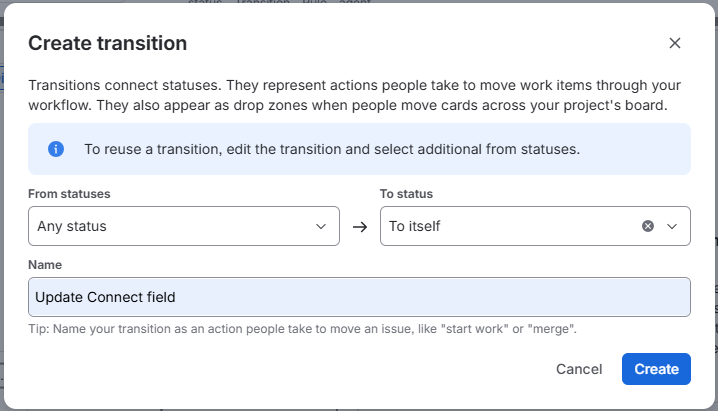
-
This create a self-looping transition, as shown below:
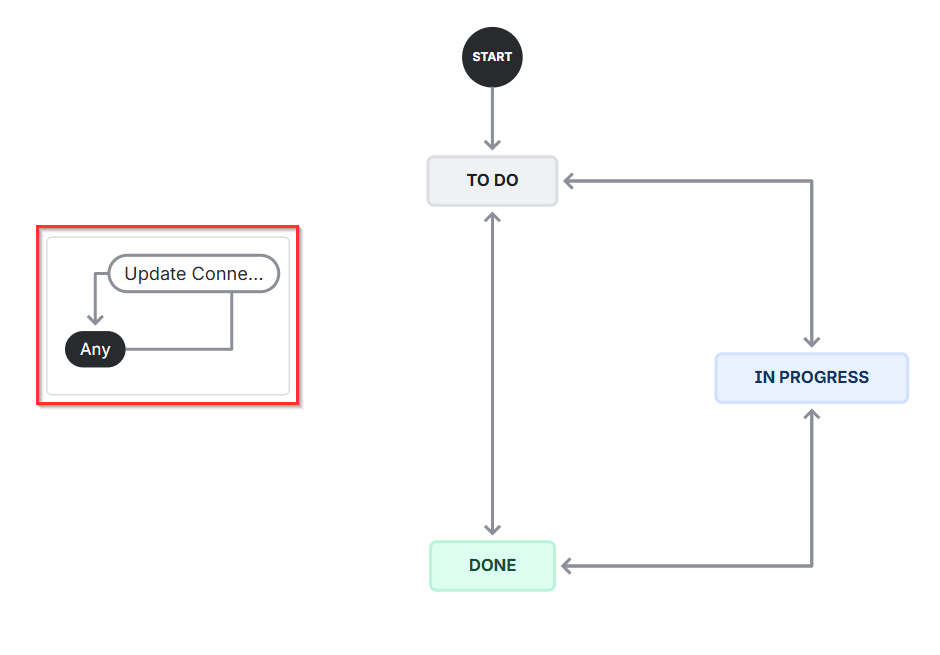
-
Add an Elements Connect post-function to this transition, then select the Connected Custom Fields you want to update:
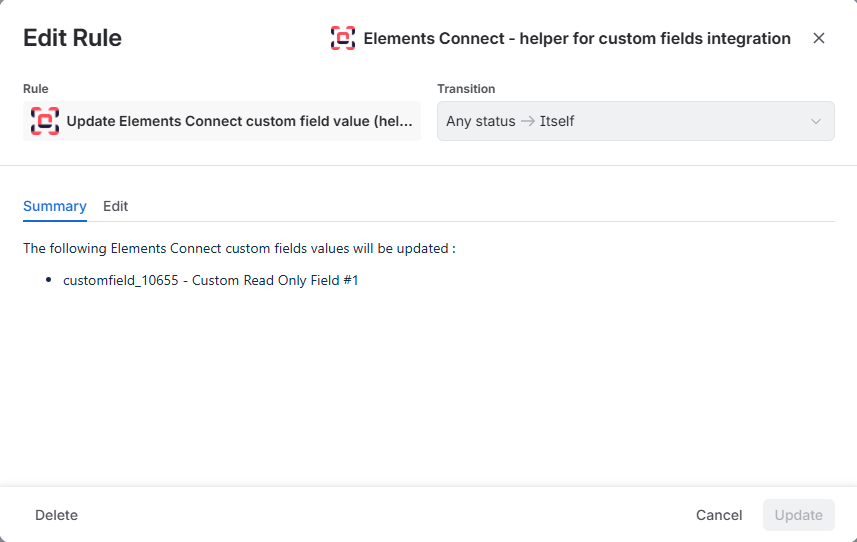
Automation configuration
Follow the steps below to configure the Automation rule:
-
Go to Settings (⚙️) → System → Global automation.
-
Click Create flow → Create from scratch.
-
Configure it as follows:
-
Trigger: Choose the trigger that best suits your use case. It determines when the Connected Custom Field will be updated.
For example, if the field depends on another field and should be refreshed whenever that field changes, choose the Field value changed trigger and select the parent field.
-
Action:
-
Choose the Transition work item action.
-
Click Add regex to distinguish between multiple transitions to the same status.
-
Specify the name of the self-looping transition you created above:
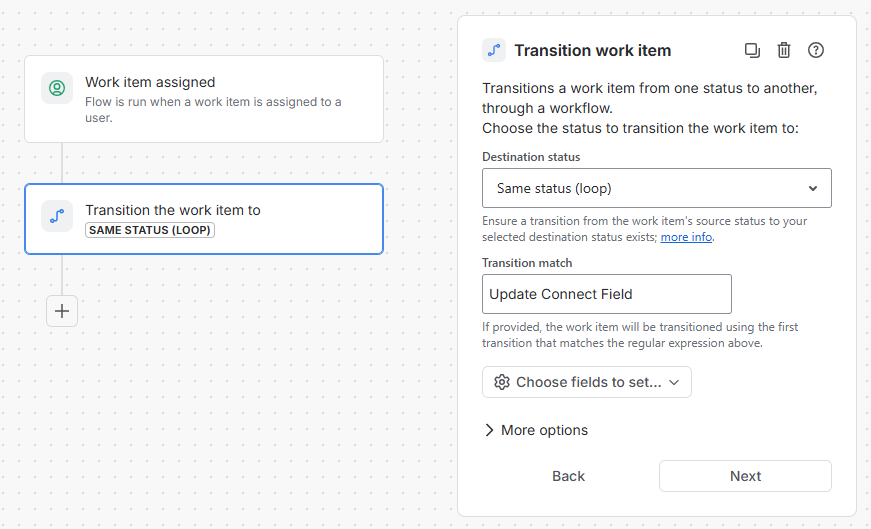
-
-
-
Save and activate the rule