
This guide explains how to configure an Elements Connect field to retrieve Jira Service Management Assets objects by using the Assets REST API.
What you will configure: a URL datasource in Elements Connect, a field query against the Assets API, JSON parsing for the response, and an autocomplete field for selecting Assets objects.
Prerequisites
Before you start, make sure the following requirements are met:
-
Jira Service Management Assets is available on your Jira Data Center instance
-
Elements Connect is installed
-
You have Jira administrator permissions
-
You have an Assets object type to query
Create the URL datasource
In Jira administration, go to Apps → Elements Connect → Datasources.
Create a new datasource and select URL.
Datasource settings
Datasource name
Jira Assets
URL
Enter the root URL of the Assets REST API:
https://jira.example.com/rest/assets/1.0
If Jira uses a context path, include it:
https://jira.example.com/jira/rest/assets/1.0
Do not add the endpoint path in the datasource URL. The endpoint path must be configured later in the field query.
Example
Datasource URL: https://jira.example.com/rest/assets/1.0
Field query: objectschema/list
Final URL: https://jira.example.com/rest/assets/1.0/objectschema/list
Authentication
HTTP Basic
Enter the username and password of a Jira admin that can browse the Assets data.
Content type
JSON
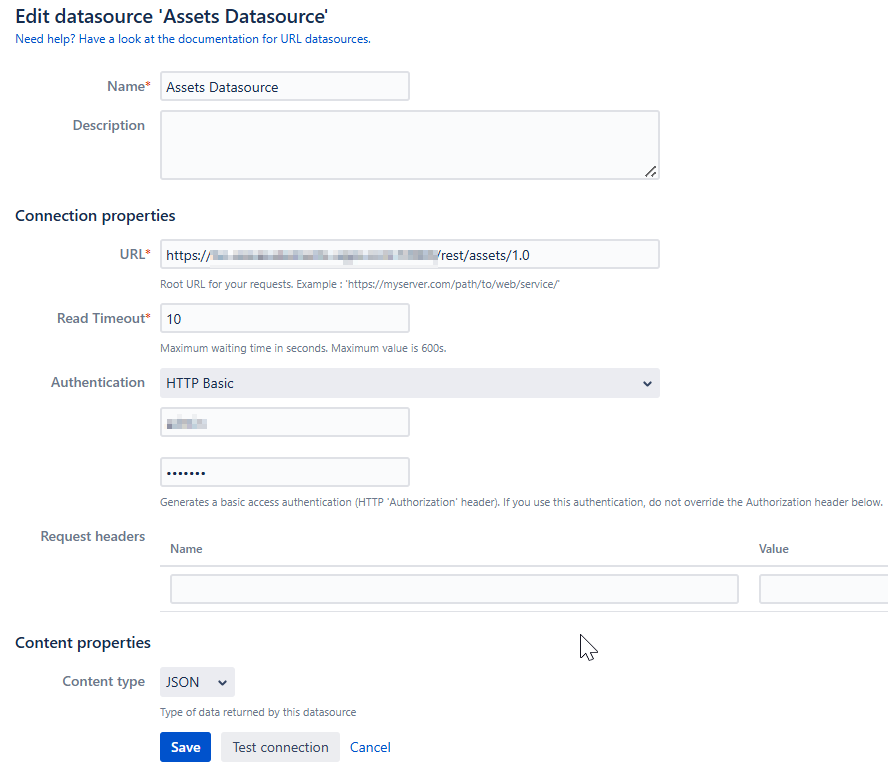
Save the datasource.
Create the Elements Connect field
Go to Elements Connect administration → Fields.
Create a new Elements Connect field.
For a simple Assets object picker, use one of the following field types:
-
Snapshot Text, if you want to store the displayed value in the issue
-
Live Text, if you want the field to retrieve the latest Assets value when the issue is displayed
Select the URL datasource created in the previous step.
Configure the field query
This example displays objects from the Device object type.
In the field configuration, use this query:
aql/objects?iql=$util.encodeURIComponent('objectType = "Device"')&resultPerPage=50
The corresponding AQL query is:
objectType = "Device"
The $util.encodeURIComponent() function makes the AQL query readable in the configuration while encoding it correctly for the URL parameter.
Configure the JSON response
The Assets AQL endpoint returns objects in the objectEntries array.
Set the root element to:
$.objectEntries.*
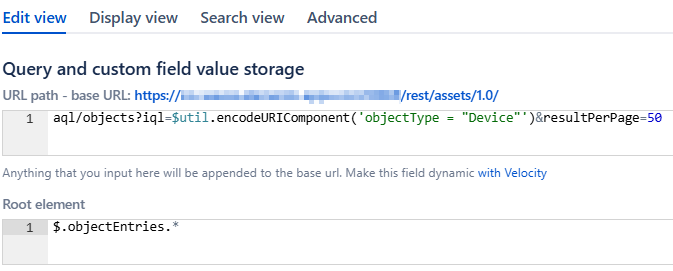
Configure the following columns:
|
Column name |
JSON path |
|---|---|
|
|
|
|
|
|
|
|
|
|
|
|
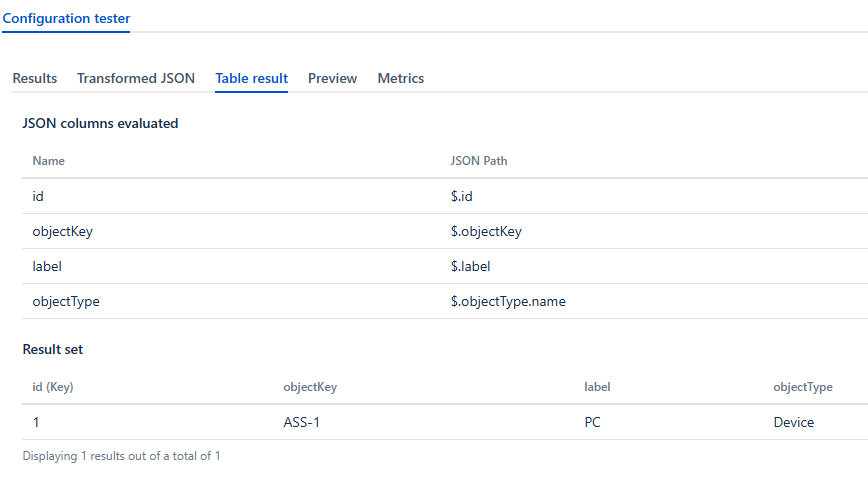
Configure the editor
For Assets object selection, use the Autocomplete editor.
Recommended settings:
|
Setting |
Value |
|---|---|
|
Editor |
Autocomplete |
|
Selection mode |
Single value |
|
Min characters |
2 |
|
Max suggestions |
20 |
For large object types, filter results with what the user types.
Example query
aql/objects?iql=$util.encodeURIComponent("objectType = \"Device\" AND Name LIKE \"$userInput\"")&resultPerPage=20
This searches for Device objects whose Name matches the user input.
For large Assets object types, combine Autocomplete, $userInput, and resultPerPage to avoid loading too many objects at once.
Configure the display template
Use the columns configured earlier in the field template.
Example
{label} - {objectKey}
Displayed result
MacBook Pro - ITSM-123
For Live Text fields, configure the key with the id column.
Recommended key
0
This stores the value from the first column, id.
Test the field
Use the Configuration Tester before publishing the field.
Check the following:
-
The final URL
-
The HTTP response
-
The transformed JSON
-
The table result
-
The preview
-
The execution time
If the field returns no result, check that:
-
The Jira user configured in the datasource can browse the Assets data
-
The AQL query returns objects in Assets
-
The AQL query is URL-encoded
-
The root element is correct
-
The column JSON paths are correct
Notes
Elements Connect URL datasources use GET requests.
Use Assets REST API endpoints that support GET requests, such as:
/rest/assets/1.0/aql/objects