
Checklist before running JCMA migration
All apps must be installed and up-to-date
-
Elements Connect DC 7.4.9 (or superior)
-
JCMA 1.29.0 (or superior)
-
Elements Connect Cloud 8 (or superior)
Run the JCMA migration
In Jira Data Center:
-
Go to Migrate to Cloud.
-
Create a new migration.
-
In the Projects step, select the project you want to migrate
-
In the Apps step, select Elements Connect to include elements connect value in migration.
-
Complete pre-migration checks.
-
Run the migration.
Monitoring the migration
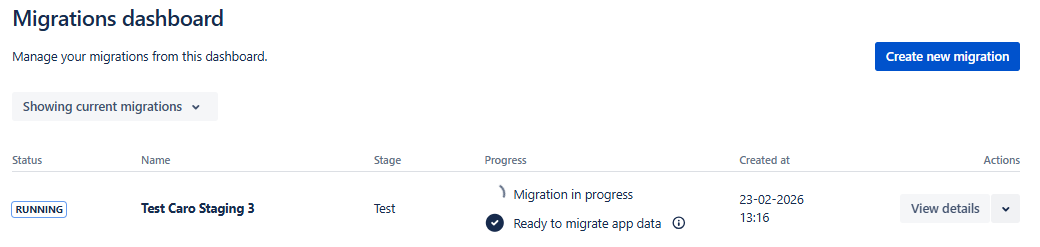
You can track progress in the Migrations dashboard in Jira Data Center
Migration complete
Once your migration is completed, you should be able to see
-
In Jira Cloud, all your issues and fields
-
In Elements Connect Cloud, under Migration tab, all your fields waiting to be configured.
If you don’t see tabs in Elements Connect Cloud, you just need to add one data source (e.g. using demo samples).
At this stage, Cloud fields are populated with their migrated values but are not yet fully configured.
👉 Check the 3. Add configuration to migrated custom fields page for information on the next step