
Checklist before running JCMA migration
✅ Elements Connect app and Elements Connect Helper app are both installed on target Cloud site
✅ Elements Connect is marked as “Needed in Cloud” on Jira Data Center App assessment.
✅ I have access to “Migration” tab in Elements Connect in Jira Cloud, to be able to monitor migration progress and status.
If you can’t see tabs in Elements Connect Cloud, it is maybe because it does not contain any configuration. Please create at least a temporary data source to be able to see “Migration” tab
✅ My JCMA migration contains Jira projects migration containing my Elements Connect fields.
If my Connect custom fields are already present in Elements Connect Cloud “Migration” tab, under “Migrated custom fields”, you can only migrate Elements Connect app, without Jira projects.
✅ In the Elements Connect Data Center “Migration to Cloud” tab, I have selected the projects from which I want values to be migrated.
Run the JCMA migration
In Jira Data Center:
-
Go to Migrate to Cloud.
-
Create a new migration.
-
In the Projects step:
-
If the previously selected projects already exist in Cloud, you can skip them.
-
If they do not exist yet, you must select them for migration in this step, otherwise Connect values migration will fail.
-
-
In the Apps step, select Elements Connect.
-
Complete pre-migration checks.
-
Run the migration.
Check this page to know more on how Elements Connect values migration work.
Check this page to know more on field mapping between Elements Connect Data Center and Elements Connect Cloud.
Monitoring the migration
You can track progress in:
-
The Migrations dashboard in Jira Data Center
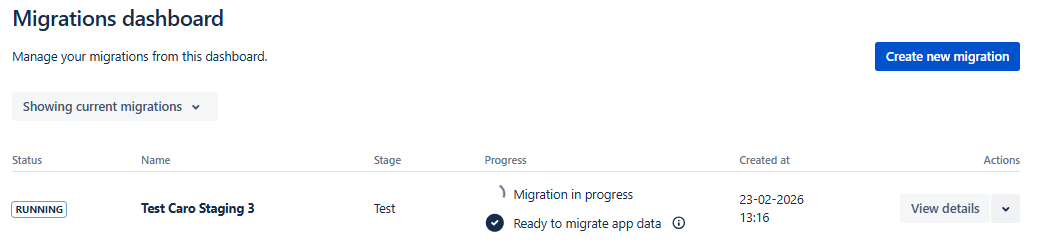
You can follow the status of Elements Connect migration in “View details”:
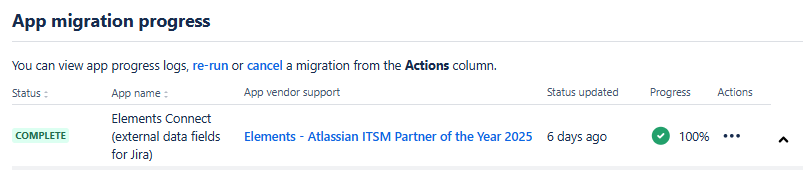
-
The Migration tab in Elements Connect for Jira Cloud
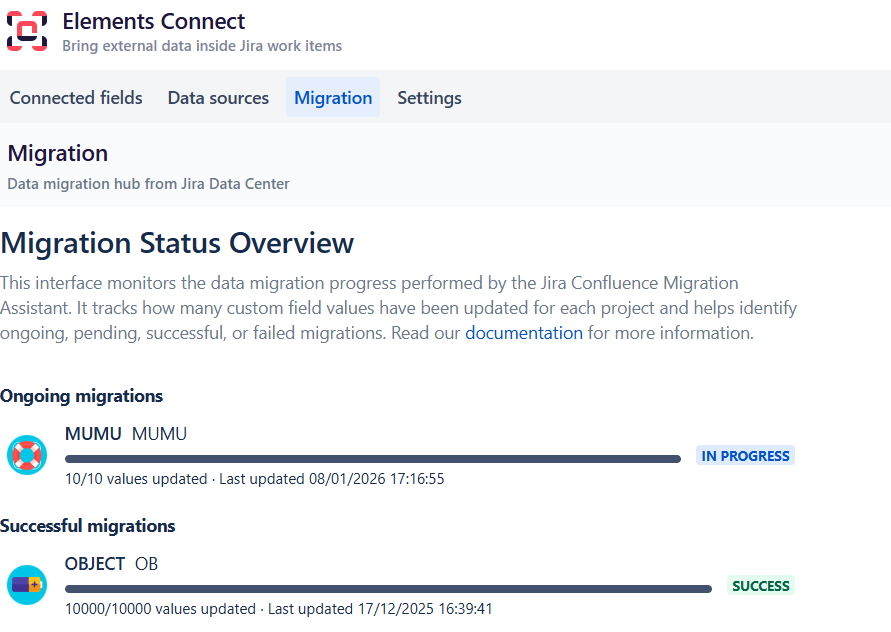
Migration is complete only when it has finished on both sides:
-
Data Center
-
Cloud
Migration statuses (per project)
Each project displays one of the following statuses:
-
IN PROGRESS – Migration is ongoing
-
SUCCESS – All values migrated
-
ERROR – Migration failed (check error message)
At this stage, Cloud fields are populated with their migrated values but are not yet fully configured.
👉 Check the 03 - Configure migrated custom fields page for information on the next step