
Symptom
You changed a connected field or a data source configuration, but Save doesn’t go through and a message appears.
There are two possible reasons.
Reason 1: the cache duration is below your edition’s minimum
What you see: a pop up message appear.
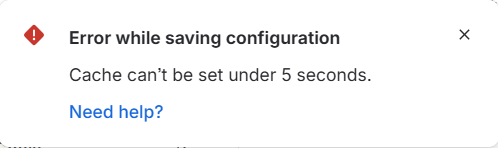
Why: each app edition sets a minimum cache duration, for data sources and for fields that override their data source cache:
|
Edition |
Minimum cache |
|---|---|
|
Standard |
5 minutes |
|
Advanced |
5 seconds |
What to do:
-
Set the cache duration to at least the minimum of your edition, then click Save.
-
If your use case needs a shorter cache, see the App editions guide: Advanced allows down to 5 seconds.
Reason 2: the configuration still uses the legacy syntax
Available from Elements Connect 8.10.0
What you see: a pop up message appear.
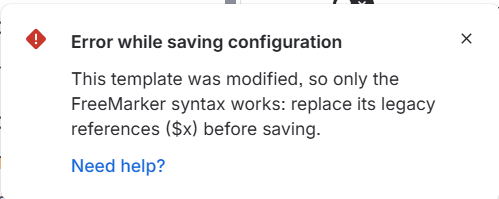
Why: you edited a configuration that uses the legacy $… syntax. Once a configuration is edited, every template in use must be in FreeMarker before you can save. A legacy configuration you don’t edit keeps working and can still be saved.
What to do:
-
Under each template, click Replace to use its FreeMarker version.
-
Check the references listed under the proposal: their field type couldn’t be detected.
-
Test the field with the Configuration tester, then click Save.
See Moving to FreeMarker for the full procedure.