
When configuring a Text connected custom field in Elements Connect for Jira Cloud, you must choose how the field stores and displays its data. Three storage types are available (depending on the base Text field type). Text
This choice is permanent, it cannot be changed after the field is created, so it's important for Jira admins to understand the differences before configuring the field.
The table below provides a quick overview. Detailed information for each type is provided afterward.
|
Type |
Available For |
Stores |
Use When |
|---|---|---|---|
|
Snapshot |
|
Only the display value |
Dependencies on this field (if any) only rely on the field’s display value |
|
Object |
|
ID + display value |
You need dependencies, Live update, or stable identifiers |
|
Multi (read-only) |
|
List of display values |
You need to display several values retrieved from a data source |
Once this choice has been made during the first configuration of your field, it cannot be modified. Please make sure that you know the differences between types.
Snapshot
A Snapshot field stores exactly what is displayed in the Jira issue, nothing more. It's the simplest storage type and the default choice when you don't need advanced behavior.
Use Snapshot when:
-
Dependencies on this field (if any) only rely on the field’s display value
-
No Live update is needed
-
You want the simplest configuration
Technically, this kind of field will only store the configured display value (more info in Data storage format page)
Object
Use Object when the field needs richer behavior or must participate in dependencies.
Use Object when:
-
Dependencies must rely on stored identifier rather than display value
-
Live update is needed - The display value refreshes on issue view
Object attributes
Each Object has two attributes:
|
Attribute |
Purpose |
|---|---|
|
ID |
Stored internally and used in dependencies |
|
Template |
Defines what the user sees in the issue view. Template output will be the value. More details in Template section. |
To go deeper on Object fields possibilities, go to Object field in detail below.
Multi (Read-Only Text)
With this type, available only for read-only text fields, you can display multiple values returned by your data source. The values will be shown one after another in the field.
Example with a Read Only Text Multi “Projects list”, displaying all the Jira project keys from your own instance - a classic Jira-to-Jira datasource use case:
-
Data source: Jira’s REST API
-
Path:
/project -
Template:
${data.key}
How it looks in a work item:

Known limitations
Here are a few known limitations when using multiple value read-only custom fields:
-
Only 55 values can be stored in this field type (Altassian limitation),
-
each value will display 25 characters maximum in the display view (but full value available at edition)
Object Fields in detail
Object fields are the most powerful option.
Using Object Attributes in Dependencies
You can use Object attributes inside queries:
Single Select
-
.id -
.value(template output)
Multi Select
-
.ids(list of IDs) -
.values(list of display values)
You can learn more about fields dependencies in our dedicated page: Dependencies between connected fields.
Table
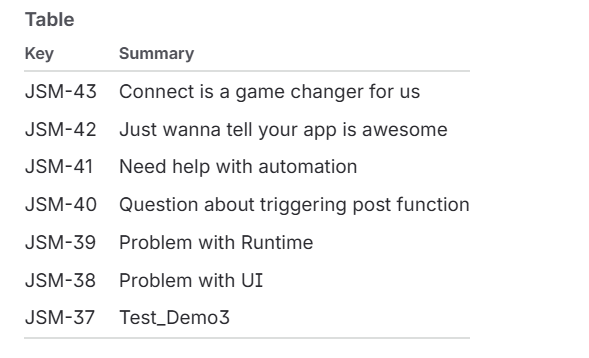
With this type, available only for read-only text fields, you can display multiple values returned by your data source. The values will be shown in a table where each line is a given item (e.g. issue, project, etc …) and each columns is a specific attribute.
Here is an example, listing latest issues of the project called “JSM”
-
Data source: Jira’s REST API
-
Path:
/search/jql?jql=project=JSM&fields=issuekey,summary -
Values template:
-
Key:
${row.key} -
Summary:
${row.fields.summary}
-
How it looks in a work item:
Current limitations
-
Limited to 5 columns
-
Limited to 10 lines (first lines in
row)
Live Fields (Dynamic Recalculation)
Object fields can become “Live”, meaning their display value updates each time the issue is viewed.
More details in Live update page.
Known limitations
Here are a few known limitations when using Object custom fields:
-
Integration with Jira Automation
-
update triggers work, but you can't easily push a value into the field, it must follow the right object format.
💡 Check out this tutorial to see an example in action: How to set custom field value in Automation rule based on a Jira Text field
-
-
Some Dashboard gadgets don't work with Object custom fields
-
you can vote for the feature request here.
-
-
The “Live” update takes into account the cache, which means that it can take some time to reflect data source changes in the connected custom field, depending on what you’ve configured in your datasource & field.
-
For Live fields, the value is only updated when the issue is viewed, nowhere else, which can lead to discrepancies on reports or JQL filters.
Frequently asked questions
What's the difference between snapshot and object storage in Elements Connect?
Snapshot stores only the display value shown to the use, simple and fast. Object stores an ID plus a template, enabling dependencies with cascading fields, Live update (dynamic recalculation), and stable identifiers that don't break if the display value changes.
Can I change the storage type of a connected custom field after creation?
No. The storage type choice is permanent. If you need to change it, you'll need to create a new connected custom field with the desired type.
Which storage type do I need for cascading dropdowns?
Object storage. Cascading dropdowns rely on the parent field's stable ID (not its display value) to filter the child field's query. Snapshot fields can only cascade on display values, which is less reliable.
Which storage type do I need for Live update?
Object storage. Live fields refresh their display value each time the issue is viewed, this is only supported for Object fields.
How does JQL search behave differently between snapshot and object fields?
Snapshot fields support standard operators (=, !=, IN). Object fields support operators on the full object (~, !~) and on properties (Field Name.Value, Field Name.ID). See the JQL search guide for details.
Why doesn't my Multi Read-Only field display more than 55 values?
55 values is a technical limit on Atlassian's side, not an Elements Connect limitation. If you have more than 55 values, consider using a single-value Read-Only field with a formatted template, or an Object field with different display logic.