
TL;DR: Open Jira's Advanced Issue Search, select up to 1,000 issues, click Apps > Bulk copy issues, choose a recipe and a target project, and submit: Elements Copy & Sync handles the rest in the background.
The need: bulk clone Jira issues in Cloud
As a Process Manager, you likely use Jira to maintain a template project containing hundreds of issues that need to be regularly copied to new projects. But manually copying Jira issues one by one is time-consuming, error-prone, and simply doesn't scale, especially when you're dealing with dozens or hundreds of issues at once.
Whether you need to bulk clone Jira issues to kick off a new project, replicate a recurring workflow, or clone a Jira project template across teams, doing it manually isn't a viable option.
The solution: bulk clone Jira issues from search or filter results
Thanks to Elements Copy & Sync, it is possible to clone all these issues at once based on a Jira search result or a Jira Filter, and even to keep them synchronized with the original project.
Watch a demo of how to automatically create Jira project templates
Tutorial
In this example, we will clone all the Jira issues from a project "Template" to a project "WaterCleaner".
The issues will keep all their information, as well as their issue types, thanks to a Copy & Sync recipe titled "Clone template".
This guide explains how to apply the same recipe to all the issues at once.
Prerequisites
A “Copy and synchronize Jira work items” recipe titled "Clone template" has been created, activated, and is available in project "Template".
This recipe clones all the Jira fields from the source issue.
The Jira bulk clone feature is available exclusively in the Advanced edition. Learn more about available plans and features on our App editions page.
Steps
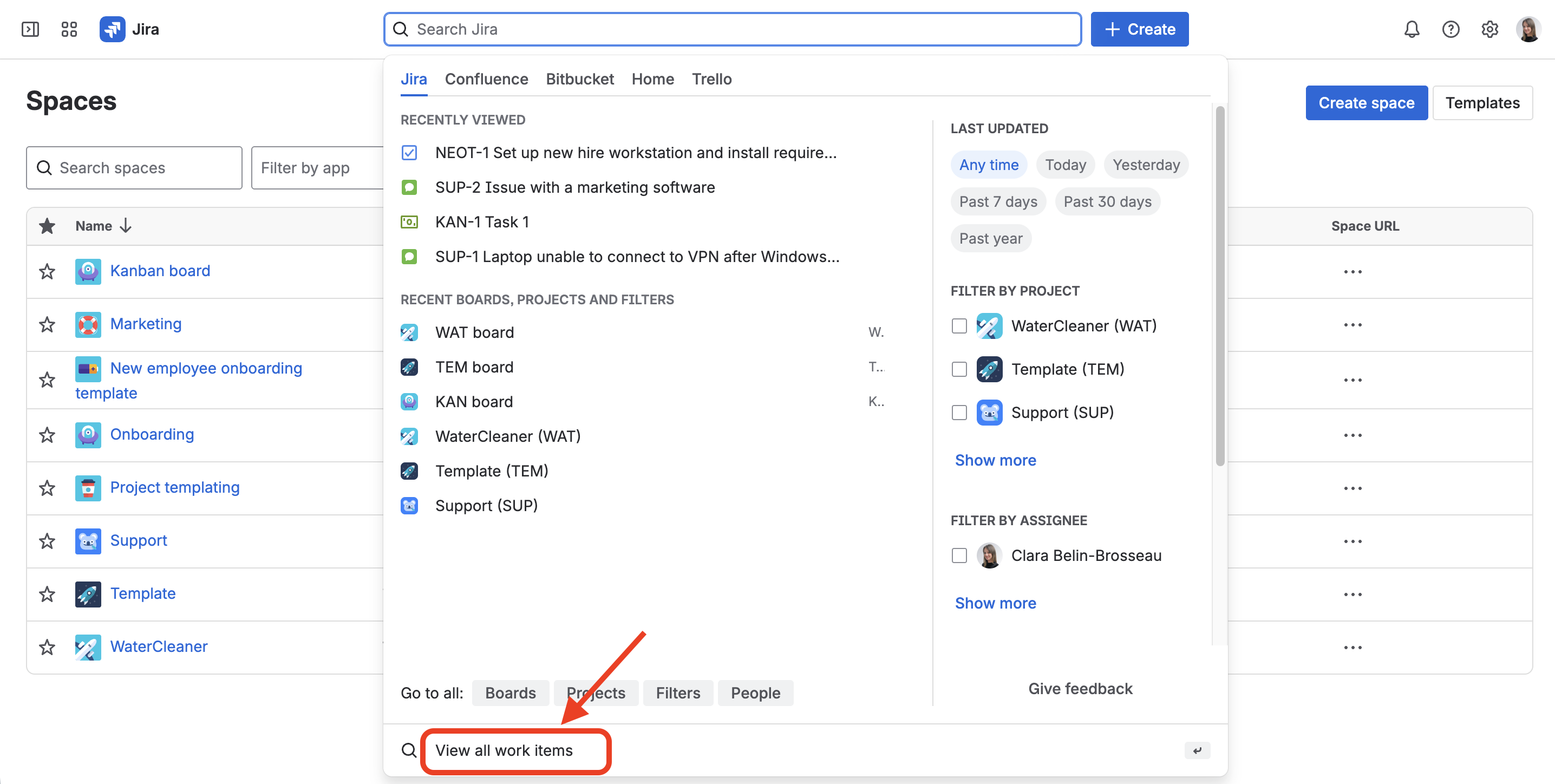
1 - As a user with access to the "Template" project, click on View all work items then open the Advanced issue search (you can also select an existing Filter by using View all filters).
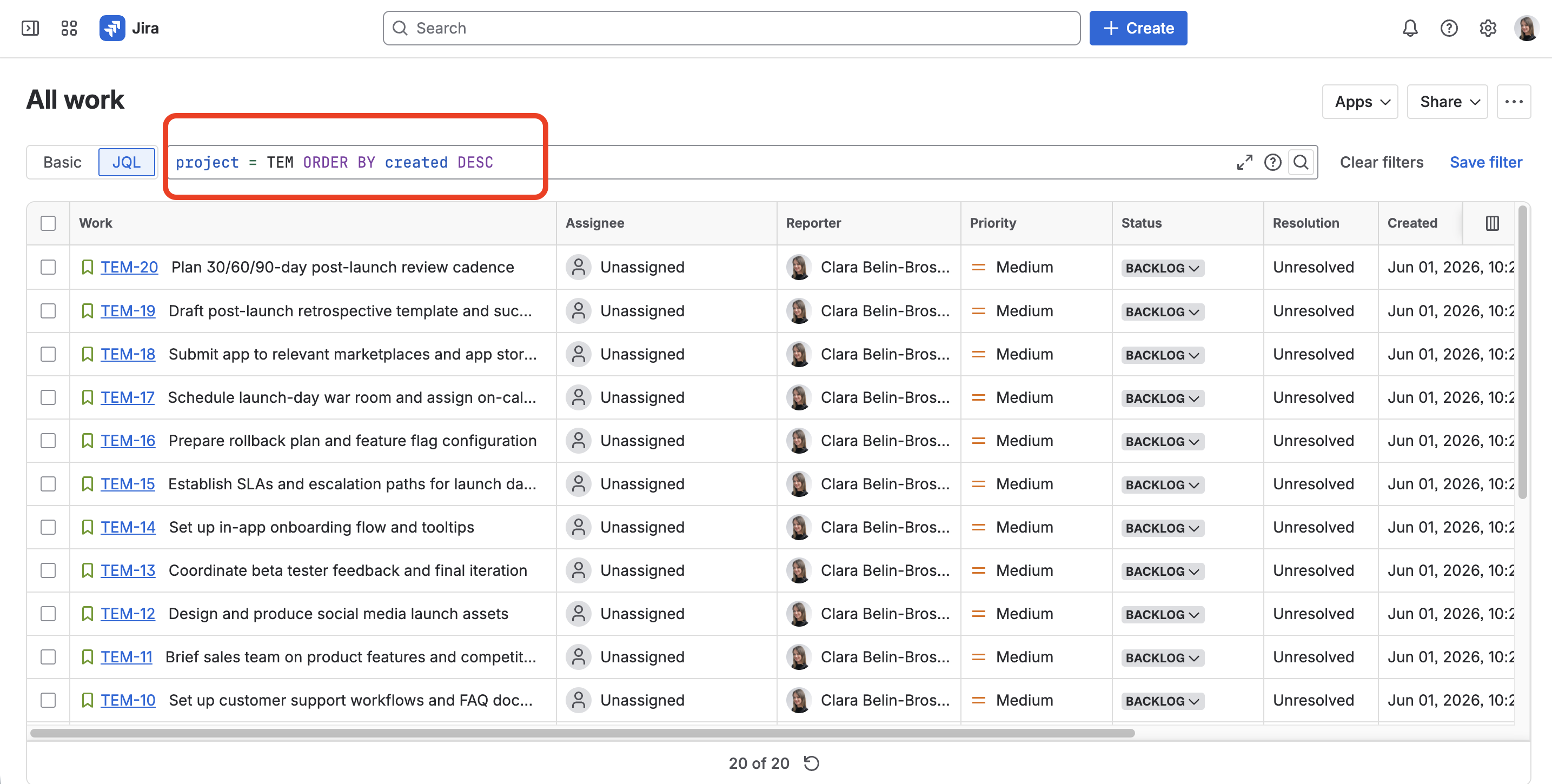
2 - Use the search options to select all the work items you want to clone at once.
In this example, we are going to list all the work items from project "Template", because these are the ones we want to clone.
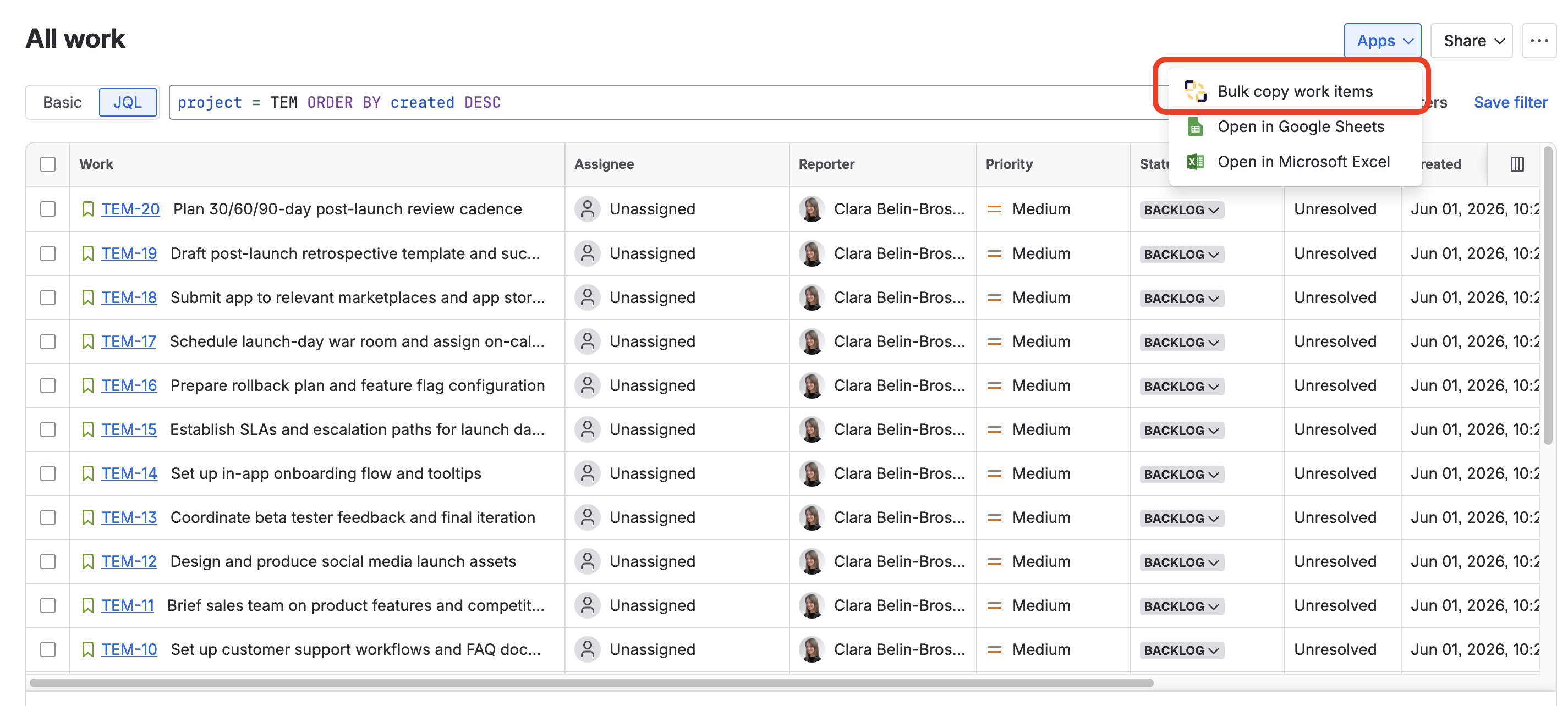
3 - Once the work items have been listed in the search result, click on the "Apps" button at the top-right of the page and choose "Bulk copy work items".
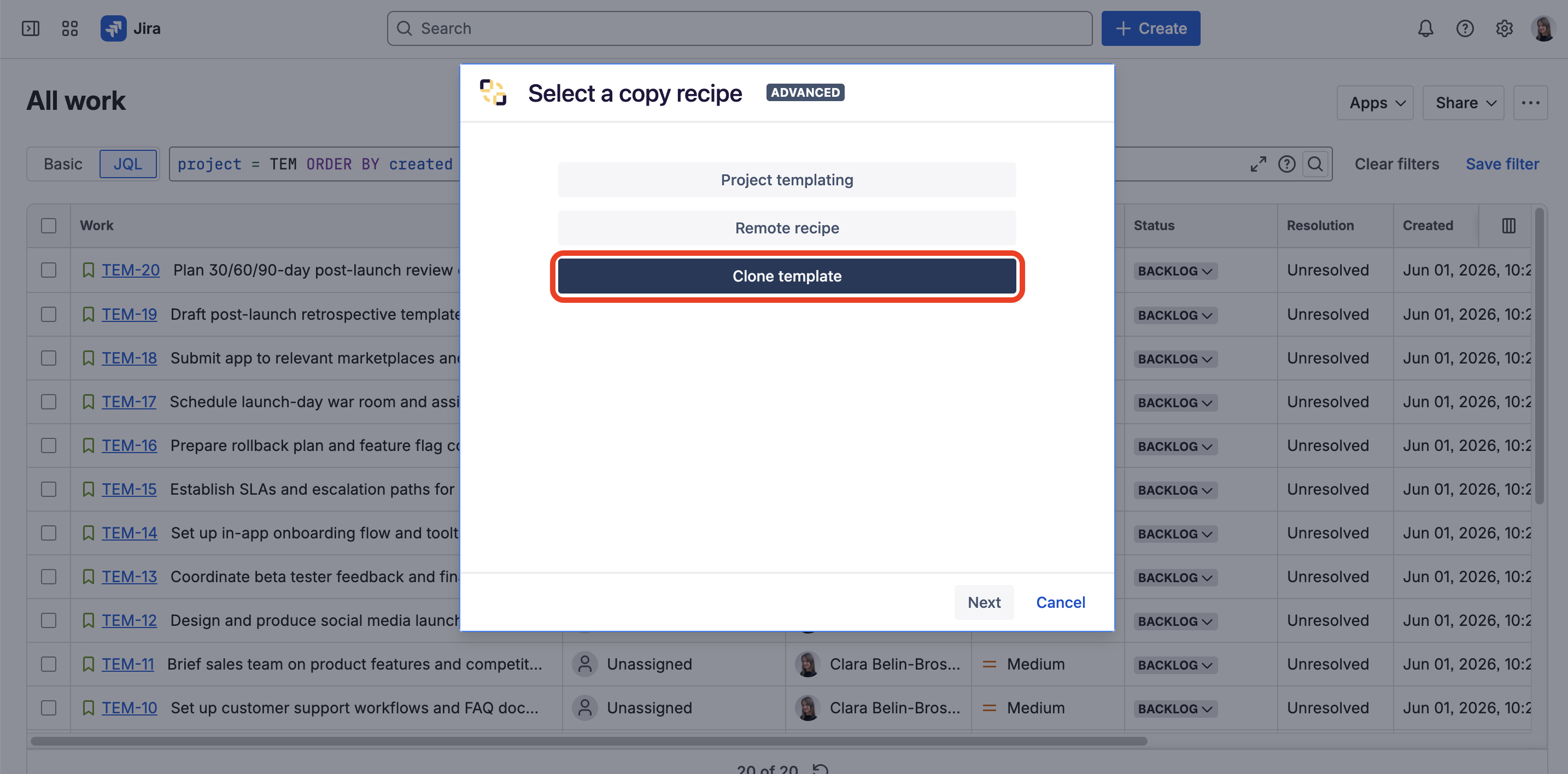
4 - In the dialog, select the recipe you want to use and click on the Next button.
Here, we are using the "Clone template" recipe.
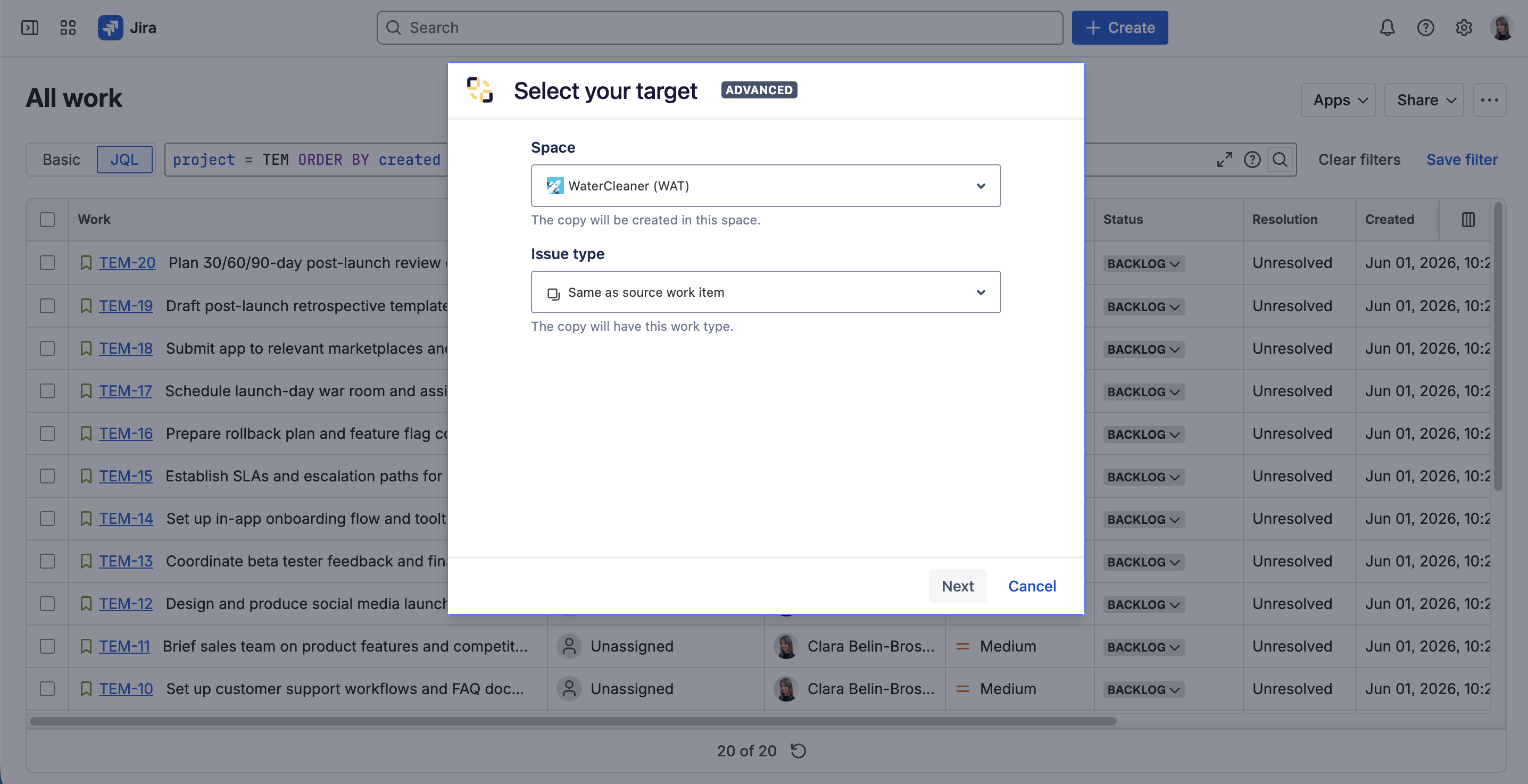
5 - In the target selection dialog, select where you want the copied work items to be created, and with which issue type. Then click on the Next button.
In this example, we want all the issues to be copied in the "WaterCleaner" project and to keep the same issue type.
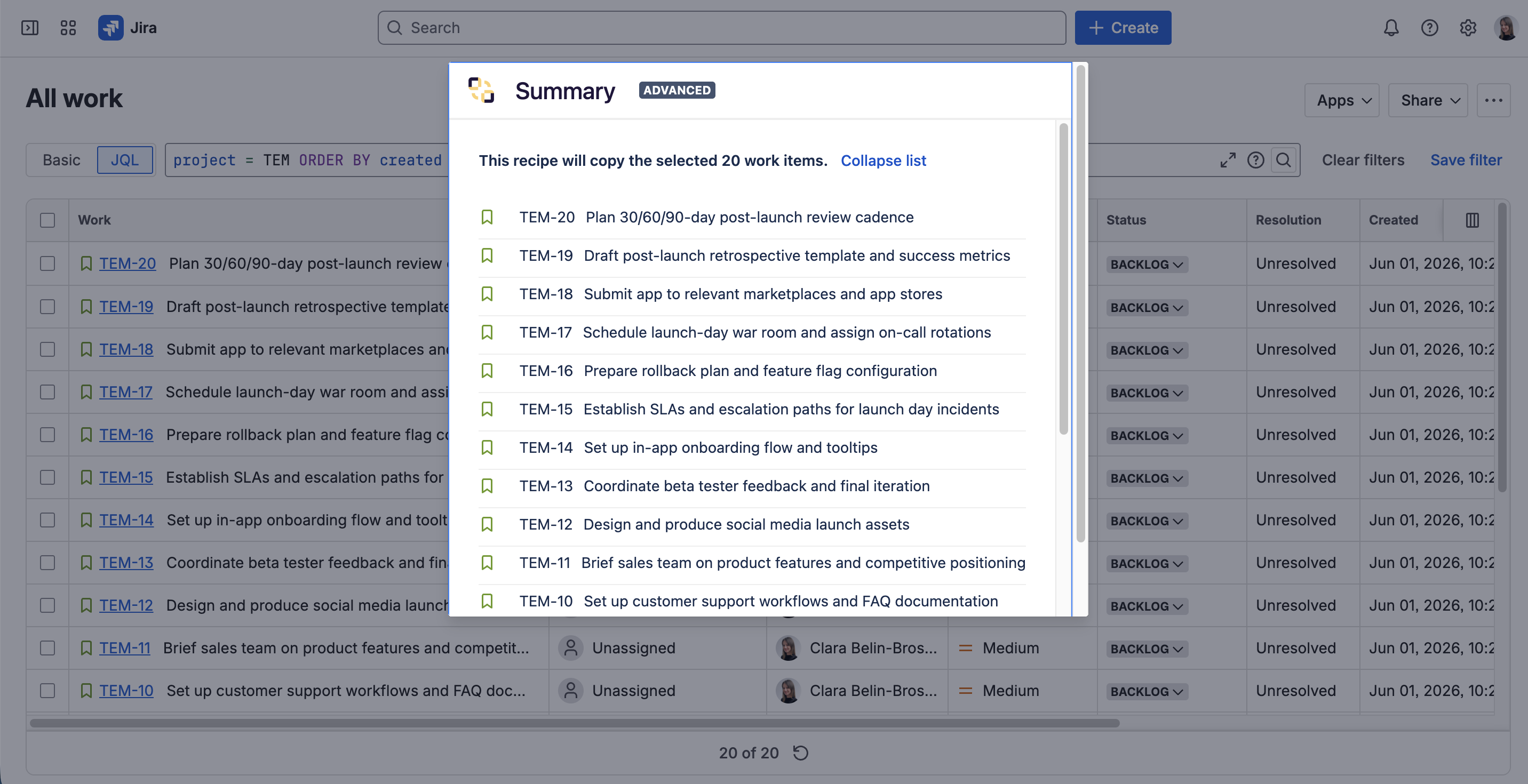
6 - The next screen summarizes the work items that are going to be copied. In this screen, you will be able to know if the selected work items are compatible with the recipe you are trying to use.
Click on the Submit button to actually trigger the bulk copy.
That's it, the bulk copy has been launched!
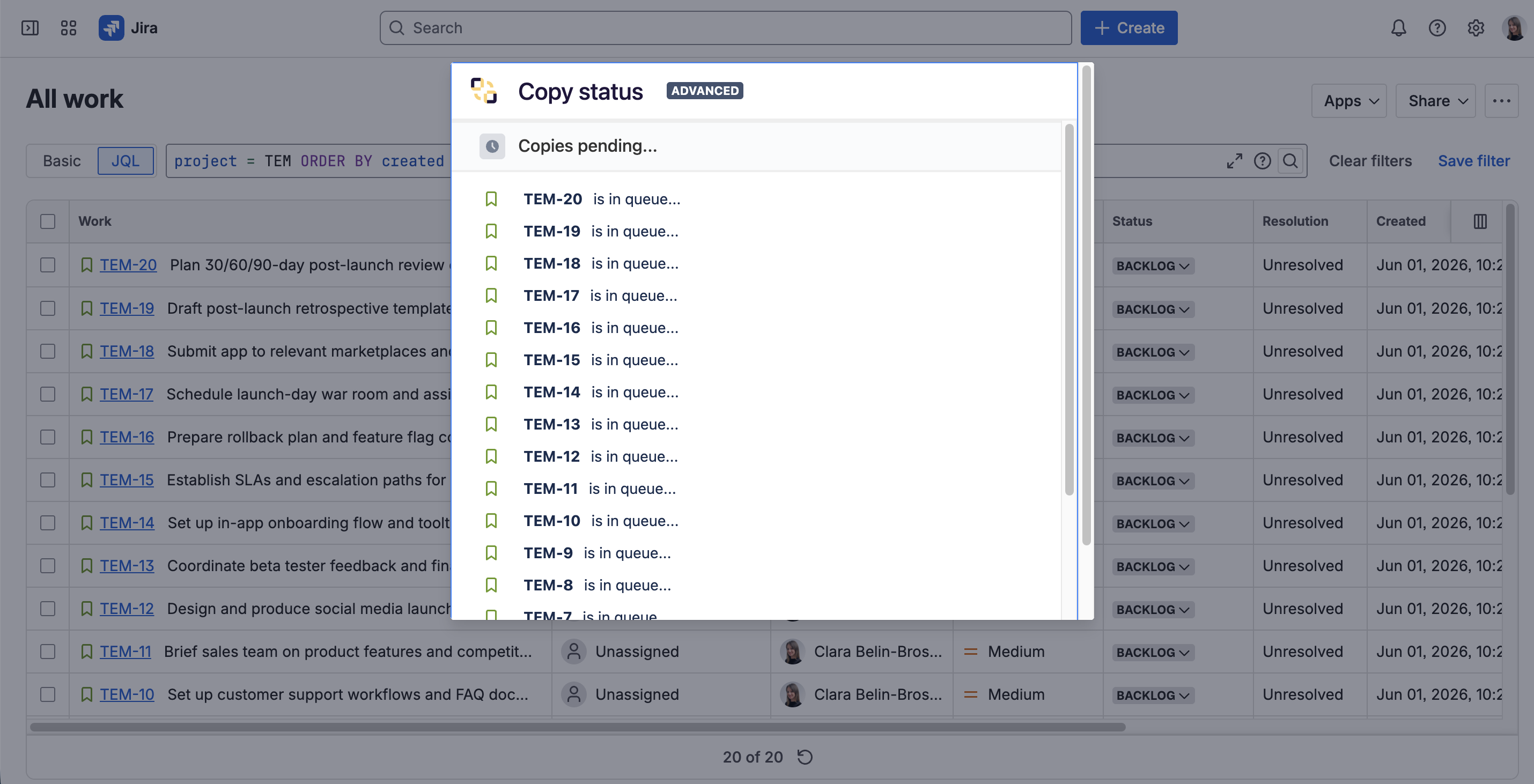
You can follow the progress of the bulk copy in real-time. If you need to stop the process, all the work items with a pending copy can still not be copied by clicking on the "Cancel" button.
You can close the dialog at any time, the bulk copy process will not be interrupted.
Result
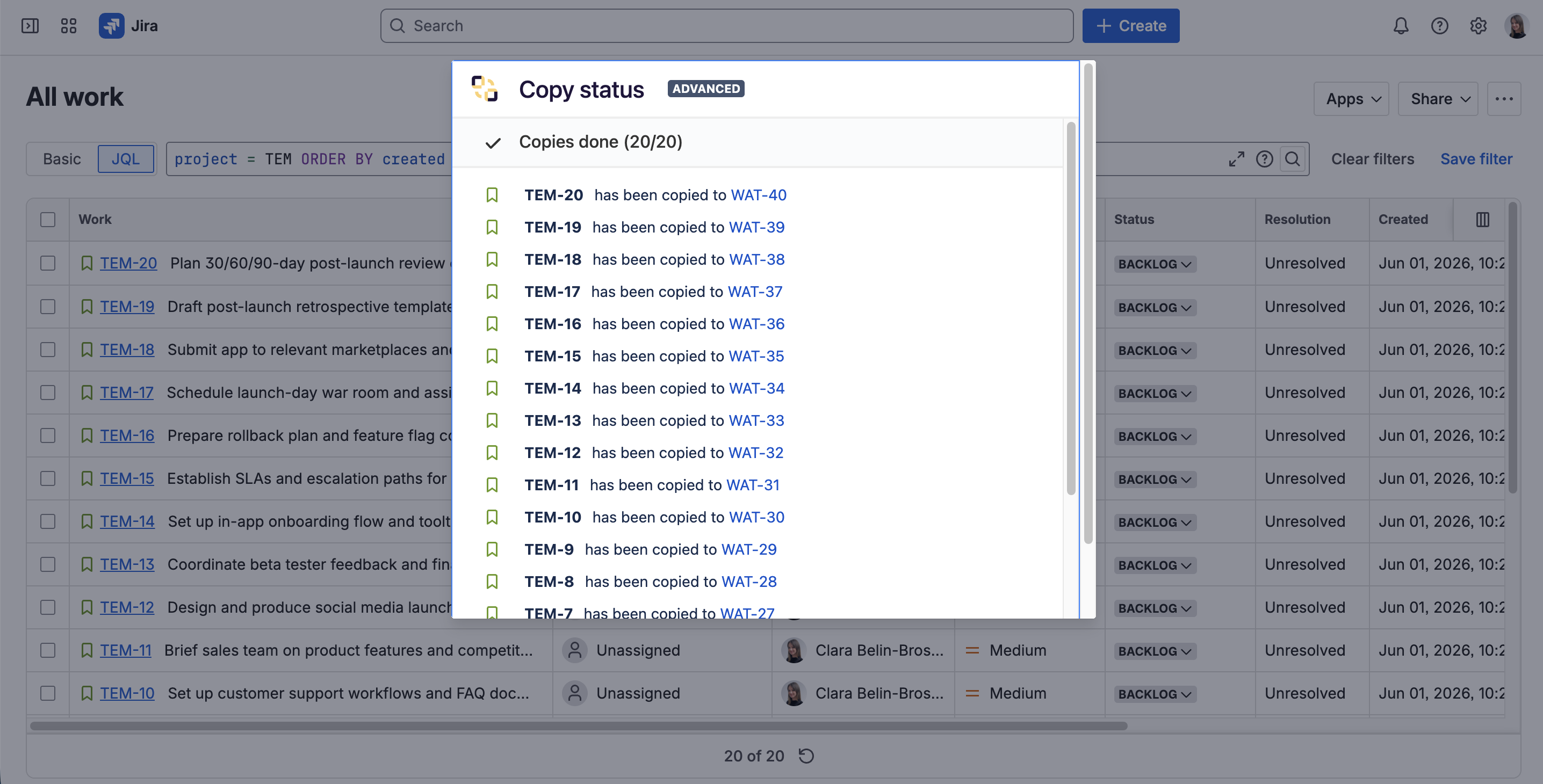
When the process is finished, you will be able to open any copied work item from the dialog.
📙 Read more on our blog on how to bulk clone Jira issues
FAQ
Can I bulk clone Jira issues across different projects?
Yes. When triggering the bulk copy, you select the target project and issue type for all cloned issues. As long as your recipe is available on the source issues and compatible with the target project, you can bulk clone Jira issues across any projects, making it ideal for copying a template project to multiple destinations.
What happens if some issues in my selection are incompatible with the recipe?
Elements Copy & Sync won't block the entire operation. A summary screen flags incompatible issues before you confirm, so compatible issues are cloned normally and incompatible ones are simply skipped. No need to pre-filter your selection manually.
Do I have to wait for the bulk clone to finish before using Jira again?
No. Once submitted, the bulk clone runs in the background, you can close the dialog and keep working in Jira immediately. You can reopen the dialog at any time to monitor progress or cancel pending copies if needed.
Why use Elements Copy & Sync to bulk clone Jira issues instead of another app?
Most Jira cloning apps stop at copying. Elements Copy & Sync goes further by letting you keep the cloned issues synchronized with the originals after the bulk copy so any updates to the source issues are automatically reflected in the copies. If you're managing a template project that evolves over time, this means you never have to bulk clone from scratch again.
•••
New to Elements Copy & Sync?
If this tutorial has stirred your imagination, why not give it a try?
• Try Elements Copy & Sync for free •
Migrating from Jira Data Center to Cloud?
Easily migrate Elements Copy & Sync with JCMA. Visit our Migration Hub to get started.