
TL;DR: Enable "Copy full hierarchy" and "Copy subtasks" in your recipe, then trigger it from the top-level issue. Elements Copy & Sync will automatically clone the entire Jira issue tree, preserving all parent-child relationships.
The need: clone a full Jira hierarchy tree
As a Project Manager, you likely use Jira to maintain a template project structured across multiple hierarchy levels: Epics, Stories, subtasks, and custom levels like Initiatives or Themes available in Jira Premium with Advanced Roadmaps. Manually recreating that full Jira issue hierarchy in a new project is time-consuming and error-prone, especially when hundreds of parent-child relationships need to be preserved.
The solution: copy the full Jira hierarchy of issues whatever the number of levels
With Elements Copy & Sync, you can clone a complete Jira issue hierarchy, from top-level Initiatives down to subtasks, in one click, to any project on your Jira instance. And if your template evolves over time, synchronization rules let you automatically propagate updates from the source hierarchy to all cloned issues, so your projects are always up to date.
Tutorial
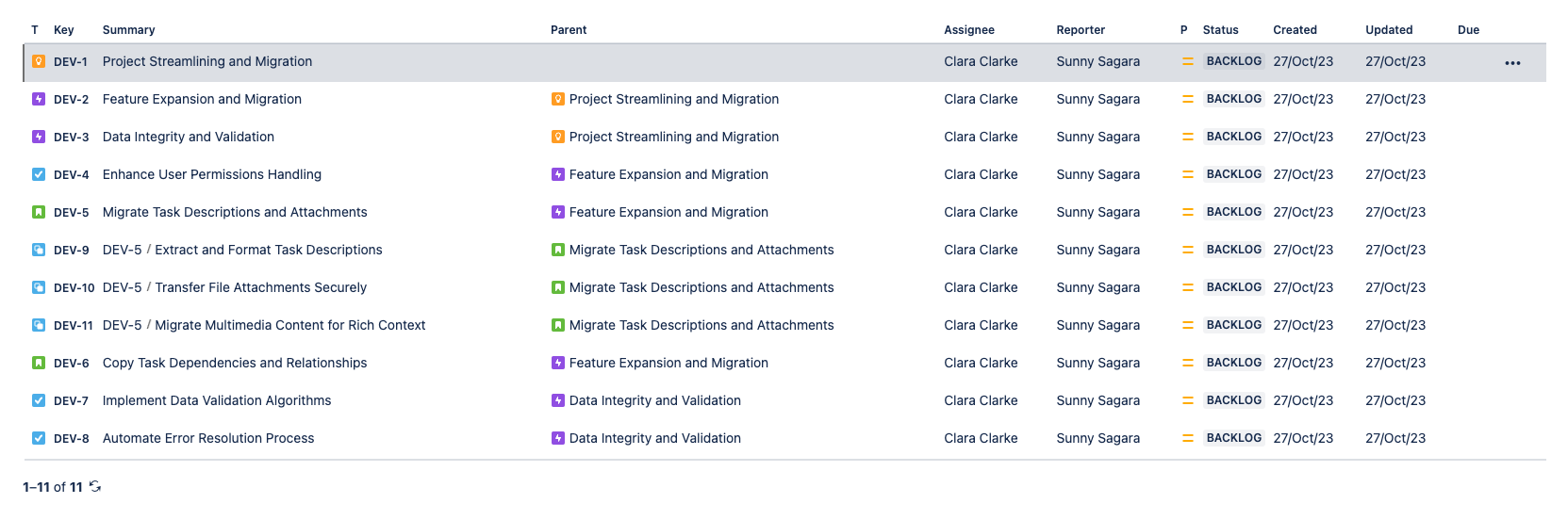
In this example, we will copy an Initiative (with the key DEV-1) which contains two Epics, some tasks, stories and subtasks (see the image below).
This guide explains how to clone the Initiative and its child issues with one single action.
Prerequisites
A recipe titled "Copy Full Hierarchy Tree" has been created, activated, and is available in project "Development".
Steps
1 - As a Jira administrator, go to the "Elements Copy & Sync Cloud" administration and click on Recipes in the navigation bar.
2 - In the Recipes listing page, select "Copy Full Hierarchy Tree" in the Active Recipes list.
3- In the Recipe configuration page, click on the Source tab.
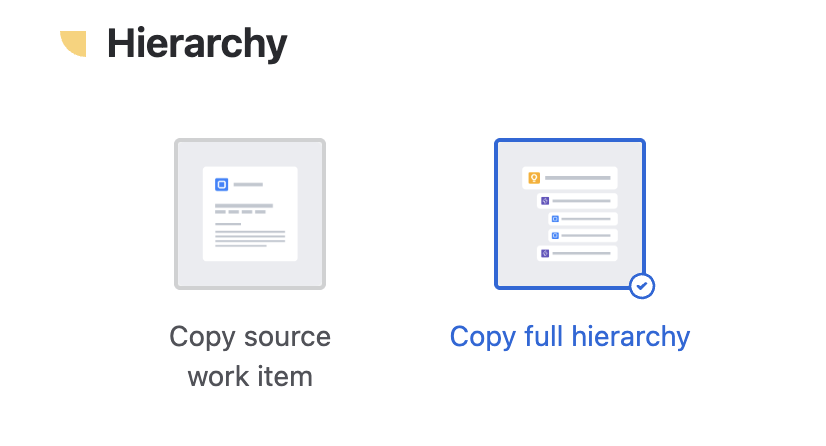
4 - In the "Hierarchy" section, select "Copy full hierarchy".
Important: Selecting work types for “Copy full hierarchy”
When configuring “Copy full hierarchy”, make sure that all work types from the hierarchy you want to copy are selected in your source settings.
If you limit the configuration to only certain work types (for example, only Epics and Stories), only those work items will be copied, and the rest of the hierarchy will be skipped.
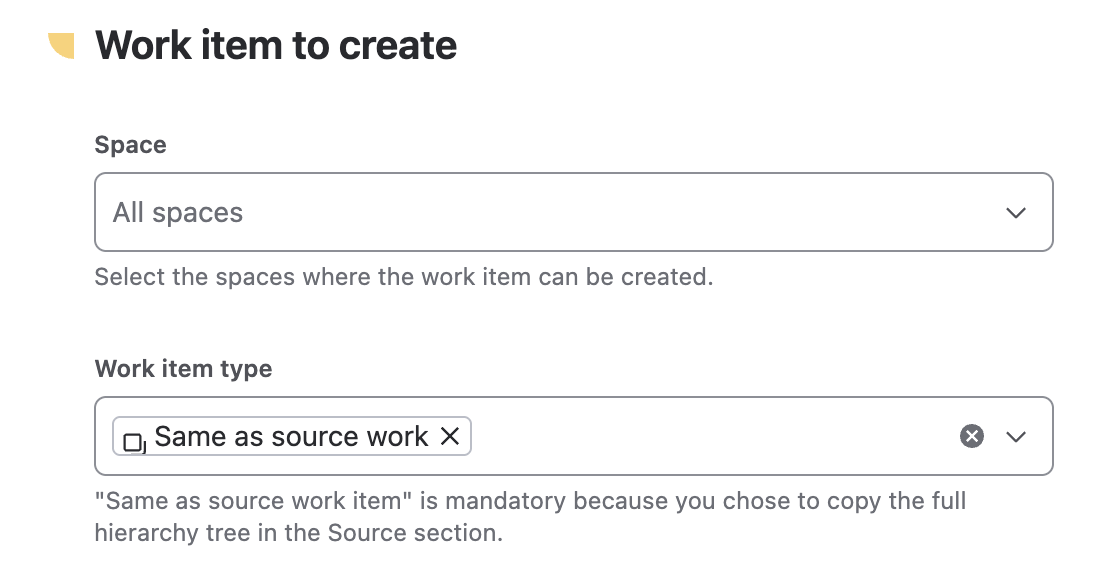
Once you have chosen to copy the full hierarchy, two options will be set automatically:
-
In the Target tab, the issue types will be "Same as source work item".
-
In the Content tab, the "Epic Name" is also mandatory for fields mapping in order to create an Epic.
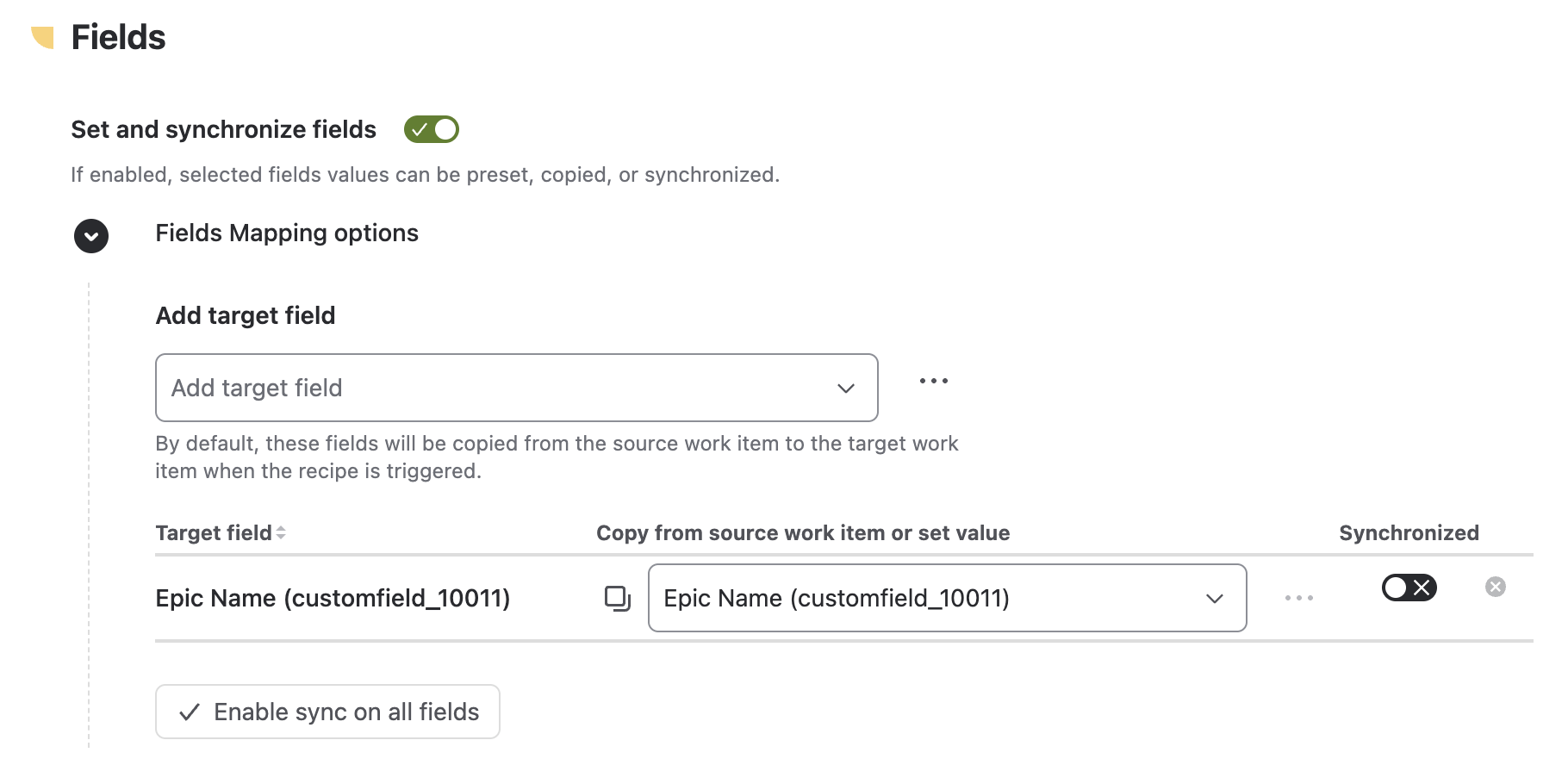
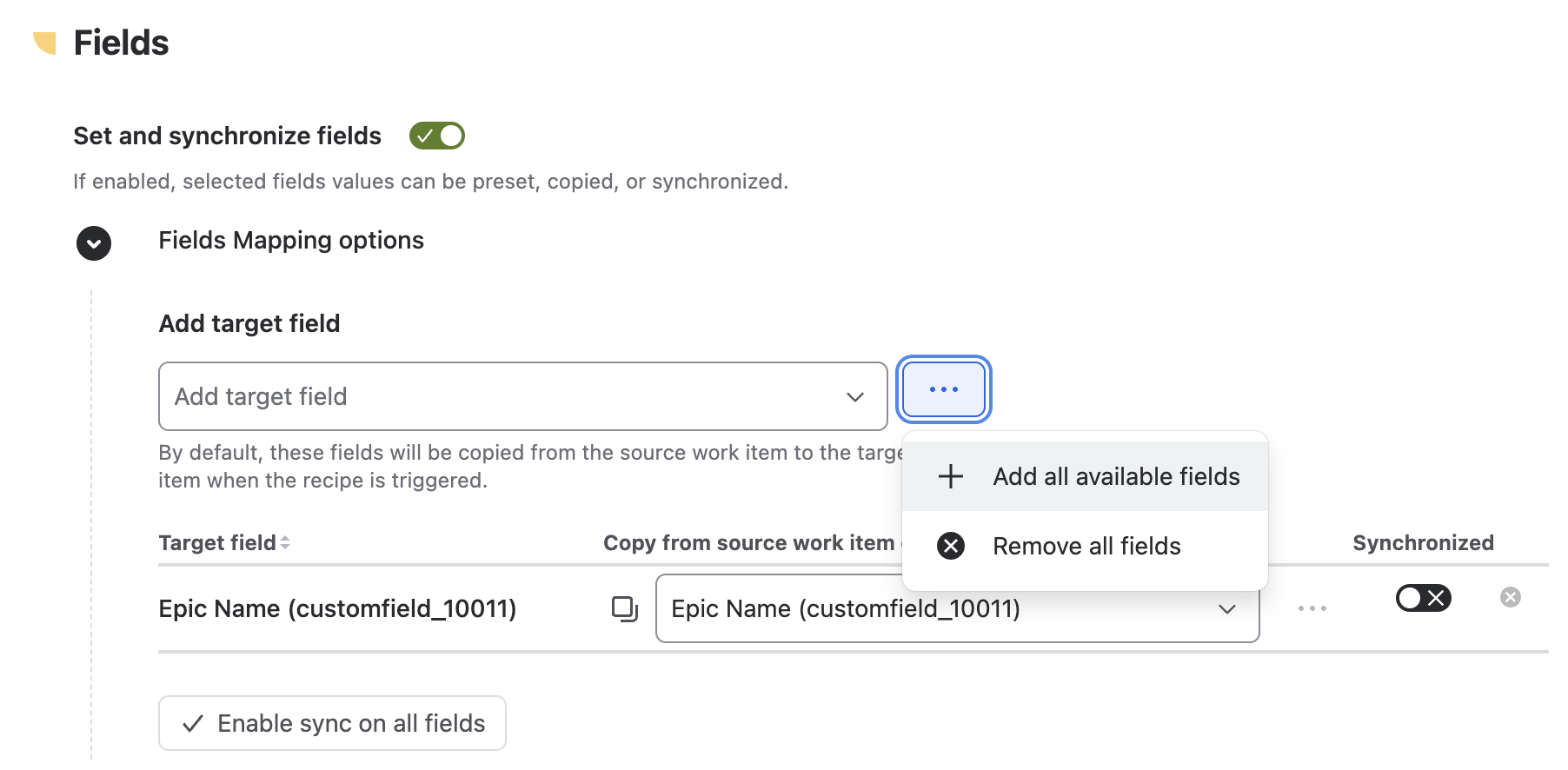
5 - On the Content tab, select the fields you want to copy. You can select all the fields at once by clicking on "Add all available fields".
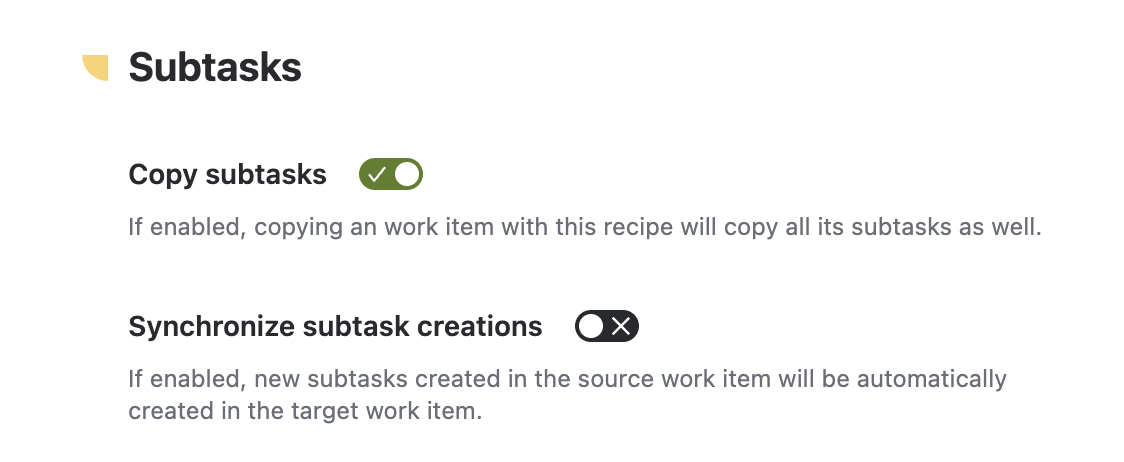
6 - In the "Subtasks" section, enable the Copy subtasks option.
7- Click on the Save button.
Result
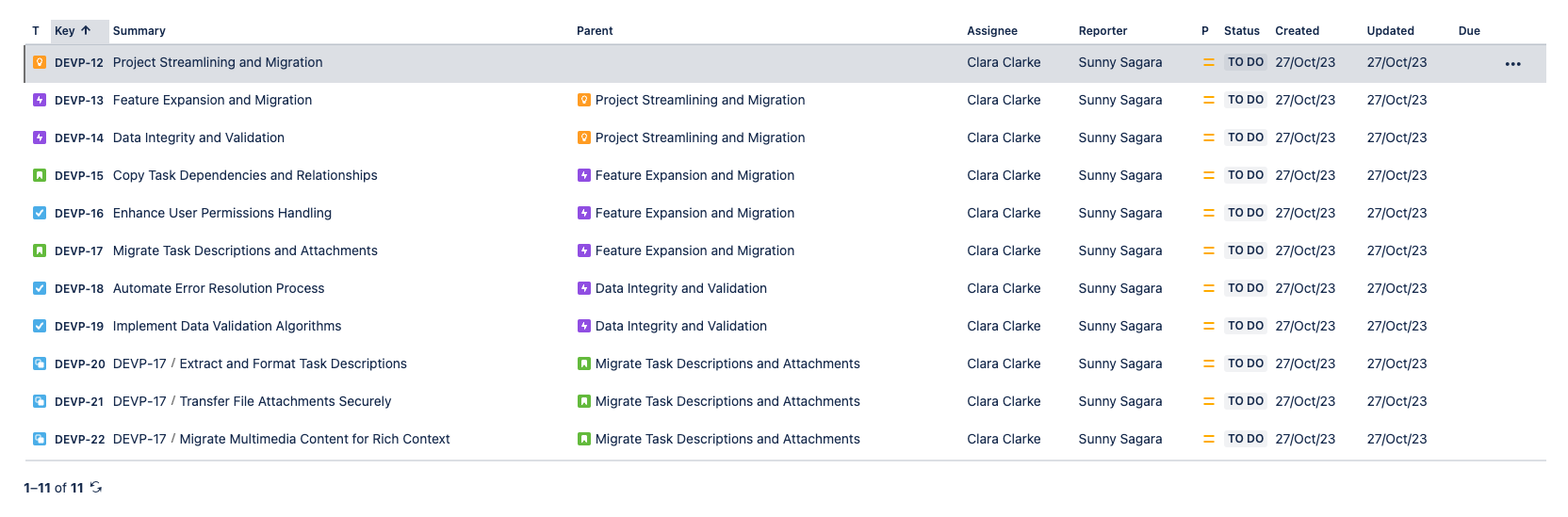
With this very simple configuration, when a user triggers the "Copy Full Hierarchy Tree" recipe from Initiative DEV-1, Copy & Sync will clone the Initiative to any target project along with all issues included in the hierarchy.
We can see below that the hierarchy has been cloned to the target project "Development Project".
📙 Read more on how to bulk clone epics to fill a new project in Jira
Can I clone a full Jira issue hierarchy including Epics, Stories, and subtasks in one action?
Yes. With the "Copy full hierarchy" option enabled in your Elements Copy & Sync recipe, cloning issues in Jira across multiple levels happens in a single action, from top-level Initiatives down to subtasks. You only need to trigger the recipe from the top-level issue; the app automatically handles the entire hierarchy below it.
Can I clone a Jira Epic with all its Stories and subtasks at once?
Yes. When "Copy full hierarchy" is enabled alongside "Copy subtasks", Elements Copy & Sync will clone the Jira Epic with all its Stories, tasks, and subtasks in one go, preserving all parent-child relationships in the target project. Make sure all relevant work types are selected in your source settings otherwise only the selected types will be cloned and the rest of the hierarchy will be skipped.
Is cloning a full Jira issue hierarchy different from cloning a Jira project?
They serve different needs. Cloning a full Jira issue hierarchy copies a single issue tree, one Initiative and everything beneath it, to any target project. Cloning a Jira project replicates the entire project content at once, including all hierarchies. If you're working with a Jira project management template that needs to be reused repeatedly, the hierarchy clone is more flexible as it lets you copy specific trees rather than the whole project.
Can I keep cloned Jira issues synchronized with the original hierarchy after copying?
Yes, and this is one of the key advantages of Elements Copy & Sync over basic Jira clone tools. Once the hierarchy is cloned, you can configure synchronization rules so that any updates to the source issues, field changes, status updates, or new content, are automatically reflected in the cloned issues. This is especially useful for teams using Jira project templates that evolve over time.
New to Elements Copy & Sync?
If this tutorial has stirred your imagination, why not give it a try?
• Try Elements Copy & Sync for free •
Migrating from Jira Data Center to Cloud?
Easily migrate Elements Copy & Sync with JCMA. Visit our Migration Hub to get started.