
The need: map different select values between Jira work items
When creating or synchronizing a work item, your source and target spaces may:
-
Use different single-select custom fields to represent the same business information (e.g., Customer Impact in JSM vs. Severity in Jira).
-
Use the same custom field, but with different contexts (where available options vary between the source and target spaces).
For example, a support team may qualify customer requests in a JSM project with a Customer Impact field using the values Critical, High, Medium, and Low. The engineering team may track the same information in a Jira space with a Severity field using the values Sev-0, Sev-1, Sev-2, and Sev-3. Without value mapping, users would need to manually translate these values after the issue is created or synchronized.
The solution: map source values to target values
With Elements Copy & Sync, you can define how each value from a source single-select field should be converted into a value from a target single-select field.
This capability works whether you are aligning two distinct fields or bridging context-specific option sets within the same field, ensuring issues are populated with the valid target option every time.
This lets each team keep its own specifics while ensuring that copied or synchronized issues are automatically populated with the right target value.
Tutorial
In this example, we will configure a recipe that clones a work item from a JSM project to a Jira space and keeps it in sync. We will focus on mapping relevant information between the different fields used by JSM and Jira teams, while preserving the same underlying business logic across both spaces.
This guide shows how to map the Customer Impact single-select custom field from the source JSM work item to the Severity single-select custom field in the target Jira work item, including how to align values that may be named differently but represent the same business meaning.
Prerequisites
-
A recipe called "Escalate to Dev Team" has been created, activated, and is available on the work item.
-
The source field Customer Impact is a single-select custom field with the following values: Critical, High, Medium, Low.
-
The target field Severity is a single-select custom field with the following values: Sev-0, Sev-1, Sev-2, and Sev-3.
The value mapping feature is available exclusively in the Advanced edition. Learn more about available plans and features on our App editions page.
Configuration steps
1 - As a Jira administrator, go to the Elements Copy & Sync Cloud administration and click on Recipes in the navigation bar.
2 - In the Recipes listing page, select the recipe you want to configure in the Active Recipes list.
3 - In the Recipe configuration page, click on the Content tab.
4 - In the Add target field option, select Severity, as this is the field we want to set in the target issue. The field is added to the mapping table.
5 - On the Severity line, select Customer Impact in the Copy from source work item column.
6 - On the Severity line, click on the 3-dots button and select the Value mapping option.
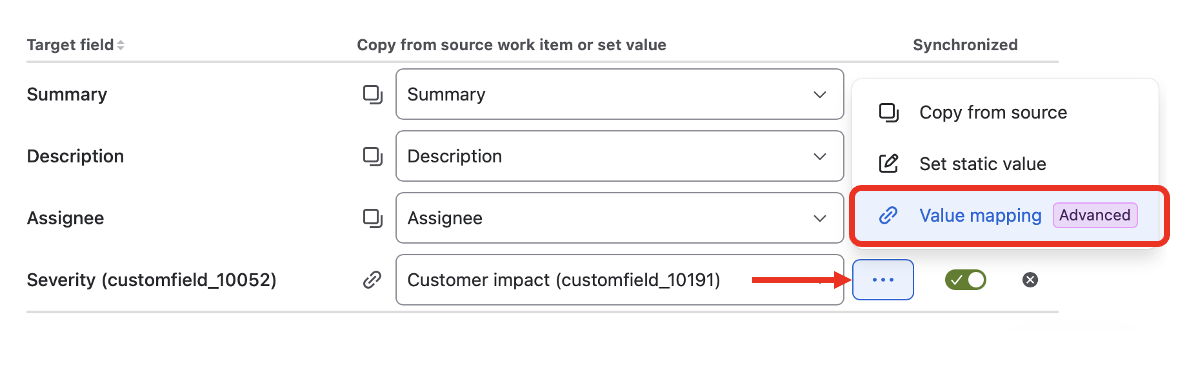
7 - In the value mapping configuration, define which Severity value should be used for each Customer Impact value:
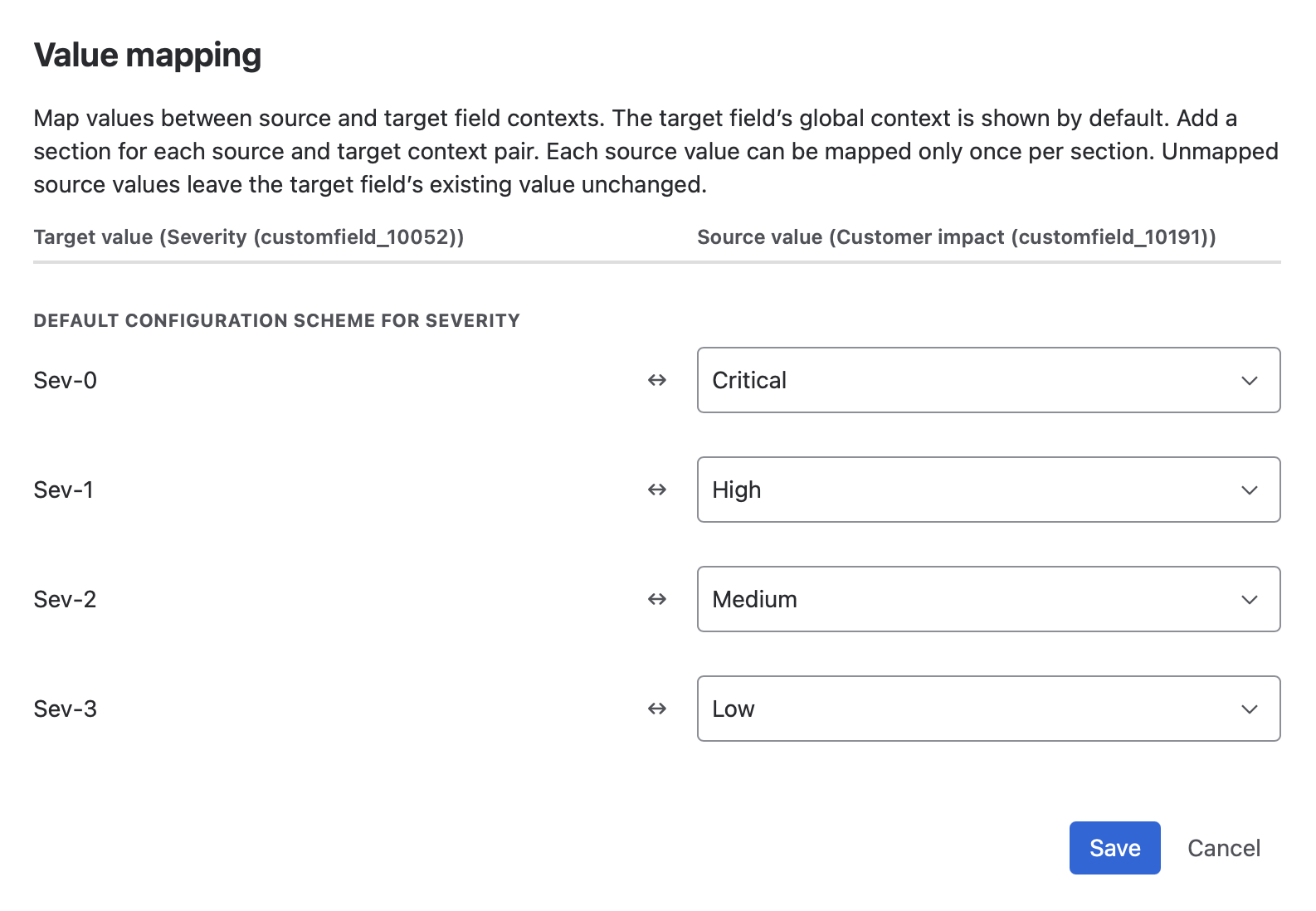
8 - Save the value mapping configuration.
9 - Click on the Save button to save the whole recipe.
Result
With this configuration, when a user applies the recipe from a JSM issue, Elements Copy & Sync automatically reads the Customer Impact value and sets the corresponding Severity value on the target Jira work item. For example, if the source issue has Customer Impact = Critical, the target issue will be created or updated with Severity = Sev-0.
Not all fields can use value mapping. As of now, value mapping is designed for single-select custom fields. Looking to map other fields? Reach out to our Support team to share your use case - we’d love to hear more about your needs.
New to Elements Copy & Sync?
If this tutorial has stirred your imagination, why not give it a try?