
The need: clone all issues of a project with different hierarchical structures
As a Project Manager, you likely use Jira to maintain a template project with hundreds of issues spanning multiple hierarchy levels: Epics, Initiatives, Themes, and subtasks. Manually recreating that structure in a new project is time-consuming and error-prone, especially when parent-child relationships need to be preserved.
The solution: clone Jira issues from search or filter results using the "Copy full hierarchy"
Thanks to Elements Copy & Sync, it is possible to clone all these issues at once based on a Jira search result or a Jira Filter, keeping the hierarchical structure.
Tutorial
In this example, we will copy all the issues from a project "Template" to a project "WaterCleaner".
The issues will keep all their information, as well as their issue types and parents, thanks to a Copy & Sync recipe titled "Copy Project Template".
Prerequisites
A recipe titled "Copy Project Template" has been created, activated, and is available in project "Template".
This recipe copies all the fields from the source issue.
The bulk clone feature is available exclusively in the Advanced edition. Learn more about available plans and features on our App editions page.
Steps
In the Elements Copy & Sync administration
1 - As a Jira administrator, go to the "Elements Copy & Sync Cloud" administration and click on Recipes in the navigation bar.
2 - In the Recipes listing page, select "Copy Project Template" in the Active Recipes list.
3- In the Recipe configuration page, click on the Source tab.
4 - In the "Hierarchy" section, select "Copy full hierarchy".
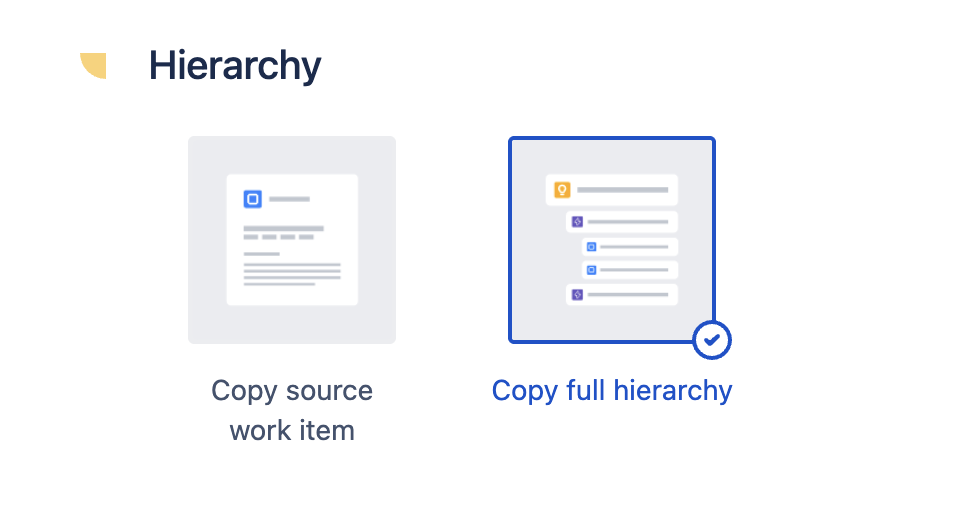
Important: Selecting work types for “Copy full hierarchy”
When configuring “Copy full hierarchy”, make sure that all work types from the hierarchy you want to copy are selected in your source settings.
If you limit the configuration to only certain work types (for example, only Epics and Stories), only those work items will be copied, and the rest of the hierarchy will be skipped.
5- In the Recipe configuration page, click on the Content tab.
6 - In the "Subtasks" section, enable the Copy subtasks option.
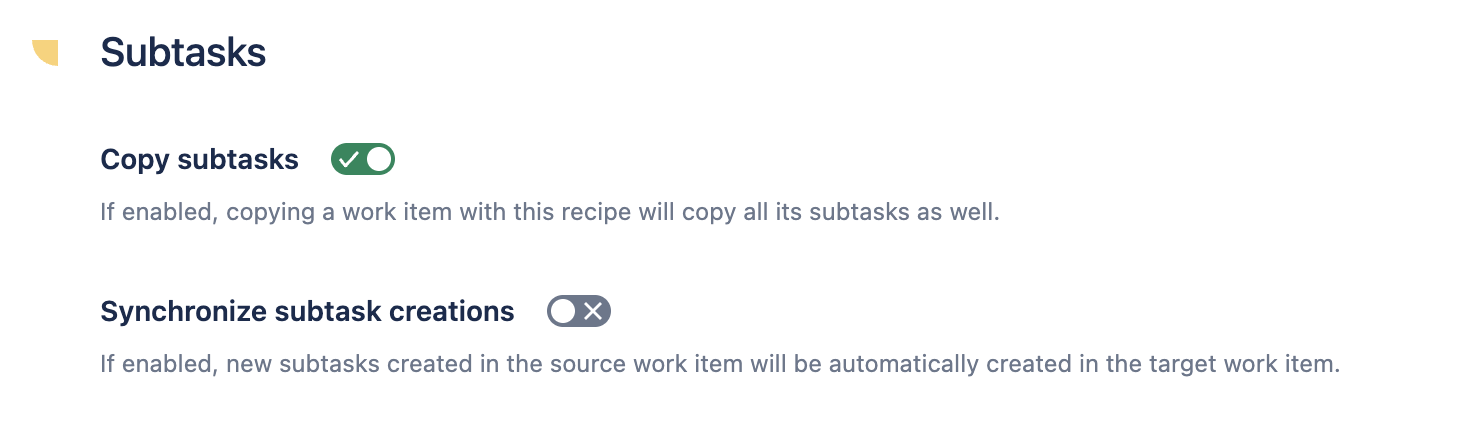
7- Click on the Save button.
In the Jira project
8 - As a user with access to the "Template" project, click on Filters then open the View all work items search.
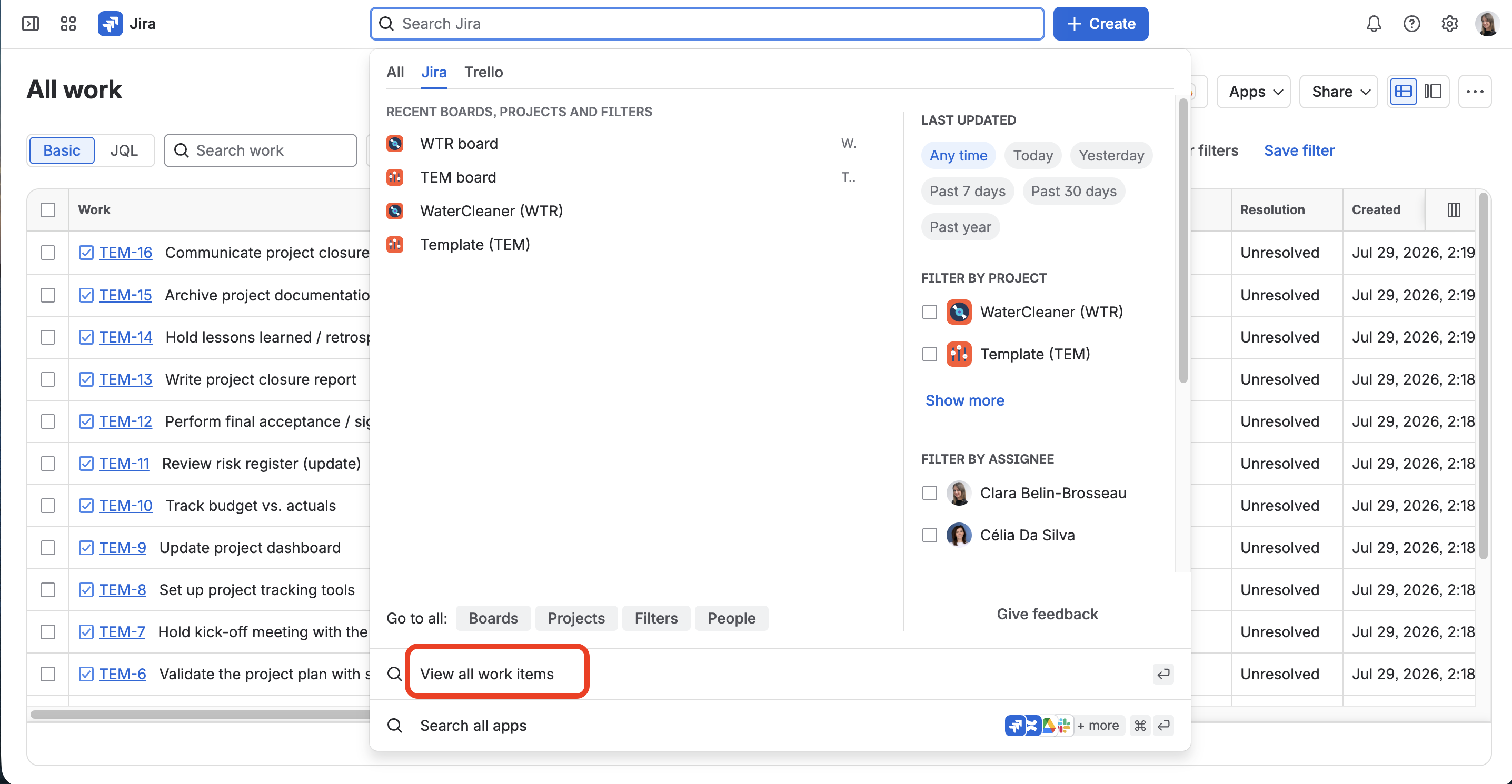
In this example, we are going to list all the issues from project "Template", because these are the ones we want to copy.
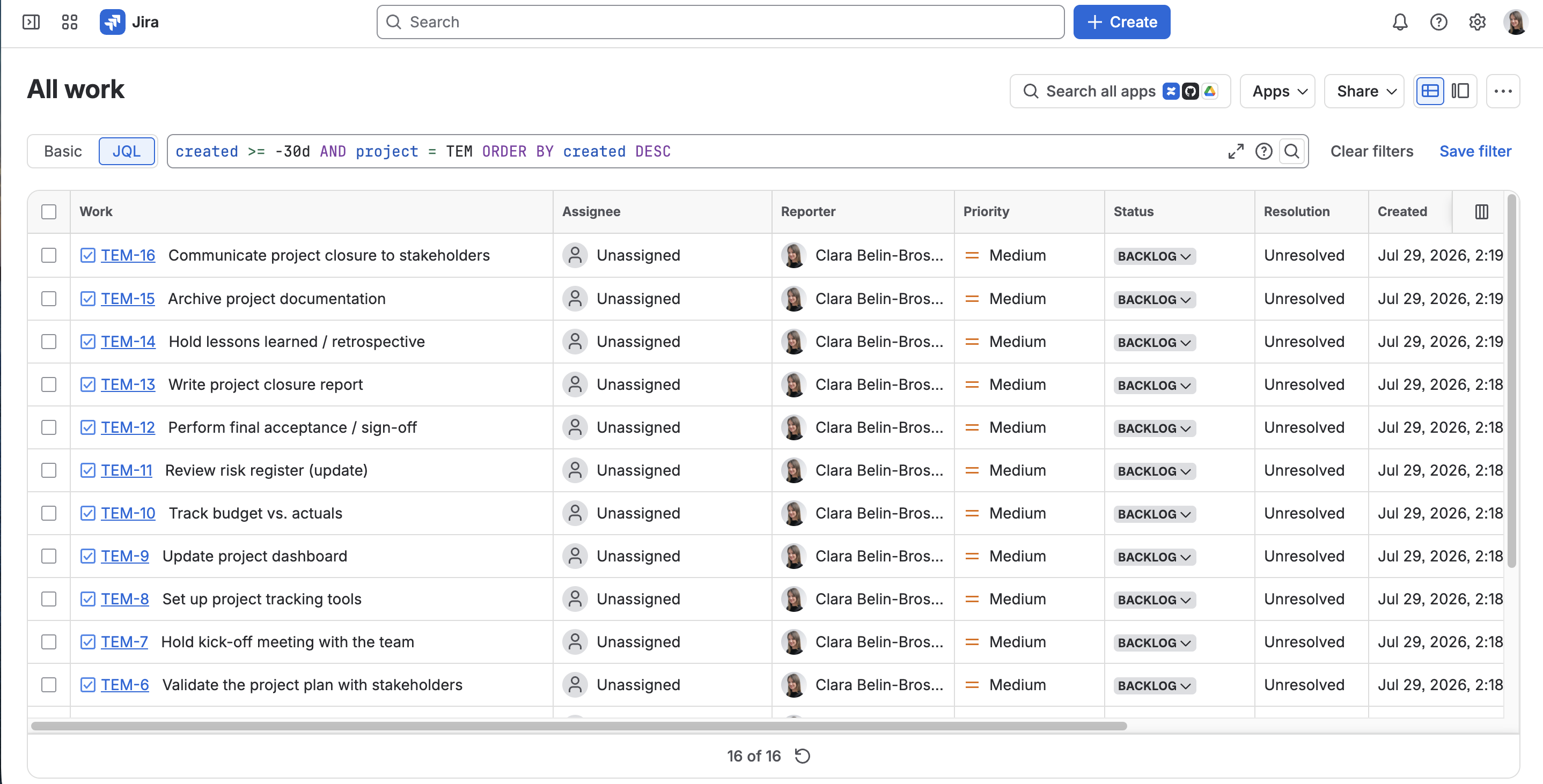
9 - In order to copy the entire project using the option "Copy full hierarchy", we only need to display issues with no parent, meaning the issues at the highest level of the hierarchy (your project can contain several hierarchies). Why? Because with the option "Copy full hierarchy", you only need to trigger the recipe from an issue at the highest level of a hierarchy and all the issue tree will be copied.
In this example, at the highest level of each hierarchy, we have one Initiative and two Epics.
Displaying the right issues
MANDATORY: In order to display ONLY the issues at the highest level of the hierarchy, you must add parent = NULL to your JQL query.

10 - Once the issues have been listed in the search result, click on the Elements Copy & Sync logo at the top-right of the page (or the "Apps" button depending on your instance and choose "Bulk copy work items").

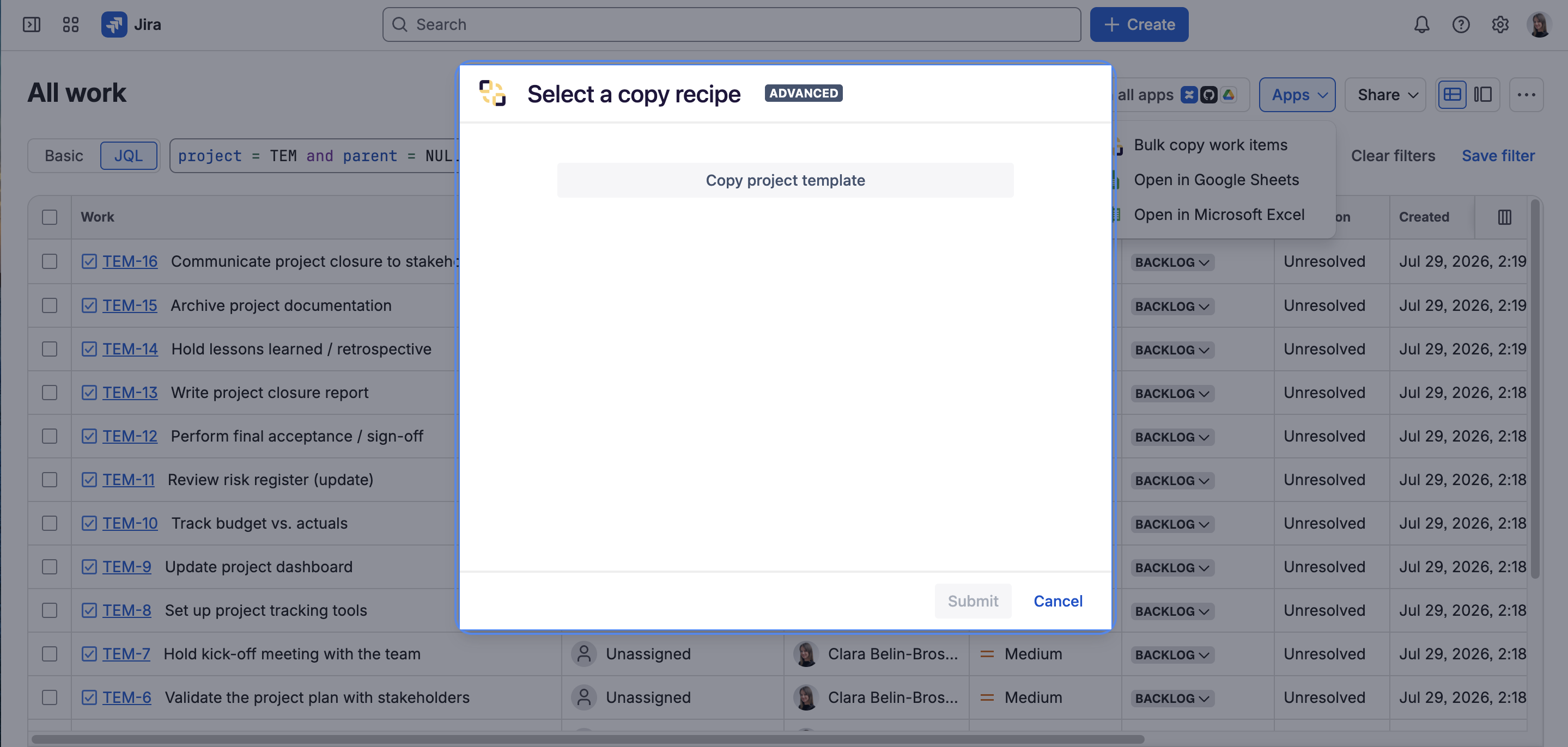
11 - In the dialog, select the recipe you want to use and click on the Next button.
Here, we are using the "Copy Project Template" recipe.
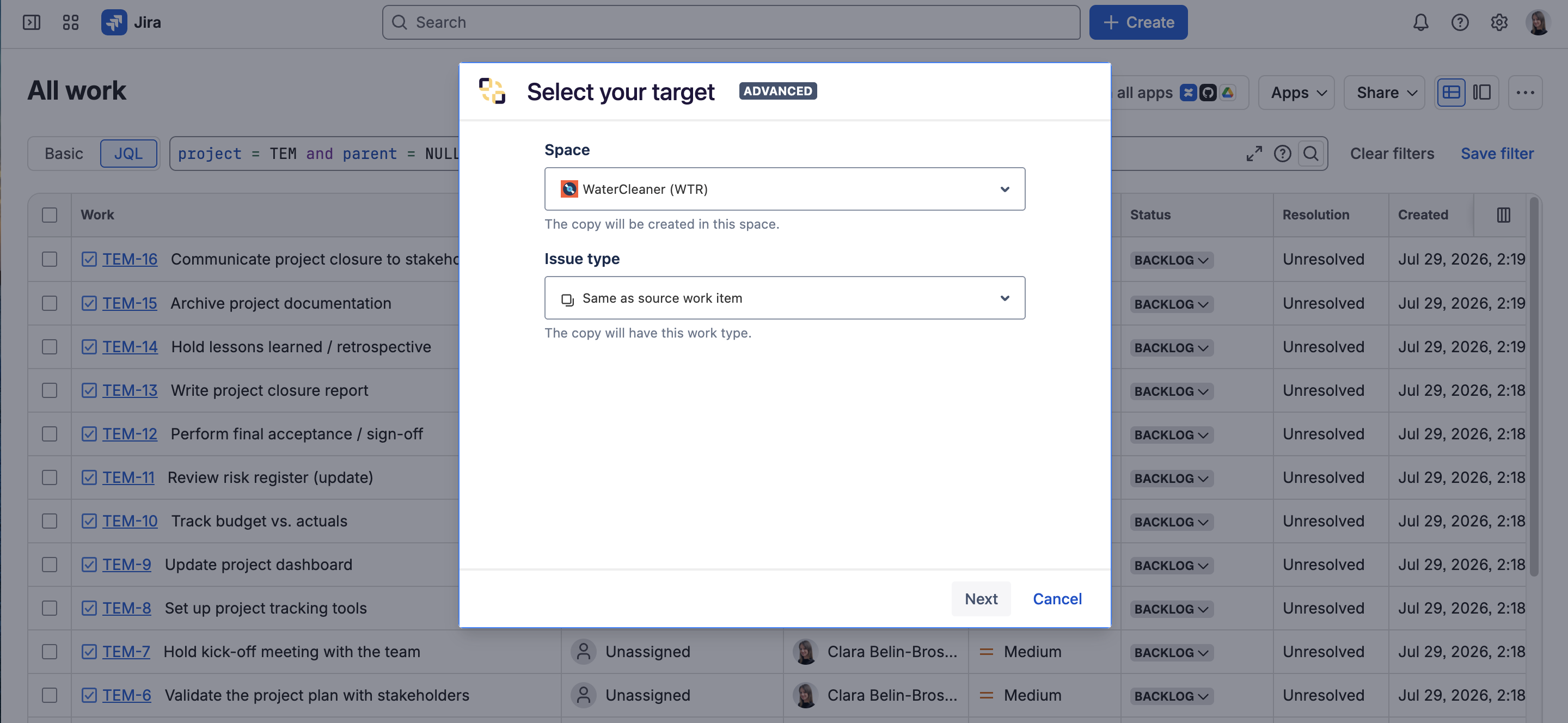
12 - In the target selection dialog, select where you want the copied issues to be created, and with which issue type. Then click on the Next button.
In this example, we want all the issues to be copied in the "WaterCleaner" project and to keep the same issue type.
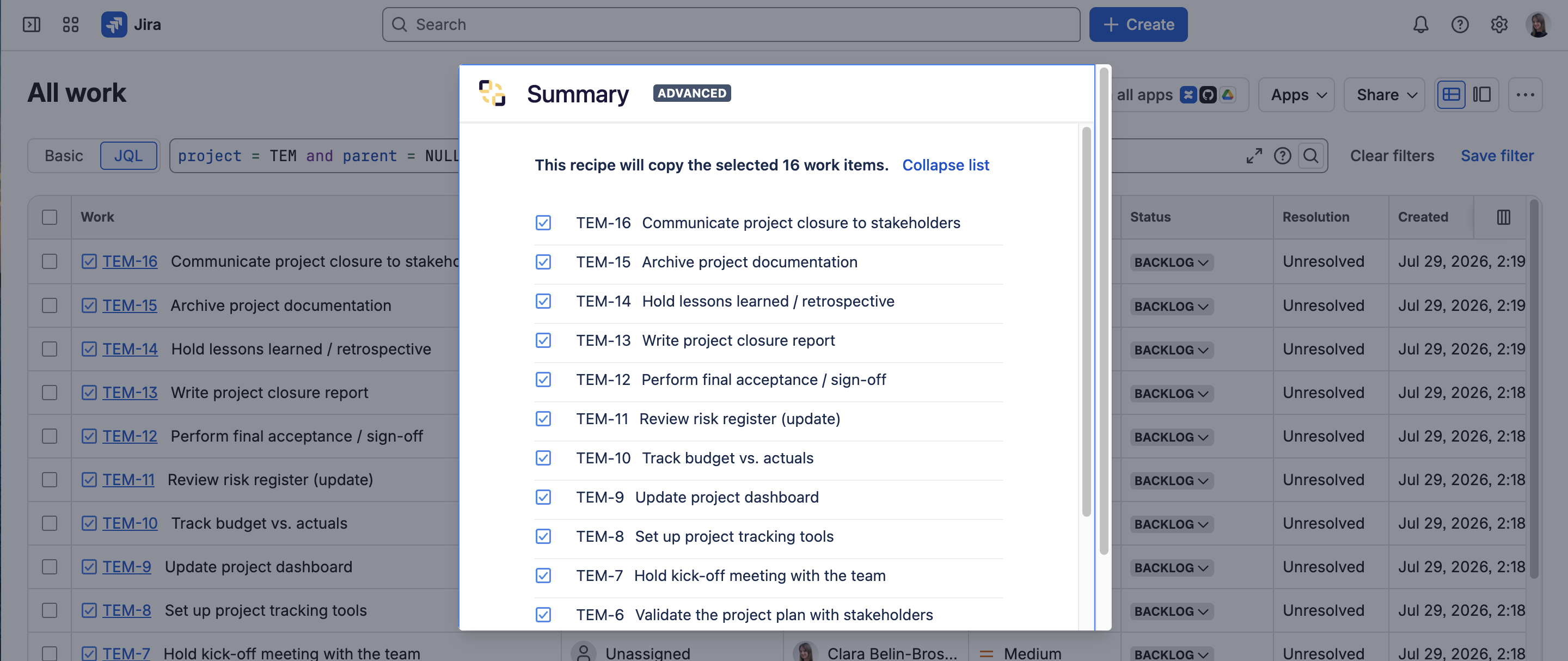
13 - The next screen summarises the issues that are going to be copied (only the issues listed in the search result will be shown but all the hierarchy will be copied). In this screen, you will be able to know if the selected issues are compatible with the recipe you are trying to use.
Click on the Submit button to actually trigger the bulk copy.
You can follow the progress of the bulk copy in real-time. If you need to stop the process, all the issues with a pending copy can still not be copied by clicking on the "Cancel" button.
You can close the dialog at any time, the bulk copy process will not be interrupted.
Result
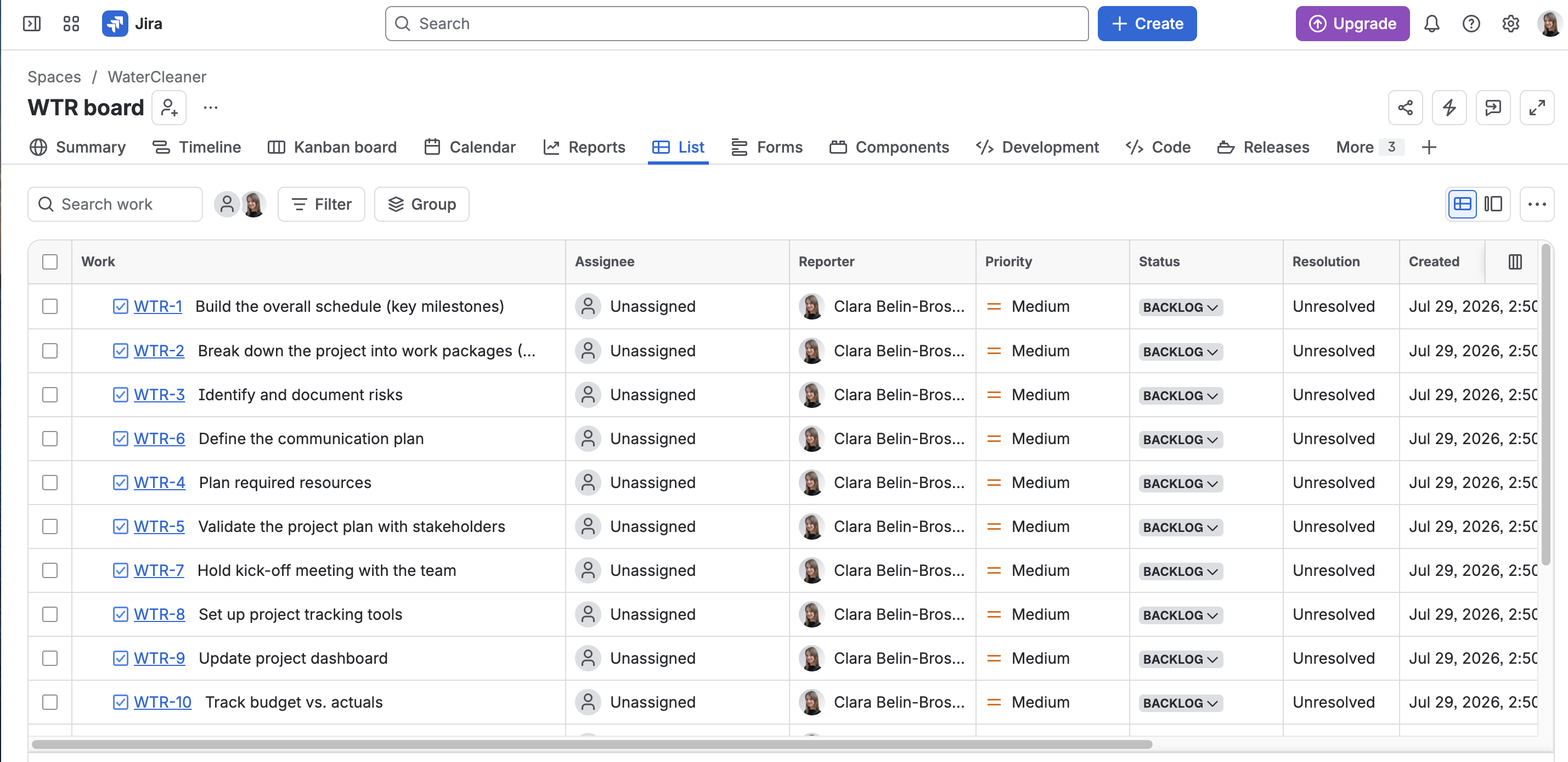
When the process is finished, you will see all the issues with the respected hierarchy in your new project.
Articles you might be interested in:
FAQ
Do I need Jira Premium or Advanced Roadmaps to clone a full Jira issue hierarchy?
Not necessarily. The "Copy full hierarchy" option works with any Jira hierarchy, including standard Epics and Stories. However, if your Jira project uses hierarchy levels above the Epic, such as Initiatives or Themes, those are only available in Jira Premium with Advanced Roadmaps. The bulk clone feature itself requires the Advanced edition of Elements Copy & Sync regardless of your Jira plan.
Why do I need to filter for top-level issues only when cloning a Jira project structure?
Because "Copy full hierarchy" works top-down: when you trigger the recipe from a top-level issue, Elements Copy & Sync automatically copies the entire Jira issue tree beneath it: children, grandchildren, and subtasks included. If you select all issues instead, child issues would be copied twice: once as part of their parent's hierarchy, and once individually.
Will parent-child relationships be preserved when I clone Jira issues across projects?
Yes. Elements Copy & Sync reconstructs the full Jira issue hierarchy in the target project, maintaining the same parent-child relationships as in the source. Epics will contain the same Stories, Initiatives will contain the same Epics, and so on, even if the issue keys change in the new project.
What happens if my source and target projects use different Jira issue types?
You can handle this in the target selection step, where you define which issue type each cloned Jira issue should use in the destination project. If the work types don't match between projects, make sure to map them explicitly, otherwise incompatible issues will be flagged in the summary screen before you submit, and skipped during the copy.
•••
New to Elements Copy & Sync?
If this tutorial has stirred your imagination, why not give it a try?
• Try Elements Copy & Sync for free •